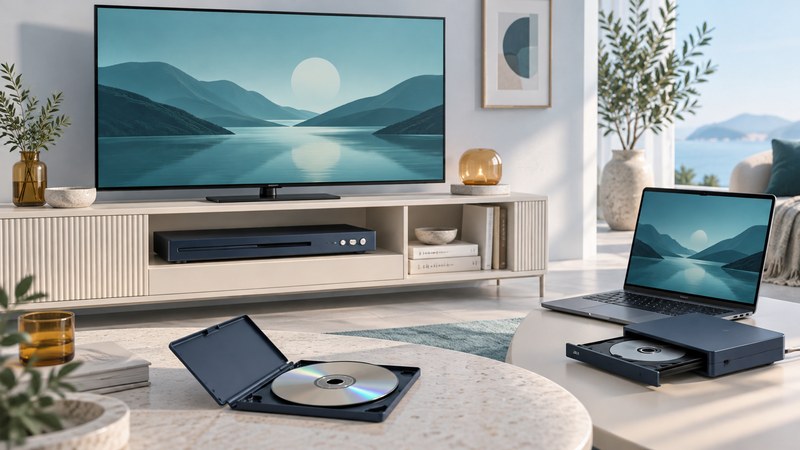
You can watch a DVD through a compatible player connected to a television, a computer with an optical drive and playback software, a disc-equipped game console, or a portable player with its own screen. Start with what you already own, then check the disc, connection, and sound before buying anything.
Compare the ways to play a DVD
| Route | What you need | Best starting question |
|---|---|---|
| Standalone DVD player | Player, TV, compatible cable, remote, and suitable disc | Does its output match the TV, and does it support your disc region and formats? |
| Blu-ray or UHD Blu-ray player | A model that explicitly supports DVD, connected to your screen | Does its supported-disc list include the DVDs you own? DVD upscaling is a separate feature from Blu-ray playback. |
| Windows PC or Mac | Compatible built-in or external DVD drive and DVD playback software | Can the computer recognize the drive and can the application play a movie DVD? |
| Game console | Supported console with a working compatible disc drive and completed setup | Is this the disc-capable variant, and is its playback feature or app ready? |
| Portable DVD player | A self-contained player, headphones if wanted, and a suitable power source | Are the screen, controls, battery, and disc support suitable for the viewer? |
DVD, Blu-ray, and Ultra HD Blu-ray are different formats. Read the supported-disc list for the exact hardware. For example, Sony’s BDP-S1700K specifications distinguish DVD upconversion from Blu-ray playback. An enlarged DVD picture does not become the detail of a native HD or UHD release.
Connect a player to a television
- Inspect the ports. Match the player’s HDMI OUT to an available HDMI input on the TV. Follow the manuals and switch equipment off before connecting.
- Select the TV input. After turning on the equipment, choose the input that matches the cable, such as HDMI 2.
- Start a known-good DVD. Use the player remote to navigate the disc menu, select the feature, and choose language or subtitles.
- Check sound and shape. Confirm the intended TV speakers or audio system are selected. Set screen shape appropriately and check faces for stretching.
Sony’s TV connection guide provides separate routes for disc players, computers, and USB storage. A computer USB DVD drive is a peripheral; a TV’s USB port does not establish support for controlling it or playing DVD menus. Use a documented compatible setup.
For an older player, identify composite or component video and the separate audio outputs. Match the labels in both manuals. Converting between analog video and HDMI requires appropriate active conversion equipment; a cable with different plugs alone is insufficient. Compare that extra equipment with a directly compatible player.
Watch on a Windows PC or Mac
A USB optical drive supplies disc-reading hardware. Your computer also needs compatible software for movie playback. Check the drive’s operating-system support, USB connector, and power requirements; connect it as its manufacturer directs.
Windows: an explicit DVD playback route
- Connect the drive and insert the disc. Check that Windows recognizes the drive.
- Install a compatible DVD playback application from its official source. VideoLAN’s official VLC download is one option; use the build appropriate for your computer.
- In the documented VLC desktop interface, select Media → Open Disc, choose DVD, select the correct drive, and press Play.
- Use the disc menu for the movie, audio, and subtitles. Test your actual disc; software support does not guarantee every title or damaged recording will work.
These menu steps follow VideoLAN’s desktop disc-playback documentation. Seeing files in File Explorer establishes that a drive can read something from the disc; use the playback application to navigate a DVD movie.
Mac: use DVD Player with a compatible drive
Connect a supported DVD drive and insert the movie. Open DVD Player if it does not start automatically, then use its playback controls and disc menu. Apple’s DVD Player instructions cover movie discs and DVD movie folders. Choose guidance for your macOS version and confirm the drive’s compatibility.
For other computers and operating systems, verify the complete drive-and-application combination first. A matching USB connector alone is insufficient. To show a computer’s playback on a TV, use a supported display connection and select the intended audio output as well.
Check the console you already own
A compatible disc-equipped console may save you buying a separate player. Identify the exact model and variant, then complete setup before planning an offline viewing.
- PlayStation: Sony’s PS4/PS5 disc guidance lists supported DVDs. PS4 requires one-time online enabling of disc playback. PS5 models need a compatible disc drive; the original CFI-1000 Digital Edition cannot play discs, while certain later models can accept the specified add-on drive. Follow the drive’s setup instructions.
- Xbox: on a supported disc-equipped console, install the Blu-ray Player app using Xbox’s setup instructions. Check the hardware variant: Xbox Series X specifications include both disc-drive and all-digital versions.
Test a DVD after setup, including menus, sound, and subtitles. Separate installation or activation requirements from the connection needed during ordinary viewing. Do not assume a digital-only console accepts a generic external USB optical drive.
Check the disc before replacing the player
- Region: compare the numbered globe on the disc/case with the player’s supported region. Sony’s region guide identifies the United States and Canada as Region 1. Confirm imports rather than relying on a seller’s broad compatibility claim.
- Video system: check PAL/NTSC support separately from region, including the player’s supported output to your screen.
- Home recordings: check physical media, recording mode, and finalization. A DVD holding computer files has different playback requirements from an authored movie DVD.
- Languages and accessibility: verify the actual disc’s audio and subtitle choices and the controls needed to select them.
- Condition: inspect the disc and compare it with a known-good compatible copy before diagnosing the whole setup.
Changing a computer drive’s region can be limited. Apple’s region-setting instructions describe a five-setting limit including the original setting. Read your drive’s rules before accepting a region-change prompt.
For choosing editions, evaluating used copies, and storing a collection, use the DVD buying and collecting guide.
Start with the symptom
| Symptom | Check next |
|---|---|
| Computer does not show the drive | Check its connection, approved power arrangement, and OS support. Try the manufacturer’s recommended direct USB connection. |
| Drive appears but the movie does not start | Open a DVD-capable application and select the correct disc drive; identify whether this is a movie DVD or a data disc. |
| No picture on TV | Select the connected input and test a known-good cable. Verify the player’s supported output signal. |
| Picture but no sound | Check mute, chosen audio track, output device, and the audio formats your TV or receiver accepts. |
| Stuttering or repeated freeze | Compare another compatible disc, inspect condition, and test the suspect disc in another suitable device. |
| Region warning | Compare disc and player region; read the manual before changing a drive setting. |
| Home recording works only in its recorder | Check recording mode and finishing status in that recorder’s manual. Preserve the recording; avoid erase/format prompts. |
| Picture looks stretched | Review screen-shape and zoom settings. Side bars or top/bottom bars can preserve the film’s intended proportions. |
Change one thing at a time and note the result. A successful test should include starting the feature, playing a later chapter, hearing dialogue, and selecting any subtitles you need. This is more useful than stopping when a menu or file list first appears.
Practical guides and format explainers
Choose equipment, solve a playback problem, or preserve an existing recording. Start with the task you need to complete.
Choose equipment
 How to Choose the Best DVD Player for Your Setup
Compare DVD players by the discs, connections, controls and listening setup you actually need, with a reusable selection checklist.
 Portable DVD Players: Choosing One for Travel and Offline Viewing
Compare screens, controls, disc support, and power, then test a portable player before a trip.
Connect and play
 DVD Playback Software: Watch Discs on a Windows PC or Mac
Set up a compatible optical drive and playback application, then check DVD menus, sound, subtitles, region and common errors.
 How to Watch DVDs on a Projector
Connect a DVD source to a projector, plan the sound, and check picture shape and playback before movie night.
 DVD/VCR Combo Players: Connections, Recording and Home Videos
Identify what each deck can do, connect both DVD and VHS playback, and plan a careful transfer of home recordings.
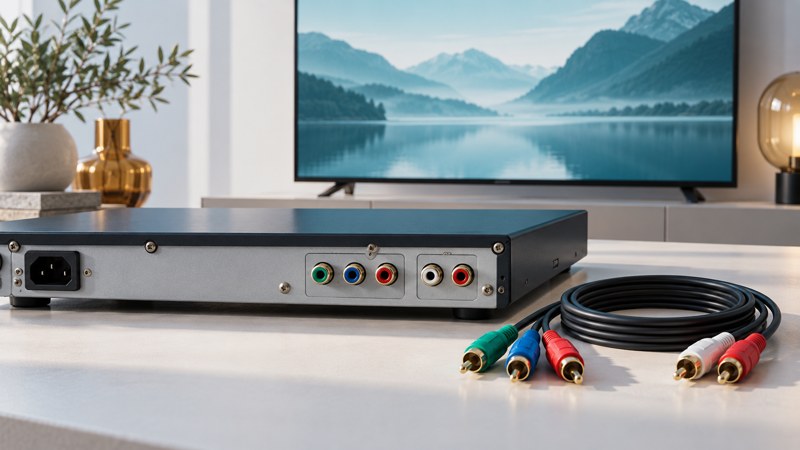 Progressive-Scan DVD Players: 480p, Component Video and HDMI
Understand progressive scan and upscaling, check older component-video connections, and decide whether adapting a DVD player is worthwhile.
 DVD Surround Sound: Connections, Settings and Missing Dialogue
Trace the audio from the DVD soundtrack to your speakers, choose compatible output settings, and troubleshoot stereo-only or missing-channel sound.
 Using a DVD Player for CDs: Formats, Sound and Everyday Controls
Check audio-CD and file-disc support, connect a DVD player to a stereo system, and test whether it works comfortably without a television.
Record and preserve
 8X DVD Media: Recording Speed, Disc Types, and Playback
Identify a recorded DVD, understand its speed rating, and check the format and finalization needed for playback.
 DVD Writers: Choose a Drive, Burn a Disc and Verify the Result
Match a DVD writer to your computer and media, distinguish data burning from movie authoring, and check the finished disc.
 Toshiba HDD/DVD Recorders: Identify, Play and Preserve Recordings
Find the right Toshiba recorder manual, distinguish HDD and DVD recording formats, and plan a checked transfer of important recordings.
 TiVo DVD Recorders: Models, Service Checks and Saving Recordings
Identify older TiVo DVD equipment, check account and service dependencies, and understand a documented route for saving eligible recordings.
Understand format history
 WMV HD: High-Definition Movies on DVD-ROM Explained
Understand how WMV HD used DVD media, distinguish it from DVD-Video and HD DVD, and assess codec and licensing limits for old discs.