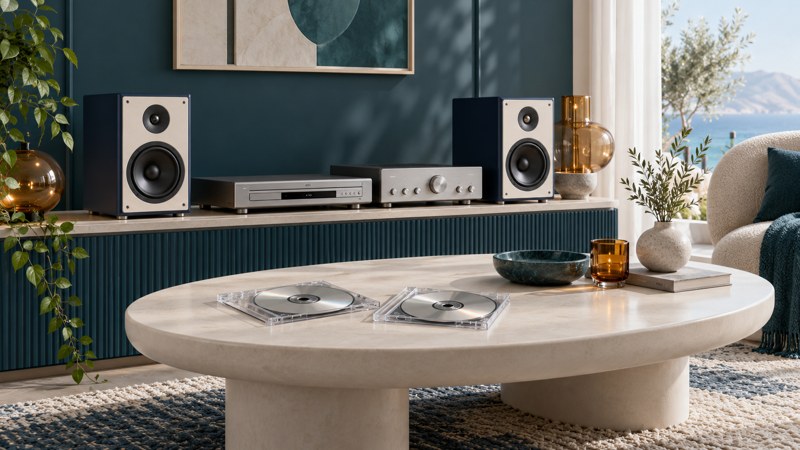
Many DVD players can also play audio CDs, making one machine useful for films and music. Check the exact model’s disc list and audio connections, then try the listening routine you want: selecting a track, reading the display and changing discs with the TV off.
Read the music format, not just the disc shape
| Disc or content | Question for the manual | Practical test |
|---|---|---|
| Commercial audio CD | Does it list CD-DA or audio CD? | Start a track, skip forward and back, and check both speakers. |
| Audio CD made on CD-R/RW | Does it support the physical medium and an audio-CD recording? | Try a finished disc from the workflow you actually use. |
| MP3 or WMA files on a data disc | Which file formats, disc filesystems and folder limits are supported? | Open more than one folder and inspect the displayed names. |
| SACD or DVD-Audio | Does the exact player support the specialty format or the layer you want? | Identify the edition and playback layer rather than inferring from ordinary CD/DVD support. |
| DVD concert video | Which soundtrack and menu controls does the disc need? | Select the intended stereo or surround track using a screen. |
The Sony DVP-SR510H supported-format list is one example of a manufacturer separating audio CDs, recorded discs and file formats. Use the equivalent list for your own player. An MP3 file copied onto a disc remains a file in a data-disc structure; it is different from authoring a conventional audio CD.
Microsoft’s CD-burning guide explains the audio-CD/data-disc distinction. Choose the output format for the receiving player, not simply for the largest number of tracks that will fit.
Choose the audio connection your system accepts
Stereo analog output
If the player has red/white analog audio outputs, connect them to a suitable line-level input on a stereo amplifier or powered speakers, following both manuals. An input labeled CD, AUX or LINE may be appropriate. Keep a turntable’s PHONO input for the signal it was designed to receive. Begin at a low volume, select the connected input and play a familiar audio CD.
Digital output
Optical, coaxial or HDMI output needs a compatible receiving device with the appropriate input and decoding support. Match the player’s output settings to that device. A passive speaker cannot be driven directly from a line-level or digital output; the system needs suitable amplification.
Through a television
A player connected by HDMI may use the TV speakers or pass audio onward to a soundbar. Test the exact arrangement with the TV in the state you plan to use. Turning off the screen can also change device power or audio routing, depending on the equipment and its settings.
For receiver-based systems, Sony’s digital audio format table illustrates why the input connection and format both matter. Follow the receiver’s own instructions for analog input levels and speaker connections.
Rehearse listening without a TV
- Use a screen to finish any initial settings and confirm the correct audio route.
- Insert a familiar audio CD and start normal playback with the remote or front panel.
- Try track skip, pause, stop and direct track selection if available.
- Check what the player’s display tells you: track number, elapsed time and selected disc.
- Turn off the TV only if the intended sound route supports that arrangement, then repeat the everyday controls.
File discs can require an on-screen folder browser even when ordinary CDs are easy to operate from the front panel. That difference matters for a bedside or dedicated stereo setup. Test long folder names, track order and any playlist or repeat functions you expect to use.
For a multi-disc changer, follow its loading instructions and test each tray position. Check how the remote selects discs and whether the manual permits exchanging other discs during playback. A feature on one changer is not a safe assumption about another.
Diagnose the problem by disc and connection
| Observation | Next check |
|---|---|
| DVD sound works; a file disc does not | Supported codec, disc type, folder limits and whether the recording was finished correctly. |
| An audio CD works; an SACD or DVD-Audio release does not | The exact specialty-format/layer support of both player and connection. |
| Only one stereo speaker plays | Left/right connections and balance setting; compare another disc before blaming the recording. |
| Sound stops when the TV turns off | Whether HDMI routing or linked power control requires the TV to remain on; consider a documented direct audio route. |
| Tracks play but cannot be located comfortably | Remote availability, front-panel display and on-screen navigation requirements. |
For an audition, use familiar music and comparable listening levels. Keep tone controls and surround processing consistent. A successful test should establish useful operation and clean, stable playback; price or an impressive converter specification alone does not demonstrate an audible advantage.