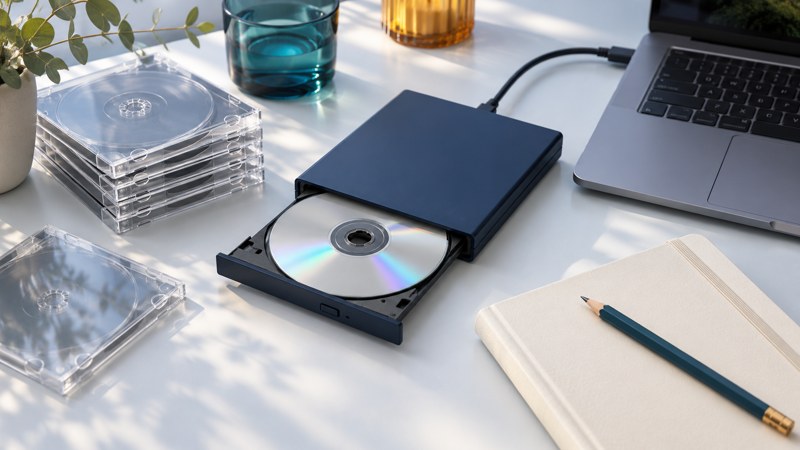
A computer DVD writer records optical discs under the control of software. Choose it for your computer, blank media and intended result: a data disc, an authored movie DVD or an audio CD. The largest speed number on the box is only one part of that decision.
Choose the drive for the computer and the job
| Check | Evidence to find | Why it matters |
|---|---|---|
| Reading versus writing | Separate read/write format lists | DVD-ROM reading support does not establish recording capability. |
| Media families | DVD-R/+R, rewritable and dual-layer support as needed | A drive must support the exact format and layer count you intend to use. |
| Computer connection | USB for an external drive, or the correct internal data/power interface | Older internal drives may use PATA/IDE; newer installations may use SATA. Match the actual hardware. |
| Power and placement | The drive’s connection and operating instructions | An external drive may require more than a convenient-looking USB port or cable. |
| Operating system and software | Support for your OS and the required burning/authoring function | An old bundled software disc is not evidence of current compatibility. |
For example, LG’s AP70/GP70 quick guide separately documents its USB interface, supported recording formats and software requirements. Those specifications describe that drive family; use your exact model’s guide for purchasing and setup.
Verbatim’s external-writer manual likewise makes placement, cable and safe-disconnection instructions model-specific. Keep the original manufacturer’s connection arrangement when troubleshooting power or intermittent detection.
Choose the result before starting the burn
Data DVD
A data disc stores files and folders. It is useful for transferring files to a device that supports both the disc and those file types. Copying an MP4 to a DVD does not create DVD-Video menus or establish compatibility with a living-room player.
DVD-Video
A movie DVD needs authoring software that prepares the DVD-Video structure, with the desired titles, menus, aspect ratio and audio. Check the target player’s supported media and recording format. Preview the authored project before committing it to a disc.
Audio CD
Choose an audio-CD project when the destination expects a conventional music CD. A data disc filled with audio files needs file-format support instead. Microsoft’s burning guidance separates audio CDs from data CDs/DVDs and explains that the destination must support the files on a data disc.
Use a small, repeatable recording workflow
- Keep the source files. Work from a second copy where practical; the new optical disc should add a copy rather than become the only one.
- Match drive and blank. Check format, capacity, layer count and supported speeds. Use a new blank for the rehearsal so no existing content can be erased.
- Build the right project. Data, DVD-Video and audio-CD projects have different outputs. Give the disc a useful title.
- Choose an offered supported speed. Follow the drive/media guidance. Lower speed is not automatically better, and the package maximum is not a promise of total job time.
- Complete writing and finishing. Allow the application to finish its finalization/closing step and run its verification option if offered.
- Eject and reload. Open the disc again, preferably in a second suitable device, and perform the destination-specific checks below.
The 8X DVD media guide covers format and finalization distinctions. Writing speed describes data transfer during recording; preparation, lead-in/out, finalization and verification contribute to the overall elapsed time.
Verify the result that someone will actually use
| Result | Useful check | What a pass establishes |
|---|---|---|
| Data archive | Compare folder/file counts and sizes, open representative files; compare cryptographic hashes when available | The checked data can be read back and, with matching hashes, matches its source bytes. |
| Movie DVD | Use the intended player: menu, main feature, later chapter, aspect ratio and audio | The authored disc works in that tested playback setup. |
| Audio CD | Play several tracks including the last, test track skipping and both audio channels | The tested disc behaves as an audio CD in that player. |
Record the writer model, software/version, blank-disc type, selected speed and test result. If a burn fails, change one variable: another compatible blank, the documented connection, or a supported speed. Repeated failures across media call for drive/software diagnosis. Verbatim’s optical-writer troubleshooting manual separates connection detection from media and playback-software questions.
For personal videos, retain originals and copies on separate storage. The Library of Congress video-preservation guidance recommends descriptive organization, multiple copies and periodic readability checks. A successful burn is a useful copy, not a guarantee of permanent preservation.