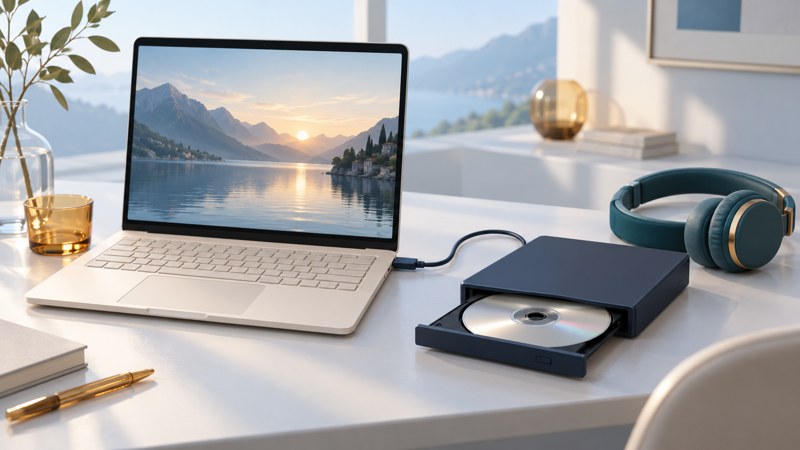
To watch a movie DVD on a computer, you need an optical drive that reads DVDs and an application that supports DVD-Video playback. Start by confirming the drive appears, then open the disc from inside the application. A folder full of files and a movie with working menus are different stages of the test.
Start with three checks
- Identify the disc. A commercial movie DVD, a home-authored DVD-Video disc, and a data DVD containing MP4 files use different playback routes. Read the label and keep any valuable home recording intact.
- Identify the drive. Check its DVD-reading support, operating-system requirements, connector and power instructions. A CD-only drive cannot supply the DVD reading function. Connect an external drive as its manufacturer directs.
- Identify the application. Look for explicit DVD-Video support and a version for your OS. Download it from its publisher. A general video-file player or a disc-burning utility may serve a different purpose.
Before troubleshooting software, insert a known-good compatible disc and check whether the operating system recognizes the drive. Keep the drive on a stable surface during playback. Record the exact error message if it fails.
Choose a documented playback route
| Computer | Starting route | Check first |
|---|---|---|
| Windows PC | A DVD-capable desktop application, such as VLC from its official publisher | Current OS support, drive recognition and the application’s disc-opening command. |
| Mac | Apple DVD Player with a compatible built-in or external optical drive | Drive compatibility and Apple’s instructions for your macOS version. |
Microsoft’s Windows Media Player guidance says DVD playback is excluded from Windows Media Player Legacy in Windows 10 and 11. Installing that optional feature alone therefore does not complete the setup. Check an application’s actual DVD capability before paying for it.
VideoLAN’s official VLC site provides desktop downloads. Its VLC 3.0 desktop documentation gives a concrete disc-opening workflow. Interfaces can vary by platform and version; use the help for the version you install.
Open the disc and test the feature
Windows with the documented VLC desktop interface
- Connect the drive, insert the movie DVD and start VLC.
- Choose Media → Open Disc, select DVD, and check the selected disc device.
- Choose Play. Use the DVD’s menu to start the main feature.
- Check normal-speed playback, a later chapter, dialogue and your required subtitle track. Use the disc’s language menu or the player’s audio/subtitle controls.
Mac with DVD Player
Insert the disc, open DVD Player if necessary, and use its controls to navigate the movie. For a DVD movie folder, Apple documents File → Open DVD Media and selecting the VIDEO_TS folder. Follow Apple’s disc and DVD-folder instructions; an arbitrary folder containing video files is a separate case.
For a data DVD, inspect which files it contains and use software that supports those file formats. For a home recording that only plays in its original recorder, investigate its recording format and finishing status through the recorded-DVD guide.
Use the failure to choose the next test
| What happens | Next useful test |
|---|---|
| Drive is absent | Check the cable, manufacturer-approved power arrangement and OS support. Try its recommended direct port connection. Software cannot open a drive the computer cannot see. |
| Drive appears; application opens the wrong device | Select the actual optical drive in the application’s disc dialog. Disconnect an unused second drive only after safely ejecting its disc. |
| Files appear; movie menus do not | Identify data DVD versus DVD-Video. Open the disc as a DVD rather than choosing an arbitrary VOB file. |
| Picture works; sound does not | Check application volume, selected soundtrack and the computer’s output device. An attached HDMI display may have become the audio destination. |
| Movie repeats a freeze at the same point | Compare another compatible disc in this drive and the suspect disc in another player. Note whether the failure follows the disc. |
| Menus work; desired subtitles are missing | Check the actual edition’s available tracks and both disc and application menus. A player cannot select a subtitle track absent from the disc. |
Change one setting at a time and record the result. If playback fails only when an external display is attached, test on the computer’s own screen, then investigate the supported display connection and audio route.
Treat region prompts as a deliberate choice
Read a region-change dialog before accepting it. Apple documents five region settings including the initial setting, after which its documented drive behavior locks to the final region. Check your drive’s own rules and the region of the collection you intend to watch.
For recurring use, keep a short setup note: computer/OS, drive model, application/version, disc edition, successful audio output and any remaining error. A successful viewing test includes the film itself, navigation and sound—not just a visible drive icon.