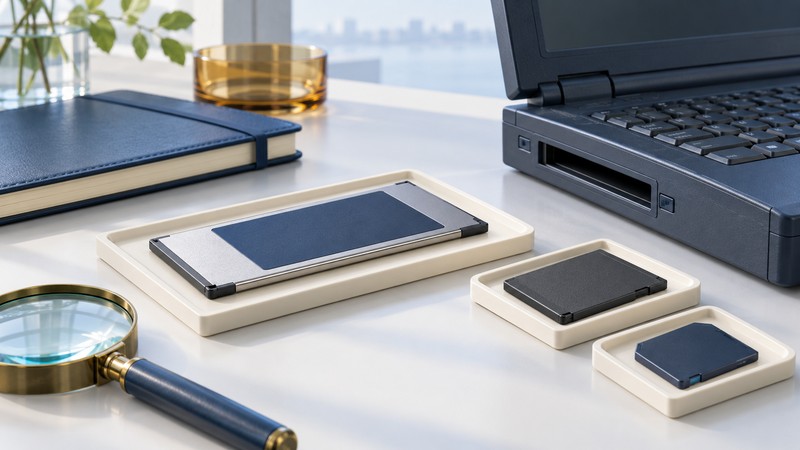
A legacy 6-in-1 PC Card reader has two compatibility questions: which memory cards it accepts and which computer can operate the adapter. Start with the exact adapter part number. If the goal is simply to retrieve photographs, a reader that directly supports the memory card may offer a more practical route than rebuilding the old notebook setup.
Identify what the SanDisk 6-in-1 supported
SanDisk’s period Product Information Guide, page 3 (manufacturer PDF hosted by Arrow) identifies the SDAD-67-xxx 6-in-1 PC Card Adapter. Its six listed formats are SD, MultiMediaCard, Memory Stick, Memory Stick PRO, SmartMedia and xD-Picture Card. CompactFlash appears in a separate PC Card adapter entry.
Treat that list as evidence for the named legacy adapter. It leaves later capacity and family support unresolved. In particular, an “SD” listing alone cannot establish SDHC or SDXC support. The SD Association’s compatibility guidance explains the host requirements for those distinct SD families.
Match three identities
On a narrow screen, swipe the table or focus it and use the arrow keys.
| Component | Record from the hardware | Evidence needed |
|---|---|---|
| Notebook | Exact model/configuration, slot label and operating system | Manual naming the slot and supported card interface/types |
| PC Card adapter | Manufacturer, full part number and any revision | Adapter manual naming host requirements, driver needs and supported media |
| Memory card | Full family name, capacity, subtype and original device | Documented support for that family and capacity, including any required adapter |
PC Card documentation distinguishes 16-bit PC Cards and CardBus. ExpressCard uses a different interface and connector; USB-IF’s ExpressCard overview states that CardBus cards and ExpressCard modules are designed for different slots. Resolve the exact interface from the manuals, rather than choosing by apparent width.
Choose the least complicated documented access route
- Working original notebook and adapter: confirm their documentation and operating-system requirements. Keep existing driver and configuration information before changing the machine. Use vendor documentation for any required software.
- A reader for the memory card itself: match the actual family, subtype and capacity to an explicitly supported reader. For older formats such as SmartMedia or xD, a generic “multi-card” label is insufficient.
- The original camera or recorder: check its manual for a supported computer transfer method, cable and software. Preserve the original card while establishing the connection.
- Only an ExpressCard or USB port available: seek documented support for the complete adapter chain, including the legacy card interface and operating system. A connector-shaped accessory alone leaves that support unresolved.
Record a route only when every step has evidence. The reader compatibility record keeps card, adapter, reader and host requirements together.
Retrieve first, then decide what to keep
- Examine the card and adapter for damage. Stop if the connector is bent, the card is cracked or the contents produce repeated read failures. Do not force a card into a slot.
- For healthy media, connect through the documented route and follow the host’s insertion procedure. Cancel unexpected erase, initialize or format prompts while needed files remain on the card.
- Copy the folder tree to separate storage. Compare the file inventory, check corresponding hashes where practical and open the copies in the intended software. The photo archive guide explains a fuller verification workflow.
- Stop/eject the device according to the host manual before removal. Record the successful equipment combination and keep an independent verified backup.
If the adapter is detected but files remain inaccessible, use the reader diagnostic guide to distinguish device detection, volume mounting and file-reading problems. A failed attempt through one undocumented combination leaves the card’s condition uncertain.