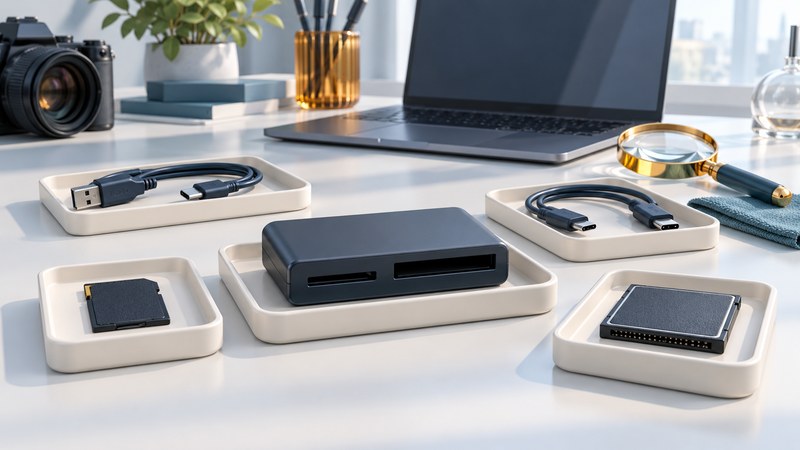
A missing card can fail at several stages: the computer may miss the reader, the reader may not support the card, the operating system may see storage without a usable volume, or an application may reject a file. Start by locating that stage and deciding how important the existing files are.
First decision: protect the files
If this card contains the only copy of important files, cancel prompts to initialize, erase, format or repair it. Those operations change storage. Microsoft’s initialization instructions are for new disks without existing data. A familiar-looking format prompt is insufficient evidence that a used card is empty.
Keep an unstable card aside when it repeatedly disconnects, produces read errors or has visible damage. Choose a recovery plan before more full-card scans or repeated attempts. A recovery specialist is appropriate when the files justify the cost. For ordinary connection checks below, use a healthy compatible card with expendable, backed-up files; keep the problem card out of the test until the reading path is established.
Locate the failing stage
On a narrow screen, swipe the table or focus it and use the arrow keys.
| What you observe | What it tells you | Next useful check |
|---|---|---|
| Reader absent from the computer’s device list | The host connection needs attention; card contents have not yet been tested. | Check the reader’s cable, direct computer port and documented driver requirements. |
| Reader appears, but no media is reported | USB detection and card recognition are separate stages. | Confirm the exact card family, capacity and any required adapter in the reader manual. |
| Storage appears, but no usable volume opens | The host sees a storage device. Filesystem support, encryption or damage remain possible. | Record the reported capacity and status. Preserve needed data before any write operation. |
| Files copy, but an app cannot open them | Transfer and file interpretation need separate checks. | Test a copy in software supporting that camera or file type; preserve originals and sidecars. |
| Read errors or repeated disconnects | The path or media is unreliable. | Stop ordinary copying and decide how to recover needed files. |
An activity light alone cannot locate the problem. Note which device or volume actually appears, the exact error wording and whether the behavior repeats with a healthy test card.
Inspect Windows or macOS without starting a repair
On Windows, open Device Manager to inspect the reader’s status. Open Computer Management, then Storage > Disk Management, to see whether the card appears as storage and whether a volume has a drive letter. Record its size and status; cancel any initialization prompt. Microsoft’s Disk Management troubleshooting guide distinguishes missing disks, RAW filesystems and volumes without drive letters. Its repair and formatting steps require a separate decision about the data.
On macOS, open Disk Utility and choose View > Show All Devices. Apple explains the device-and-volume hierarchy: the physical device and its volumes appear separately. Record what is present without selecting Erase or First Aid. Finder visibility by itself gives less information than this view.
A card used as encrypted or device-specific storage may need its original device, account or software. Find that history before concluding that the filesystem is damaged. Disconnect other removable storage when practical so a similar capacity or drive name does not lead you to the wrong device.
Make one controlled comparison
- Identify the reader model, card family and capacity, adapter, operating system, cable and port. The reader compatibility guide helps establish documented support.
- Using expendable files on a healthy supported card, connect the reader directly to a suitable computer port. If its removable cable is suspect, try one known data-capable replacement.
- Change one part at a time and record the result. A successful direct connection suggests investigating the previous hub, cable or port; it does not prove every component independently healthy.
- When a stable reading path is established and the source card reads normally, copy its complete contents to separate storage. Verify the transfer and keep the original until the files are accepted. Stop if errors return.
Record the result and close the loop
Download the reader diagnostic record (plain text). Keep errors, observed capacity, each changed component and the final decision together. For a successful offload, use the photo preservation workflow to verify independent copies. If a replacement reader solves the problem, label the unreliable component so it does not quietly return to service.
For write failures on an otherwise readable SD card, check its lock slider according to the manufacturer. Apple’s SD-slot guidance describes this case. A successful write test belongs on expendable media after needed files are secure.