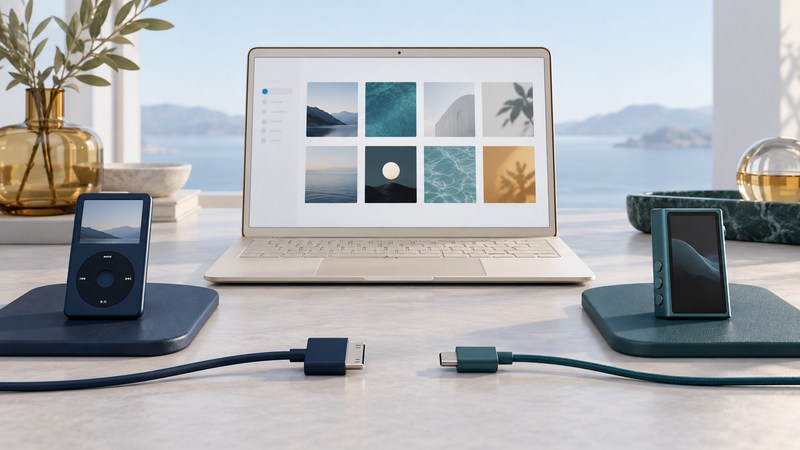
On a Mac, choose the transfer method from the player’s documentation. A removable-disk player, an Android-based player and an iPod can connect by cable yet require different workflows. Start by recording your macOS version and the player’s exact model, then establish one working test album before moving the rest of the library.
Choose the transfer path that matches the player
| Player type | Where to work | First check |
|---|---|---|
| Documented removable-disk player | The mounted device and its music folder in Finder | The manual explicitly supports file copying on a Mac. |
| Android or media-transfer player | A compatible transfer application specified or supported for that model | The application supports your macOS version and detects the player. |
| iPod with a supported connection | Device synchronization through Finder/Music or the appropriate older iTunes workflow | The exact iPod appears in the device-management interface. |
As a concrete removable-disk example, the SanDisk Clip Sport Go manual, printed page 13 (PDF) describes opening the Sport Go disk, copying audio into Music and ejecting afterward. Its older operating-system requirements describe the documentation’s period; test the exact player on your present Mac.
Sony takes a different approach for the NW-A306. Its music playback preparation instructions say Mac users need software designed to transfer files to an Android device. The fact that a Windows user can open this player in Explorer does not establish a Finder disk-copy workflow. Verify a current transfer application’s source, system support and device compatibility before installing it.
For iPods, Apple’s Mac connection instructions place the connected device in Finder; Music can open its Sync Settings. Apple’s computer-sync overview distinguishes Catalina and later from Mojave and earlier. Menu names and available options vary by system and device, so use the visible controls for your recognized model.
Prepare files the destination can actually play
A title in the Music app can represent a local file, a cloud item or service content. For a file-copy player, locate a genuine downloaded audio file you are authorized to use and inspect its format. Keep your original library and a backup intact. Build a separate test folder to avoid moving or renaming files that the Music app already manages.
Subscription downloads remain subject to their service’s playback system. Apple’s iTunes syncing reference explicitly distinguishes saved Apple Music subscription songs from content that can be synced to a device. A basic file player needs a supported local file; changing the filename or extension does not produce one.
For a mixed collection, inspect several examples: MP3 purchases, AAC files, lossless albums, recordings and compilations. Match each format and encoding to the destination’s manual. On a nano, check the specific generation; on another player, read its exact specifications. A “Mac compatible” label addresses only part of the path from file to sound.
Transfer, disconnect and test on the player
- Make a test set. Copy one ordinary album, a compilation and a long track into a temporary folder on the Mac. Record their sizes and track counts.
- Connect with a data cable. Follow the player’s instructions for connection mode. Confirm the device’s name before copying or changing sync settings.
- Use the chosen path. Copy to the documented folder, use the supported transfer application, or select a small album or playlist in the iPod sync interface.
- Read replacement prompts. Review what will be added or removed. Cancel an erase, format or restore prompt if the player contains files you have not preserved.
- Wait for completion and eject. Use the appropriate eject or disconnect action for the device. Allow the player’s scan to finish.
- Listen without the Mac. Confirm album grouping, track order, resume behavior and actual playback before repeating the process at scale.
Apple explains that choosing Erase and Sync for a different library replaces the selected content type on the connected device. Treat that as a library-management decision, not a recognition repair. If the only surviving music is on an old iPod, establish a preservation plan before accepting it.
If the player charges but fails to appear, check the data cable, connection mode, transfer application and required permissions first. A removable disk’s absence from one Finder view does not prove that its storage is empty. Avoid initializing it simply to make an icon appear. Work through the USB troubleshooting stages and keep the exact error message.
Older FireWire iPods need a model-specific plan
The 10 GB iPod with a touch-sensitive wheel belongs to the early FireWire era. Apple’s model reference identifies the second-generation Touch Wheel family as A1019, introduced in 2002, with a covered FireWire port. Later dock-connector and USB models have different connection requirements.
For one of these early players, record four things before buying cables: the iPod model, the Mac model, macOS version, and the full intended connection path. Then establish support for both data transfer and power. A change of plug shape alone does not establish protocol conversion or a working software path.
An older compatible computer may be part of a documented workflow. Treat an internet guide describing a particular adapter chain and software version as a specific configuration to verify, not a universal solution for a current Mac. Preserve the music library before trying a different host, and keep obsolete systems separate from sensitive everyday work.
If building a legacy setup would become a project of its own, compare that effort with a player whose manufacturer documents your present computer. The player-selection guide helps weigh the transfer routine alongside controls, storage and listening needs.
Explore Music Players
Browse music-player guides and earlier reporting, or use the offline-library setup guide. Primary documentation is linked where it supports the guidance. Model and software details were checked October 7, 2026.