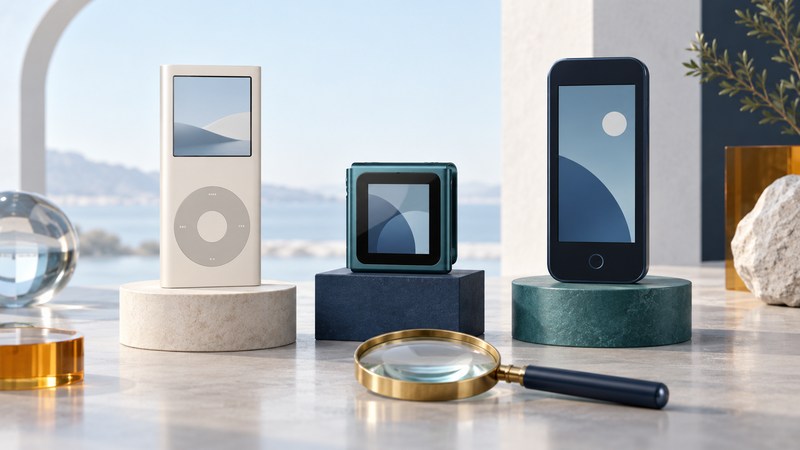
Identify an iPod nano’s generation before choosing a cable, dock, speaker or transfer method. The name covers several different shapes and interfaces. A model number, a close look at the ports, and the matching manual provide a much firmer starting point than color or a seller’s description.
Read the model number, then compare the shape
Record the model number printed on the player and compare it with Apple’s iPod identification reference. The table below is a compact guide to the seven nano generations. Capacity and color can vary within a generation, and replacement housings can make appearance less reliable.
| Generation | Model | Introduced | Quick physical clue |
|---|---|---|---|
| First | A1137 | 2005 | Slim body, small color screen, Click Wheel |
| Second | A1199 | 2006 | Narrow aluminum body, Click Wheel |
| Third | A1236 | 2007 | Shorter, wider body, Click Wheel |
| Fourth | A1285 | 2008 | Tall curved body, Click Wheel |
| Fifth | A1320 | 2009 | Tall body with rear camera and microphone |
| Sixth | A1366 | 2010 | Small square touchscreen and clip |
| Seventh | A1446 | 2012; color refresh 2015 | Tall touchscreen and round Home button |
The first nano combined a Click Wheel with flash storage in a slim body. Its history helps explain the family resemblance, but later models changed controls and connections. Keep a note of the exact generation alongside the serial number, cable type and manual. Use the serial number privately when seeking support.
Check charging, audio and control separately
A dock or adapter has three possible jobs: supply power, carry audio, and pass control commands. Establish each supported function for the exact pair of devices. A connector that physically fits is only the first check.
The seventh-generation nano’s Apple technical specifications list a Lightning connector, a 3.5 mm headphone jack and Bluetooth 4.0. Earlier nano generations use the wider dock connector; Apple’s first-generation identification notes specify USB for synchronization rather than FireWire. Look up the matching model in Apple’s iPod manuals collection before reusing an older charging accessory.
For a straightforward listening test, start with compatible wired headphones. On a seventh-generation unit, test any intended Bluetooth headphones separately. Bluetooth describes the audio connection here; it does not turn the nano into a player that installs streaming apps or downloads a service’s offline library.
Example: a reader finds an A1446 and a speaker cradle with the wide dock connector. The useful next step is to identify the speaker and its available inputs. A documented auxiliary input may offer an audio path while charging is handled separately. An unspecified adapter should not be assumed to provide audio, charging and remote control together. Our Bose SoundDock guide identifies model-specific inputs and charging requirements.
Load a small album before a whole library
A nano uses a managed music library. Apple’s Windows syncing guidance directs nano owners to iTunes. For a Mac, begin with the Mac music-player guide, which distinguishes modern Finder-based device management from older system requirements. Confirm that the computer recognizes your particular unit before changing its contents.
- Preserve what matters. Locate the original music library or another backed-up copy. If this nano holds the only surviving copy of important files, pause before syncing or restoring it.
- Select compatible local files. Use one album whose format is supported by that generation. A downloaded subscription track is different from an ordinary purchased or personally created file.
- Review the sync selection. Choose the small test album or playlist and read every erase or replacement message before accepting it.
- Wait and eject. Let synchronization finish and use the software’s eject control before disconnecting.
- Check the result. Find the album, confirm order, play several tracks and try pause, resume and volume controls.
The seventh-generation specification includes MP3, AAC, Apple Lossless, AIFF and WAV within stated limits. Its list does not include FLAC. Check each generation’s own list; where conversion is needed, retain the source and create a separate compatible listening copy.
Assess a stored or secondhand nano before relying on it
Inspect the enclosure, screen, connector and cable before charging. Visible deformation, a lifted screen, liquid damage or damaged wiring warrants an assessment by a qualified service provider before further use. Avoid opening, crushing or forcing connectors. Apple’s fourth-generation user guide, Safety and Cleaning section (PDF) explains its handling precautions; use the matching manual for your generation.
After a normal charge with documented equipment, try a short session and observe whether the unit retains charge, responds to buttons and plays consistently. Treat original advertised battery hours as historical test results. A used unit’s condition must be assessed from its actual behavior.
As checked in October 2026, Apple lists all nano generations among its obsolete products. Check that current service policy before assuming Apple can repair a unit or supply parts. A third-party repair offer should identify the exact model, the work proposed and the condition of the returned player.
Before purchasing a secondhand nano, ask for its model number, clear port and screen photographs, a demonstration of computer recognition and playback, and the return terms. These checks give more useful evidence than “powers on.” For a simpler alternative chosen around your present library, use the portable-player selection guide.
Explore Music Players
Browse music-player guides and earlier reporting, or use the offline-library setup guide. Primary documentation is linked where it supports the guidance. Model and software details were checked October 7, 2026.