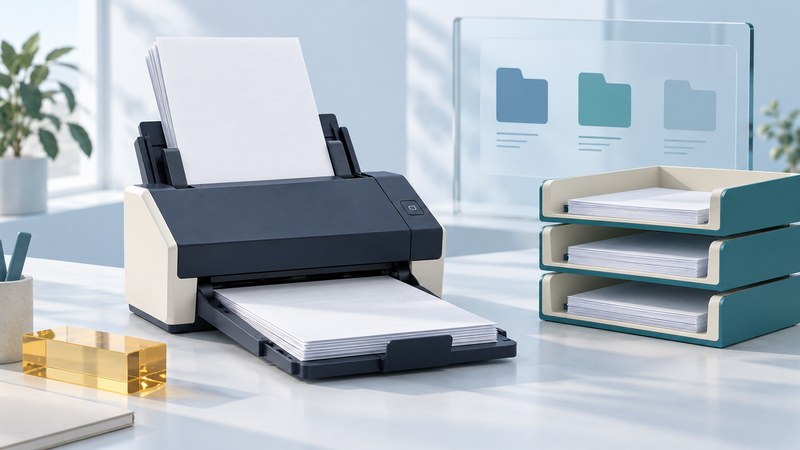
A useful document-scanning setup turns a physical batch into complete, readable files in the right place. Choose a Visioneer model for the paper you handle, the software you use and the people who need access, then test capture, OCR and filing as one process.
Choose by workload and connection
Start with the largest normal batch, the smallest or most awkward original, and the computers that need access. A feeder can save handling time for compatible loose sheets. A flatbed or another capture method gives you a separate route for materials that should remain stationary.
On narrow screens, focus the table and use the arrow keys or swipe to see every column.
| Workload | Example from the manufacturer catalog | Check for your project |
|---|---|---|
| Occasional scanning away from a desk | RoadWarrior 8DW portable scanner | Power, connection, supported media and the time to feed individual sheets |
| Compact desktop batches and network connections | OneTouch 300 | Feeder capacity, USB/Wi-Fi/Ethernet setup and the supported application on each computer |
| Larger repeated office batches | OneTouch 400 or a suitable Patriot model | Tray space, paper limits, consumables and software requirements |
| A mix of feeder batches and stationary originals | Patriot PH80f ADF/flatbed combination | Flatbed dimensions, supported original thickness and separate feeder limits |
These examples come from Visioneer’s scanner catalog, checked in October 2026. They describe product roles rather than a tested ranking. Check current regional availability and the exact model’s documentation before buying.
Read speed and capacity in context
Pages per minute (ppm) describes sheets in a stated scanning mode; images per minute (ipm) counts captured sides. A duplex sheet can produce two images. Compare the same resolution, color mode and paper conditions, then allow time for preparation, OCR, naming and checking.
The OneTouch 300 product page lists 30 ppm/60 ipm at 300 dpi, a 25-sheet feeder and USB, Wi-Fi and Gigabit Ethernet connections. Its feeder capacity is stated for a specified paper weight. Actual batches also depend on thickness, condition and size.
A daily-duty figure describes the manufacturer’s intended workload class. Use your own mix of pages and sessions when sizing equipment, including the time spent resolving misfeeds. Check roller replacement parts and the cleaning schedule before committing to heavy use.
The Patriot PH80f datasheet describes a combined feeder and flatbed with separate media requirements. Read each path’s limits independently. A material that fits on the glass may be unsuitable for the rollers.
Choose the software for your operating system
OneTouch is both part of some scanner names and the name of a scanning utility. In the software, a profile can connect capture settings with an output format and destination. Name the profile for the task, such as “Correspondence – duplex searchable PDF,” so its purpose stays clear.
Check platform-specific bundles. The OneTouch 300 page lists OneTouch SE and other utilities for Windows, while its Mac listing includes Visioneer Scan Utility and ABBYY FineReader PDF. Windows and Mac screens and available functions can differ. Use the current model downloads and license terms to establish what is included, what requires activation and whether any service has a recurring cost.
For button profiles, OCR and destination settings, consult the OneTouch software guide alongside the installed version. Keep recognized text, extracted fields and AI-assigned categories reviewable. Verify names, numbers and filing destinations before using them in another system.
Distinguish a connection from a complete network workflow
A network port or wireless connection is one part of the setup. Identify the device or application that starts the scan, performs OCR and saves the file. Confirm whether a computer must remain awake and whether users need their own installed software.
For models using shared capture software, the Visioneer Network Scan Service guide explains its sharing system. Establish the host, permitted users and available destinations for your configuration. VAST is an umbrella for network-capture capabilities; the exact scanner and software determine the supported route.
For a shared office setup, test with two authorized users in turn: discover the intended scanner, save to each permitted folder, and reopen the result. Use a non-sensitive sample. Verify destination permissions and the behavior when the host or receiving application is closed. Send cloud copies only through the approved account and destination for the documents involved.
Build a profile with a small test batch
- Prepare permitted originals. Count the sheets, note expected sides and remove ordinary fasteners where appropriate. Separate damaged, adhesive, irregular or valuable items for a suitable capture route. Follow the exact scanner’s media rules.
- Choose a local test destination. Use a clearly named folder, with enough space for the batch and access limited as needed. Confirm the scanner and application before adding network destinations.
- Set capture options. Try 300 dpi for ordinary typed documents, duplex where needed, and color when marks depend on it. Include a difficult page to expose weak settings early.
- Set searchable output. Select a supported PDF/OCR option, recognition language and file-naming pattern. Decide whether the batch becomes one document or several files.
- Inspect processing choices. Test deskew and automatic crop. Keep blank-page removal conservative until you have inspected faint backs, stamps and small notes.
- Scan and reconcile. Compare page count, order, orientation and edges against the physical stack. Check double-feed alerts and resolve every uncertain sheet.
- Check the exported result. Reopen it in a PDF viewer, search a distinctive phrase, copy a sample of OCR text and inspect critical fields against the images.
- Save the proven profile. Record scanner model, software version, settings and destination. Repeat a sample after an update or a change of paper type.
Use the scan quality checklist as the batch record. The main guide’s format choices explain when to keep an image master, searchable PDF or smaller working copy.
Keep feeding and filing dependable
Repeated streaks call for inspection of the scanning surface; repeated misfeeds call for checking paper preparation, guides and the model’s roller maintenance. Follow the OneTouch 300 hardware guide or the equivalent manual for your exact unit. Use its power-disconnection, cleaning-material and replacement instructions.
When a batch stops, keep the physical order and inspect the saved file before restarting. Determine the last successfully captured page, rescan the uncertain portion and remove duplicates only after comparison. A detector is useful assistance; the final page-by-page reconciliation establishes completeness.
Check several files from the backup destination before clearing the working copy. Retain originals according to the requirements of the records and your organization. For originals better kept on a stationary surface, see flatbed scanner selection; for another vendor’s application and compatibility choices, see Canon scanners.