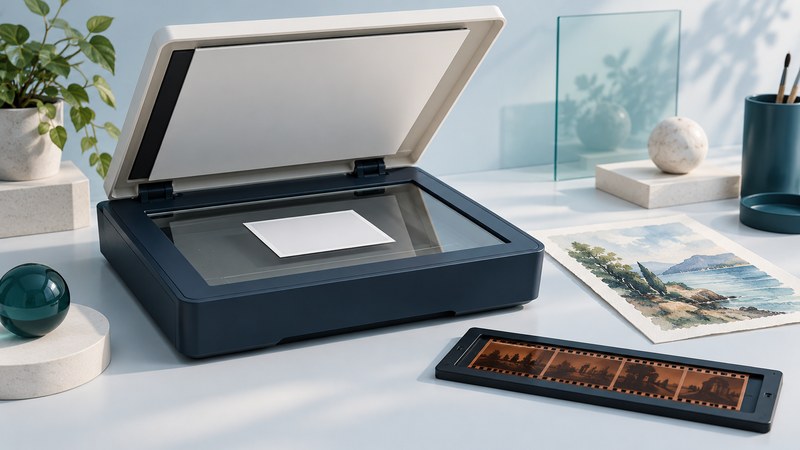
Choose a flatbed by the originals you need to preserve and the output you want to make. A good decision combines usable scan area, dependable software and a sample that holds the detail you need. This guide helps you compare those requirements and separate paper scanning from film capture.
Start with the originals
A flatbed holds an original still on a glass platen while the scanning mechanism moves beneath it. It is a useful choice for loose prints, drawings and paperwork that needs individual placement. Start your shortlist by measuring the largest original and checking its condition. Include borders, annotations and the reverse when they carry information.
On narrow screens, focus the table and use the arrow keys or swipe to see every column.
| Original | Useful starting point | Check before committing |
|---|---|---|
| Loose photo prints | Flatbed for individual placement; a photo-rated feeder for suitable batches | Surface condition, curl, coatings and the manufacturer’s permitted media |
| Artwork or oversized paper | A sufficiently large flatbed, or carefully aligned overlapping scans | Usable scan area, texture, color consistency and stitching seams |
| Ordinary loose documents | Flatbed for occasional pages; duplex feeder for repeated batches | Paper condition, page count, OCR and handling of both sides |
| Bound or fragile items | A supported overhead capture setup or specialist service where needed | Whether the binding can open safely and the surface can tolerate contact |
| Negatives and slides | A film-capable scanner, camera-copy setup or scanning service | Film format, transmitted illumination, holders and software for the film type |
Keep friable media such as loose pastel away from scanner glass. A removable lid provides clearance, but the original still needs suitable support and focus. For a valuable or damaged item, ask a conservator or digitization service about handling before attempting to flatten it.
Compare the features that affect your result
Scan area comes first. A letter/A4 bed may suit prints and correspondence while leaving larger artwork in pieces. Measure the active area, not the outside dimensions. Allow desk room to open the lid and connect the cable.
Resolution is a sampling choice. Check optical resolution separately from interpolated output. The main scanning guide’s enlargement example shows how original size and intended output determine the pixels you need. Compare real detail at the same output size; a larger file can contain the same blur with more pixels.
Sensor labels need context. CIS means contact image sensor; CCD means charge-coupled device. These describe sensor technology. Evaluate the complete scanner’s focus, optics and handling with the kind of original you have. A textured sheet or a raised book gutter deserves a sample check because portions of the image sit above the glass. Avoid choosing solely from a sensor acronym or maximum dpi figure.
Color and software form one workflow. For artwork, check whether your capture software can save the file type, bit depth and color profile needed by your editor or printer. Keep a capture with restrained automatic adjustments, inspect it in a color-managed application, and make an output-specific copy. A profiled display helps you judge color; demanding reproduction work may also need a scanner target and profiling software supported by the exact device.
Support is part of the purchase. Find the driver and scanning application for your exact operating-system version before buying. Include installation permissions, cable/adapter needs and the ability to reopen exported files in your checks.
A modern flatbed example
The Epson Perfection V39 II illustrates a compact USB-powered photo/document flatbed. Epson lists 4800 dpi optical resolution, a removable high-rise lid and ScanSmart software with image stitching. These are manufacturer specifications, not results of a Yenra equipment test. Check the regional seller and current driver support before choosing it.
Its useful questions are practical: will your largest print fit, does the software run on your computer, and can you keep an unaltered capture before enhancement? For oversized work, Epson’s stitching instructions describe combining overlapping captures. Examine the joins, especially across straight lines, repeated patterns and textured surfaces.
For Canon-family choices and setup checks, use the Canon scanners guide. For repeated document batches or a combined feeder/flatbed workflow, see Visioneer scanners. The distinction is the work you need to do, including preparation and inspection time.
Give film its own capture plan
Photographic prints reflect light. Film needs light transmitted through it and a capture system designed to hold and image that film size. A flatbed’s ability to scan paper does not establish film capability: confirm the transparency illumination, holders, supported formats and scanning software together.
A dedicated device can suit a single format. For example, Plustek’s OpticFilm 8200i Ai is a 35mm film-and-slide scanner; its format scope matters more than treating it as a universal replacement for a flatbed. Medium-format or sheet film calls for a different supported setup.
Camera copying requires an even light source, a suitable lens, stable alignment and a holder that keeps the film positioned consistently. A service can handle an occasional collection without acquiring that equipment. Ask for a representative sample, output dimensions, file format, correction policy and how originals are returned. Compare the sample at the size you intend to use.
When considering used film-capable flatbeds, inventory holders, power supply, cables and working software before paying. Read the support page for the exact model; an old specification sheet alone leaves both condition and current compatibility unresolved.
Run a small comparison before the whole collection
- Choose representative originals. Include a detailed print, a dark image, a pale image and one awkward edge or texture. Use materials safe for the selected capture method.
- Prepare and preview. Follow the model’s placement and cleaning instructions. Include the full intended crop and record the settings.
- Save a baseline. Keep sharpening, restoration and automatic correction settings recorded and consistent. Use a lossless master format supported by your workflow.
- Change one setting. Compare two useful resolution settings or correction choices. Inspect both at the same intended output size, then at full pixel scale for defects.
- Look across the whole frame. Check the center and corners, fine lettering, highlight and shadow detail, color shifts, dust, streaks and clipped edges.
- Judge the finished output. Make a trial print or view the sharing copy at its intended size. Choose settings that preserve the information you actually need.
Keep the original capture when using color restoration, scratch removal or generative AI repair. Save the altered version separately and inspect faces, writing and small details for changes. Use the main guide’s scan quality checklist to record the batch and confirm backups.