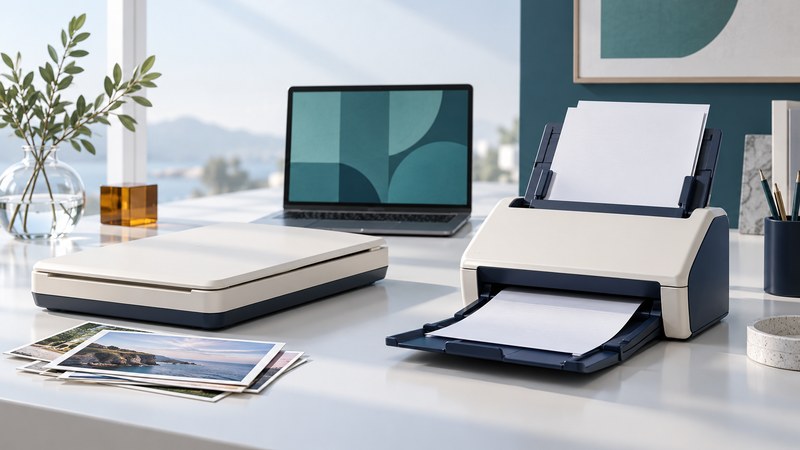
Start a Canon scanner choice with two questions: what originals will you scan, and which application must receive the result? Match the handling method first, verify the exact model’s software support, then prove the workflow with a small batch before committing a collection.
Match a scanner family to the work
Choose by original type, batch size and the application that will receive the scans. Canon’s photo flatbeds and document feeders serve different jobs. Keep the complete model name and edition when comparing specifications; a similar name can conceal a different software interface.
On narrow screens, focus the table and use the arrow keys or swipe to see every column.
| Need | Family or documented example | Decision to make |
|---|---|---|
| Individual prints, drawings or occasional pages | CanoScan LiDE flatbeds, including the LiDE 400 support reference | Check current availability, the exact OS download and flatbed size |
| Repeated loose-paper batches | imageFORMULA R40II document scanner | Confirm that a CaptureOnTouch-based workflow fits your applications |
| Batches of suitable photographic prints | imageFORMULA RS40 photo/document scanner | Read photo condition, size and handling requirements before feeding |
| Negatives or slides | A separately verified film-capture system | Specify film size, illumination and holders; photo-print support is a different capability |
This guide uses U.S. manufacturer documentation checked in October 2026. Model examples explain choices; they are not a hands-on ranking. Regional availability, bundles and software downloads can change.
Check the R40II software requirement first
Canon introduced the imageFORMULA R40II in February 2026. Its product specifications describe a duplex document feeder, a 60-sheet capacity and USB-C connectivity. The major integration detail is that it requires Canon CaptureOnTouch and does not support TWAIN or ISIS drivers.
If your records application acquires pages directly through TWAIN or ISIS, verify an appropriate supported scanner or an approved file-import route before purchase. The ability to save a PDF and then import it may serve your workflow, but test the whole sequence with the application’s requirements.
Canon’s listed speed is up to 45 pages or 90 images per minute under its specified test conditions. Preparing originals, naming files, OCR and inspection also take time. For planning, measure a representative batch from preparation through a verified saved file.
Separate prints, flatbeds and film
The RS40 support page documents a photo/document feeder with up to 600 dpi optical resolution; its 1200 dpi output setting is interpolated. Evaluate resolution and photo handling together. Keep torn, adhesive, heavily curled or otherwise unsuitable originals out of a feeder unless its manual explicitly permits the material and method.
The CanoScan LiDE 400 support page is useful for checking an existing flatbed or a prospective purchase. Use its operating-system selector to find the applicable software and manual. Check actual regional availability separately from support-page existence.
CanoScan workflows may use IJ Scan Utility or IJ Scan Utility Lite, while imageFORMULA workflows use software specified for that exact model, such as CaptureOnTouch. Choose the application from the model’s download list. A print scanner and a film scanner have different illumination and handling needs; the film-capture section explains what to verify.
Verify the complete computer setup
- Identify the exact device. Record the model suffix and edition from the unit or listing. Keep the original R40 and R40II distinct.
- Record the computer details. Note the operating-system version, processor architecture and available data ports. For Windows on Arm or an Apple silicon Mac, read the current installer requirements rather than assuming every package fits.
- Use the official model support page. For the newer office model, start with R40II support. Select the exact OS and inspect the software release notes and installation instructions.
- Check the application connection. Establish whether you will scan inside the supplied application, use a supported driver interface, or import exported files elsewhere.
- Check practical requirements. Confirm a data-capable cable, any required adapter, installation permissions and space for open trays. Follow the model’s stated order for installation and connection.
- Confirm optional services. A cloud destination may require a separate account, subscription or plug-in. First prove that local saving works, then test the intended destination with a non-sensitive sample.
Keep a short setup record with the download date, installed software version, selected profile and output folder. It makes a later computer replacement or OS upgrade easier to assess.
Build and verify a first scanning profile
Use a small ordinary-paper sample with text on both sides. Include a faint line and a page with a colored mark if those occur in your real documents. Choose the feeder mode allowed by the manual and a local destination you can find again.
- Start with 300 dpi for ordinary typed text, select duplex when needed, and choose color when color carries meaning. Treat this as a trial; inspect small type before accepting it.
- Enable searchable PDF/OCR through the installed application’s supported output settings. Select the appropriate recognition language where available.
- Record cropping, deskew, background removal and blank-page settings. Initially keep questionable pages so faint content survives inspection.
- Save the result, reopen it and compare its page sequence with the originals. Check every expected back, orientation and edge.
- Search a distinctive phrase and copy a short passage into plain text. Compare critical names, dates and identifiers with the image.
- Import or upload the verified file to its intended destination and reopen it there. Save the working settings as a clearly named profile.
The main Image Scanners guide explains resolution, formats and quality checks in more detail. Its batch checklist is a useful record for the finished test.
Resolve the failure at the right step
On narrow screens, focus the table and use the arrow keys or swipe to see every column.
| Symptom | First check | Useful next step |
|---|---|---|
| Scanner is absent from the application | Power, data connection, exact-model installer and supported application | Follow the model support guide; test the documented direct connection and select the correct scanner |
| Scanning works but another program cannot acquire pages | That program’s required driver interface | For R40II, use CaptureOnTouch and a supported file-import workflow, or choose hardware with the required interface |
| PDF opens but text search fails | Whether OCR/searchable PDF was selected and completed | Check language and output settings, reprocess a sample, and compare recognized text with the page |
| A streak repeats in the same position | The relevant scanning glass and rollers | Clean only as described in the exact manual, then scan a clean test sheet |
| Pages disappear or faint marks vanish | Blank-page removal, crop and background settings | Disable the suspect processing option for a sample and compare it with the original |
| A photo looks altered | Restoration, sharpening and color settings | Keep a baseline capture and inspect corrected derivatives separately |
Keep originals and a verified backup until the complete workflow has passed inspection. For a different document-capture software ecosystem, compare the Visioneer workflow guide.