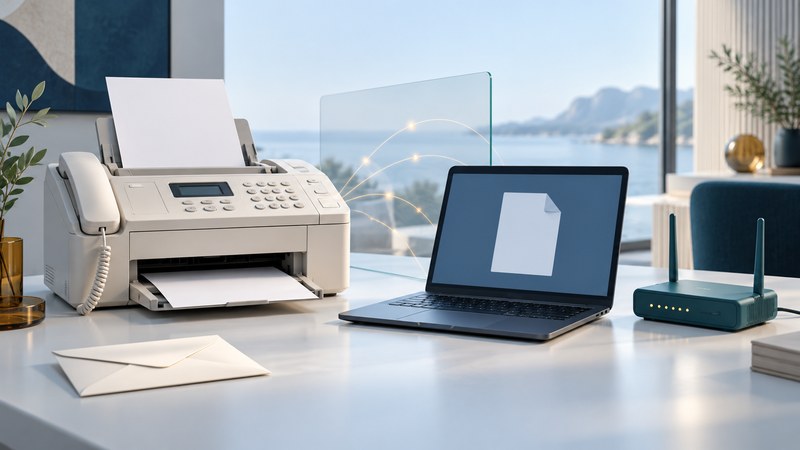
Choose a fax workflow by how documents enter your office, who needs access, and what the recipient accepts. A dedicated fax machine, a multifunction printer and an online fax service can all serve different needs. The useful test is whether the complete workflow sends readable pages, receives replies and gives you a usable record.
Begin by confirming that the recipient wants a fax and checking the destination number through an established contact. Record typical page volume, whether originals are paper or digital, the need for incoming faxes, and who will handle failures. Use dummy documents when testing a new setup.
Compare the whole workflow
| Option | When to investigate it | Questions before choosing |
|---|---|---|
| Dedicated fax machine | Paper documents handled at one staffed location | Is there a supported telephone connection? Who collects incoming pages and maintains supplies? |
| Multifunction printer with fax | Paper scanning, copying and faxing share one device | Does this exact model include fax? Can its feeder handle your originals? How are received documents routed? |
| Online fax service | Documents start as files or several authorized people need access | Does it support sending and receiving in your region, required numbers, file formats, account controls and record retention? |
Build a cost comparison from actual quotations: hardware, line or subscription charges, included and additional pages, international destinations, supplies and administrative time. Check how the service counts cover pages, failed attempts and inbound pages. A low monthly figure can be misleading if it excludes the work your office does most often.
For a service trial, ask to see upload previews, page limits, delivery reports, user permissions, multifactor authentication, deletion controls and export options. Confirm number-porting arrangements before cancelling an existing line. These are evaluation questions; available features and terms vary by provider.
Identify the connection before changing settings
A conventional fax modem connects through a telephone interface. Ethernet or Wi-Fi on a printer may support printing and scanning while its fax function still needs a separate telephone connection. Read the model's fax setup section and identify its LINE socket and supported telephone service.
VoIP carries calls over an internet connection. A working voice call does not establish that a fax will complete reliably. For example, Brother's MFC-T930DW/T935DW/T980DW guidance describes connection checks, warns about VoIP limitations and provides a model-specific compatibility setting. Apply instructions for your own machine and consult the telephone provider about its supported configuration.
ITU-T T.38 defines procedures for real-time Group 3 fax when part of the transmission path is an IP network. If a provider proposes T.38, ask which parts of your proposed connection support it. The protocol name alone does not validate the adapters, service and receiving endpoint as a working combination.
Also distinguish fax from scan-to-email. Both can start with paper in the same feeder, but the destination and delivery process differ. Ask the recipient which channel and file format their process accepts.
Test sending and receiving before relying on the setup
- Prepare a two-page dummy document. Put a distinct page number, a short paragraph and a simple line or box on each page. Include no confidential information.
- Check the local image. Scan or copy it first where possible. Verify orientation, page order and legibility; this isolates feeder and scanning problems before transmission.
- Send to a consenting test recipient. Verify the number, select the intended settings and include a cover page if your process requires one. Count the cover in the expected total.
- Read the final result. Check the destination, completed page count, time and status in the machine or service report. Queued or submitted status is an intermediate stage.
- Ask the recipient to inspect the pages. Confirm that both arrived in order and the smallest relevant text is readable. A completed transmission report alone does not establish that someone read the document.
- Test the return direction. Have the recipient send a dummy reply. Check where it appears, who can access it, and how a failure or full inbox is reported.
Download the fax workflow test record to keep results together. Repeat a representative test after a line change, number port, device replacement or significant provider configuration change.
Locate the failure before repeating the job
No dial tone or connection: check the documented connection path, selected line and service status. In a managed office, ask the administrator about required dialing prefixes or extensions. Keep the exact error message for the provider.
Busy or unanswered destination: verify the number and contact the recipient. Check whether the job is already queued for automatic retry before manually resending, so duplicates are easier to avoid.
Repeated mid-job failures: record whether the failure occurs with one destination or several, and with a short test or only a long document. Ask the manufacturer and service provider for the supported troubleshooting sequence. Change one setting at a time and retain the previous value.
Blank, skewed or clipped pages: compare a local copy or preview with the received copy. Check document orientation, page size, feeder condition and scan settings. Clean or clear the device using the maker's instructions.
Keep evidence that helps the office act
For important jobs, retain the authorized document version, destination, final result, page count and any follow-up confirmation under your organization's retention policy. Assign someone to check incoming faxes and failures. Restrict access to paper output, download folders and shared inboxes to the people who need the documents.
For sensitive information, have the responsible administrator approve the full workflow, including endpoints and service terms. A fax feature or a transmission report by itself cannot establish that the workflow meets a particular legal or contractual obligation.
Fax equipment and setup guides
Explore detailed guides to choosing fax equipment, preparing documents and looking after an existing machine.
Choose equipment and connections
Multifunction Fax Machines: Check the Features Your Office Needs
Check fax functions, document handling, connections and supplies before selecting a device.
Choosing a Fax Modem: Computer, Software and Phone-Line Compatibility
Verify the computer, driver, application and telephone service as one compatible setup.
Fax Phones: Share a Line with Calls and an Answering Machine
Choose receive modes and test voice calls, messages and faxes on a shared line.
Prepare and deliver readable documents
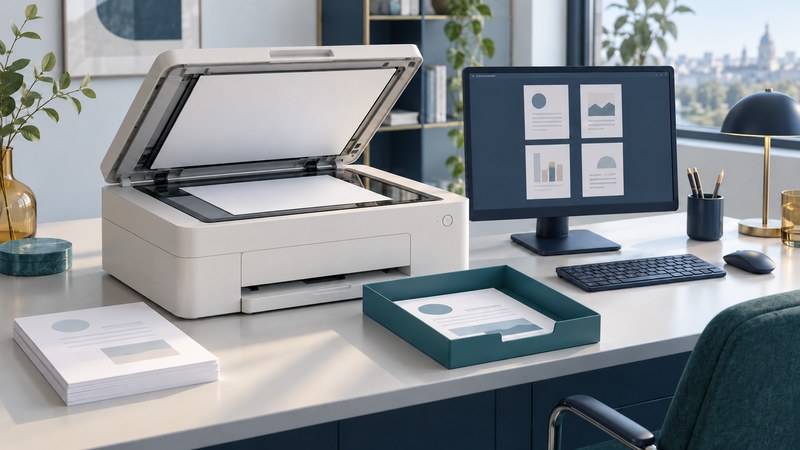
Scanner, Printer and Fax: Prepare Clear Documents for Every Destination
Prepare complete, readable documents and check page order, orientation and file format.

Color Fax Machines: Compatibility, Legibility and Document Alternatives
Check colour transmission and preserve document meaning in monochrome or file delivery.
Maintain an existing machine
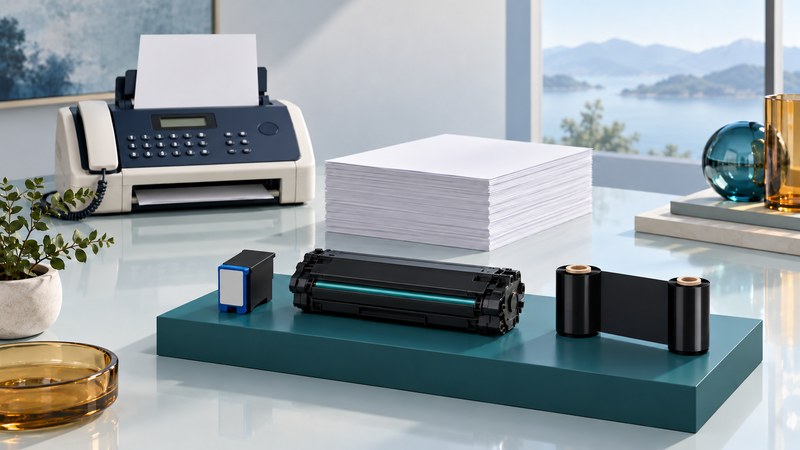
Plain-Paper Fax Machines: Supplies, Print Quality and Keep-or-Replace Decisions
Match supplies, investigate print quality and assess keeping or replacing an existing machine.
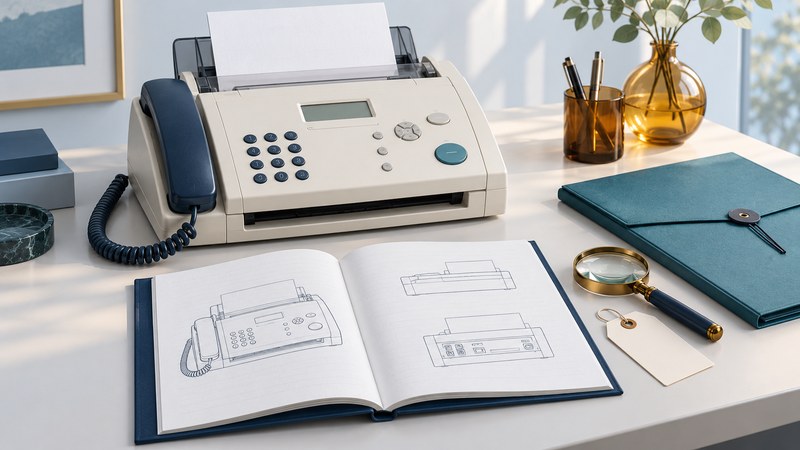
Panasonic Plain-Paper Fax: Find Your Manual, Supplies and Setup Instructions
Find model-specific Panasonic manuals, supplies, setup instructions and troubleshooting steps.
For reliable feeding and legible copies, see choosing office paper. Return to the Office Supplies library.