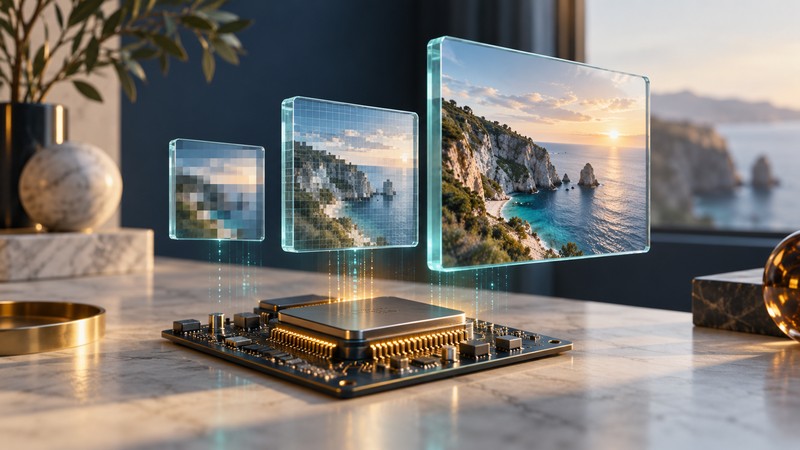
A processor that can play a video may be unable to encode it, resize it at the required speed or send the desired signal to a display. Read a capability claim as a description of one stage, then check the complete path your task needs.
Follow the picture through the system
For playback, a typical route is stored or received data → demux → decode → image processing → display output. Demuxing separates streams inside a container; decoding reconstructs pictures from compressed video. Image processing may include scaling, deinterlacing or color conversion. The display interface then sends a supported signal to the screen.
For a transcode, the route continues from decoded pictures through any required processing to encode → mux → storage or transmission. Encoding creates the new compressed stream; muxing puts video, audio and timing information into the output container. A straight file copy does not need to decode and re-encode its contents.
Mark the stages your job actually uses. Playing a saved clip, making a smaller viewing copy and capturing an incoming camera signal are three different workloads. Include sound and synchronization in the test even when the headline specification discusses only video.
Separate programmable work from codec acceleration
A CPU runs general software and coordinates the application. A digital signal processor, or DSP, is designed for efficient numerical signal processing. A dedicated codec block implements particular encoding or decoding operations. A system-on-chip can contain several of these alongside other processing and input/output hardware; the label “media processor” does not establish which functions are present.
Hardware support also needs an accessible software path. In Texas Instruments’ AM62Ax Processor SDK Linux 10.01 documentation, the Wave5 codec block provides H.264/H.265 encoding and decoding through a driver, firmware and application stack. The guide describes GStreamer using a V4L2 plugin. That versioned example shows why a chip specification and a working application are separate pieces of evidence.
Check which decoder and encoder the application actually selects. A file that plays successfully may be using software decoding. An unsupported profile can fail or take a different path; low CPU use alone does not identify every operation being accelerated. Keep the application log or diagnostic report with the configuration.
Turn a broad claim into a capability record
| Requirement | Record the exact value | Why it matters |
|---|---|---|
| Compressed input | Codec, profile, level, bit depth and chroma format | Two files with the same extension can require different decoders. |
| Picture workload | Stored dimensions, frame rate, scan type and stream count | Maximum dimensions do not establish sustained throughput. |
| Processing | Resize, deinterlace, overlays and color conversion | These stages may have separate hardware or software limits. |
| Encoded output | Codec, quality target, dimensions and frame rate | Decode support does not prove equivalent encode support. |
| Display or storage | Required output signal or write rate | A fast codec does not fix an incompatible port or slow destination. |
| Software system | Board, OS, driver, firmware and application versions | Reproducibility depends on the complete combination. |
TI’s cited release lists 8192 × 8192 as a maximum picture size while explicitly withholding a real-time guarantee at that size. It also makes simultaneous-stream capacity dependent on resolution and frame rate. Use such limits to narrow a test, not as proof that an arbitrary collection of streams will run.
Measure the intended job
- Choose representative input, including difficult motion and the longest expected running time. Save its media properties.
- Run the exact output settings and processing steps required by the project. Record all software versions.
- Observe dropped frames, processing speed, audio sync and any errors throughout the run. Include warm operation, not just startup.
- Read the output properties and watch representative sections, including the beginning and end. Check image geometry, color and sound.
- Repeat with one change at a time when investigating a limit. Keep a known working configuration alongside the failing case.
If decoding works but resizing causes stutter, investigate the processing stage and transfers between stages. If the output file is complete but a television rejects it, inspect the playback and display path separately. Use the lossless-codec guide to choose a master or derivative, and the HDMI guide to resolve display connections. The Digital Video library connects those decisions.