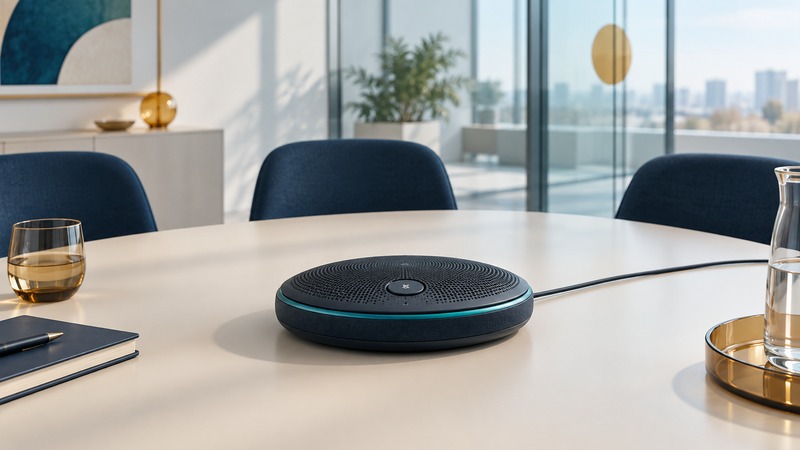
A conference phone or speakerphone should make conversation understandable from the seats people actually use. Choose the connection first, then evaluate sound and operation in the room. A successful connection and a loud local speaker are only parts of the result; a remote listener must be able to hear the group clearly.
Match the device to the service
On a narrow screen, scroll the table horizontally. Keyboard users can focus the table region and use the arrow keys.
| Setup | Role of the device | Compatibility evidence needed |
|---|---|---|
| Analog conference telephone | Telephone endpoint on an appropriate analog service | Line type, power, and approved adapter arrangement if required |
| SIP or platform phone | Network calling endpoint | Supported provider/platform, provisioning, account, network, and firmware |
| USB speakerphone | Microphone and speaker for a host computer | Operating system, conferencing application, cable, and call controls |
| Bluetooth speakerphone | Wireless audio accessory for a supported host | Supported host type and profile, pairing method, adapter requirements, and controls |
A connector shape does not establish the service behind it. Record the exact device model and variant, host, operating system, application, and connection you intend to use. Ask for compatibility evidence for that combination and test it with the actual calling service.
For one specific example, Jabra's Speak2 55 documentation describes computer connections through USB-A or USB-C and mobile connections through Bluetooth. Its call-control behavior depends on the conferencing software. This illustrates why “has Bluetooth” is less useful than the documented host-and-connection pairing.
Understand the sound you are testing
Full-duplex audio supports speaking and listening at the same time. Test short interjections and overlapping speech as well as a person talking alone. Echo cancellation, noise processing, room acoustics, placement, network conditions, and application settings all contribute to the resulting conversation.
Place the unit where normal seating falls within the manufacturer's intended coverage and keep its microphones unobstructed. Test with doors, ventilation, and seating in realistic positions. A hard, reverberant room can remain difficult even when a device's advertised pickup distance includes every chair.
Ask the remote listener to describe clipped words, distant speech, reverberation, or background noise. Change one factor at a time and repeat the same sentence from the same seat. Keep listening volume comfortable; raising volume excessively can complicate the problem.
Remove duplicate audio paths
Several nearby devices in the same meeting can feed speaker sound back through another microphone. Use one active room audio path or the platform's documented companion-device mode. Muting a microphone alone may leave another speaker playing into the main room microphone, so inspect both input and output.
Microsoft's guidance for sharing computer sound describes joining an additional personal device with audio off to avoid echo. Check the selected microphone and speaker in both the operating system and meeting application; an attached speakerphone can coexist with a still-selected laptop microphone.
Isolate pickup, routing, and connection problems
On a narrow screen, scroll the table horizontally. Keyboard users can focus the table region and use the arrow keys.
| Symptom | Next check | What the result narrows down |
|---|---|---|
| Device absent from the app | Confirm power, supported connection, and operating-system device visibility | Connection or device detection before room acoustics |
| Remote side hears the laptop instead | Select the intended microphone explicitly | Input routing |
| Only far seats sound weak | Repeat from near and far seats at normal voice level | Placement, room, or coverage |
| Intermittent breaks across all seats | Compare a supported wired path and check call/network diagnostics | Connection or transport rather than one seating position |
| Mute button disagrees with the app | Test supported call-control integration and both mute states | Control synchronization |
Keep a record of the test environment and changes. Use the vendor's supported firmware and diagnostic procedure when escalating. Avoid connecting random adapters or resetting a provisioned phone during a business call; identify the configuration owner and preserve required settings.
Accept the setup with a remote listener
Run a short acceptance call after setup and after significant changes. Have someone speak normally from each seat, ask a brief question over another speaker, operate mute, play intended shared audio, and disconnect and reconnect using the normal joining routine. Confirm the remote side's experience at each step.
Include an actual user who has to start the next meeting. Check that the selected devices survive the ordinary reconnect or restart sequence, and leave concise instructions beside the room equipment. Record the model, firmware, connection, host, app, room arrangement, and date with the result.
The audio test record makes repeated checks comparable. For camera framing, displays, and the broader room acceptance process, use the meeting-room system guide.