
Data storage is a system for keeping files usable over time. A useful choice starts with what you need to keep, how quickly it grows, who needs access, and how you would recover it after a failure or mistake.
The drive or memory chip is one part of that system. Connections, shared-file services, backups, and management tools complete the picture. Use this guide to frame your decision, then explore flash memory, a client-SSD upgrade example, parallel file storage, or AI-assisted management.
Start with five questions
Write a short description of the job before comparing equipment. These questions help separate a space problem from a speed, access, or recovery problem.
- What must be kept? Identify original photos, working documents, records, and other hard-to-replace files. Distinguish them from downloads you can obtain again.
- How much space will be needed? Record current use and growth, including working files and retained versions.
- What feels slow? Name the task: opening many files, transferring a video, saving a project, or serving several people.
- Who needs access? List people, devices, locations, and permission requirements.
- What would recovery require? Decide how much lost work and interruption you could tolerate.
The resulting brief might say: “Two people need access to a growing photo collection, with a separate recovery copy and a tested way to restore accidentally changed files.” That is a clearer starting point than a capacity label alone.
Understand your storage choices
Internal, external, shared, and cloud storage describe access arrangements. SSD and hard disk describe storage technologies. Combine these decisions according to the work and the people using the files.
On a narrow screen, focus the table region and scroll horizontally to read every column.
| Choice | Useful role | What to check |
|---|---|---|
| Internal SSD | Active storage within one computer. | Host compatibility, usable capacity, workload, thermal requirements, and support. |
| External drive | Local transfer, additional working space, or a backup destination. | Connection, power, handling, capacity, and how backup copies are maintained. |
| NAS or shared file system | Files accessed by several clients over a network. | Permissions, network, concurrent demand, administration, and recovery. |
| Cloud storage service | Remote access or another location for stored data. | Synchronization, version retention, account access, retrieval, connectivity, and ongoing cost. |
Common flash SSDs keep data in semiconductor memory; hard disks use rotating magnetic media. Samsung's SSD explanation describes the distinction. Compare the complete product's capacity, workload performance, power, and support. Its media type alone leaves important requirements unanswered.
A shared enclosure can contain SSDs or hard drives, and an external drive can use either. A service adds its own retention and access rules. Read those rules alongside the hardware specifications.
Explore the four storage guides
Start with the underlying technology, follow a practical device example, then move to shared systems and their management.

Understand flash memory
Understand layers, bits per cell, controllers, and UFS using a dated 64-layer example. Start here when a memory specification needs decoding.

Evaluate a client SSD
Use the older Toshiba XG5-P OEM SSD as a specific upgrade case: identify the model, check compatibility, and prepare recovery before changing hardware.
Plan shared file storage
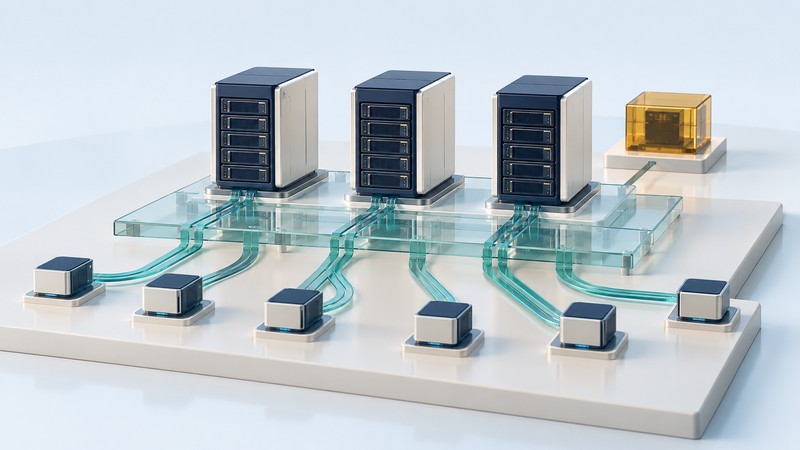
Move from one computer to concurrent shared workloads. Follow parallel data paths, define evaluation criteria, and use the accompanying workload worksheet.

Explore AI-assisted storage management
Explore forecasting, tiering, resilience, and governance. Consider where automated recommendations help and how to verify their effect on the real workload.
Read capacity and performance claims usefully
Usable capacity is the space available after formatting, system allocations, and any storage-protection overhead. Leave room for working files, updates, and expected growth. Transfer rate, commonly reported in MB/s, describes how much data moves per second. Latency describes the delay for an operation. Keep the units and test conditions attached to each claim.
Large sequential transfers and small-file activity exercise a system differently. The source drive, connection, network, or receiving device can limit a copy. SNIA's storage benchmarking discussion explains why request size, measurement location, and response time matter. Compare a repeatable real task as well as headline figures.
Protect files and verify recovery
Different protections address different events. Redundancy can keep service available through supported component failures. Synchronization carries changes between locations. Version history retains earlier states according to a policy. Backups provide recovery copies whose scope, separation, and retention must be understood.
Imagine overwriting a spreadsheet and having the change synchronize to your other devices. Find out whether an earlier version or independent backup exists, how long it is retained, and which account can retrieve it. Restore to a separate location first and check the contents before replacing the working file.
CISA's StopRansomware Guide recommends offline, encrypted backups of critical data and regular recovery testing. Apply that principle through the documented options for your devices and services: separate recovery copies from everyday write access, protect credentials, and verify that restoration works.
A practical test is to restore representative files, open them, and record where they came from and how long recovery took. Also confirm access to any required decryption keys and applications. Review the process when accounts, devices, retention rules, or the value of the data changes.
Turn the questions into a storage plan
- Inventory: record important files, current use, and who owns the decision.
- Estimate: calculate growth and identify the task that needs improvement.
- Choose: match the access arrangement to devices, users, and support capacity.
- Recover: document backup locations, retention, and a successful restore test.
- Review: set a capacity or support threshold that prompts another decision.
For a single-computer upgrade, begin with compatibility and a verified recovery copy. For a growing photo or video collection, separate originals, working files, and retained exports in the space estimate. For a team or lab, define simultaneous access and recovery requirements before a product demonstration.
Teams evaluating shared systems can use the existing storage workload and evaluation worksheet (plain text). It provides fields for acceptance criteria, test conditions, measured results, recovery, and costs.
Sources and further explanation
The linked manufacturer explanation supports the media distinction; SNIA supplies performance terminology and measurement context; CISA supplies backup-protection and restoration guidance. Use the exact device manual or service policy for configuration, compatibility, retention, and recovery procedures.