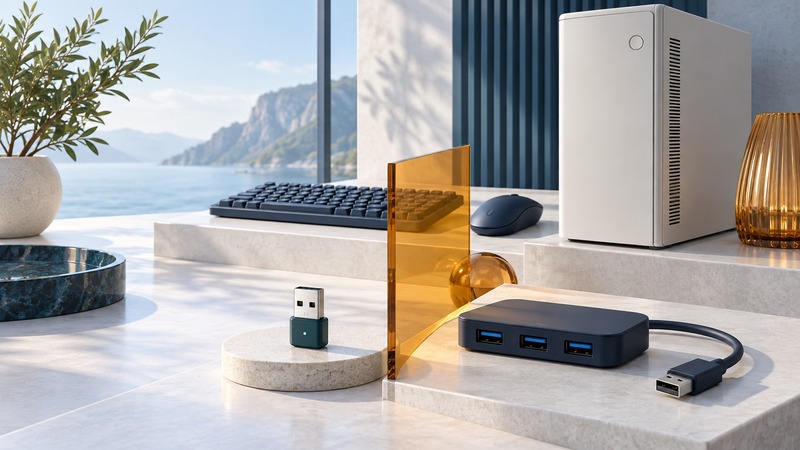
A computer can connect several wireless devices through suitable hardware and software, but the word “hub” covers very different products. Identify what each peripheral needs first. A USB hub adds USB ports; a Bluetooth adapter adds a supported radio connection; a proprietary receiver serves its own compatible devices.
Name the connection behind each device
Make an inventory of the keyboard, mouse, headset, controller, scanner, or sensor you want to use. For each, record its model and available connection modes. A peripheral with a Bluetooth mode and a supplied receiver may offer two separate ways to connect; select one deliberately.
Logitech’s explanation of Bolt and Unifying compatibility illustrates why tiny USB receivers are not interchangeable. Those two systems use different underlying technologies. Follow the matching receiver and peripheral documentation even when their plugs look alike.
On a small screen, scroll the table sideways to read all columns.
| Accessory | Purpose | Verify |
|---|---|---|
| USB Bluetooth adapter | A Bluetooth radio supported by the operating system | Required modes/profiles, driver and OS version |
| Proprietary keyboard/mouse receiver | A connection for specified peripherals | Exact receiver family and pairing software |
| USB hub | Additional USB ports for attached devices | Power/data requirements of each attached accessory |
| Audio-specific wireless dongle | A supported audio path for particular headsets | Headset model, call controls and OS support |
| Bluetooth gateway | A bridge for specified devices or services | Application/service compatibility; not a universal PC adapter |
Plan for the workload, not the saved-device count
A list of saved pairings describes remembered relationships. Your working requirement is simultaneous behavior: keyboard and mouse input while a headset microphone is active, or a scanner feeding records while a label printer works. Ask whether the complete software and device combination supports that workload.
Record how each device connects and whether a manufacturer specifies limits. Audio, low-rate sensor data, and input events place different demands on the setup. There is no useful universal purchase rule based only on a large paired-device count.
Before adding a USB radio, check the computer’s existing Bluetooth hardware and the new adapter’s installation instructions. Some vendors require a particular way to handle an existing radio. Keep a wired keyboard or mouse available when changing the connection you rely on to control the computer.
Establish a clean physical baseline
Test the chosen receiver or adapter in an accessible computer port before introducing a crowded hub arrangement. Keep its placement in your test record. Microsoft’s Bluetooth troubleshooting guidance notes that nearby unshielded USB 3.0 devices can interfere with connections. Moving a radio away from a busy cluster of USB equipment is a diagnostic comparison, not proof that all hubs cause trouble.
For a hub, confirm that each attached device’s power and data requirements are met. Compare the same peripheral with a direct connection. If the direct connection works consistently, investigate the hub, cable, power arrangement, and radio position as separate variables.
Logitech’s Bolt deployment guidance (PDF) also discusses placement behind towers and monitors. Use vendor recommendations for the exact equipment, then verify it at your desk.
Add devices one at a time, then use them together
- Confirm the first peripheral works alone. Type a short known sentence, move the pointer, or perform the device’s intended task.
- Add the next device through its documented connection method and repeat both tasks.
- Run the real combined workload. For a headset, open the microphone as well as playing sound.
- Test recovery after sleep, a normal restart, and reconnecting a portable device.
- If a problem appears, remove the last change and repeat. Then compare a different port or placement while keeping other settings fixed.
Keep the working port layout and connection modes with your equipment inventory. For persistent input-device problems, Microsoft’s mouse and keyboard guidance includes testing on another PC and checking applicable drivers. Use a supported second system so the comparison is meaningful.
Keep a record and continue
Download the PC peripheral connection checklist (plain text). Use the blank result fields to record your own equipment and observations.
- Diagnose Bluetooth software and permissions
- Choose a complete calling connection
- Verify scanner data capture
- Explore all Bluetooth guides
Researched and updated September 13, 2026. Connection counts and performance depend on the adapter, profiles, operating system, peripherals, and workload.