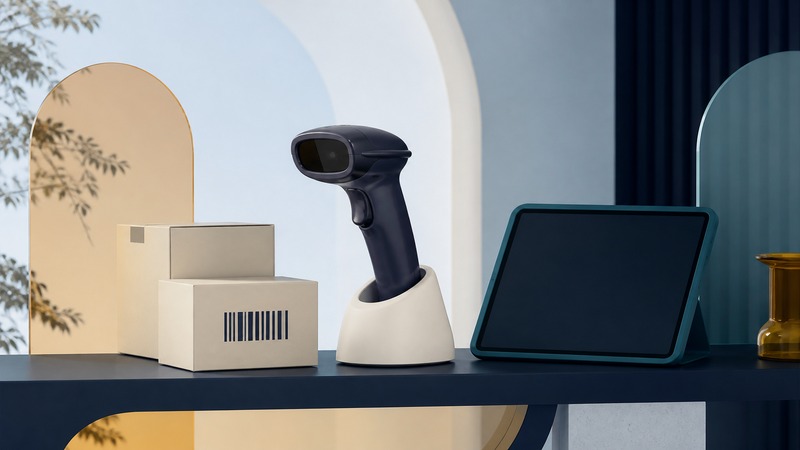
A successful scan has several stages: reading the symbol, sending its data, placing that data in the right field, and accepting it into the application. A beep or a paired-device icon confirms only part of that chain. Test the complete workflow with known values before relying on a wireless scanner for inventory or transactions.
Choose the connection your application expects
In keyboard emulation, a scanner behaves much like a person typing. Zebra’s DS4678 Bluetooth HID documentation describes sending decoded data as keystrokes. This is convenient for ordinary text fields, but the receiving application still controls focus, validation, and saving. Scanning into the wrong active window remains possible.
On a small screen, scroll the table sideways to read all columns.
| Mode | How data reaches the application | What to verify |
|---|---|---|
| HID keyboard emulation | Decoded characters arrive as keyboard input. | Field focus, keyboard layout, suffix keys, and how the app confirms saving. |
| Serial or virtual serial connection | Software reads a stream through a supported serial interface. | Profile, driver, port selection, message boundaries, and reconnect handling. |
| Manufacturer SDK or app integration | The app uses a documented device interface. | Exact scanner model, host OS, SDK version, events, and supported controls. |
| Wireless scanner through a cradle | The radio link ends at a cradle that connects to the host. | The cradle’s host interface as well as the scanner-to-cradle pairing. |
Pick the host mode before pairing. A scanner’s setup guide may offer different configuration barcodes for different interfaces. Use the guide for the exact model; an arbitrary programming barcode found online can change persistent settings. Zebra’s DS4678 radio-communications guide provides the model’s host-interface choices.
Check barcode support separately from radio support. A scanner sold for one-dimensional codes does not thereby support QR Code or Data Matrix. An imager’s specification should name the required symbology and any restrictions. Reading a printed code and reading one from a phone screen are also distinct tests. Distance claims are meaningful only with the specified symbol size and conditions.
Preserve identifiers as text
Inventory identifiers are not quantities. Leading zeros, letter case, punctuation, and long digit strings can all matter. An application that converts 000123 into the number 123 has changed the identifier even if the scanner transmitted it perfectly. Configure the destination column or field as text before importing test data, and check the saved or exported value.
Keyboard layout is another source of subtle errors. A scanner sending keyboard events needs settings compatible with the host’s layout. Test punctuation as well as digits; digits alone can hide a mismatch. Zebra documents country-keyboard settings for its documented USB and keyboard-wedge paths. Bluetooth HID settings may differ, so use the corresponding section of your model’s manual.
Prefixes and suffixes can identify a scanner or move between fields, but they are additional data or key actions. A trailing Enter might save a record, submit a form, or insert a line break. A Tab might move focus somewhere unexpected after the form changes. Zebra’s prefix/suffix documentation illustrates why both formatting values and transmission format need attention; its setup codes apply to that documented model.
A decode beep is not a saved-record receipt
On a small screen, scroll the table sideways to read all columns.
| Symptom | Possible stage to investigate | Useful check |
|---|---|---|
| Beep, but no visible value | Host connection, active field, or buffering. | Scan into a plain text field, then repeat in the real app. |
| Wrong punctuation or lost zeros | Keyboard mapping or application conversion. | Compare the raw received string with the saved/exported identifier. |
| One label creates two records | Repeated decode, suffix behavior, or app retry logic. | Observe the input events and save confirmation separately. |
| Scans appear after reconnection | Offline or out-of-range batch mode. | Check the documented buffering mode and test the replay order. |
| Partial or missing strings during fast scanning | Host processing, pacing, or connection recovery. | Repeat a known sequence slowly, then at the intended working pace. |
Zebra’s DS4678 batch-mode documentation distinguishes immediate transmission from modes that store scans, including out-of-range storage. A successful storage indication is not evidence that the business application has received or committed the record. Memory limits and replay behavior are model-specific.
Run a small acceptance test with known labels
Open the printable Code 128 test labels and download their expected values (CSV). These are invented internal test identifiers, not retail product numbers or GS1 examples. Their encoded contents have been checked with a software decoder. Printed quality and your scanner still need an on-device test.
- Use a test document or sandbox form. Configure identifier fields as text and disable any automatic transaction submission.
- Scan each label once in order:
000123,AB-001,LOT/07, and987654321012345678. - Compare each exact string, including zeros and punctuation, with the expected data. Check the stored export as well as the screen.
- Scan
AB-001twice deliberately. Decide whether two scan events or a duplicate warning is correct for this workflow. Do not silently deduplicate a quantity-counting task. - In a controlled test, disconnect and reconnect. Establish whether scans are rejected, buffered, or replayed, and reconcile the final event count.
The first pass contains four events and four distinct identifiers. Including the two additional scans gives six events and still four distinct identifiers. That distinction matters when investigating “duplicate” data.
Keep a repeatable setup and evidence of receipt
Record scanner and cradle models, firmware, host mode, keyboard layout, enabled symbologies, formatting, and the app version. Save the supported configuration export if available. Repeat the same acceptance test after firmware, form, or operating-system changes.
AI-assisted tools can help compare test exports or draft validation code, but do not ask them to guess missing identifiers. Provide the expected strings and event-count rules, then verify their output against this small fixture. For production work, the application’s explicit acceptance or error state should determine what happens next.
Related resources
- Serial adapter interfaces and test procedures
- Manage paired and shared Bluetooth devices
- Bluetooth services in embedded devices
- Explore all Bluetooth resources
Researched and updated September 5, 2026. Feature availability depends on the exact devices, software, and connection method.