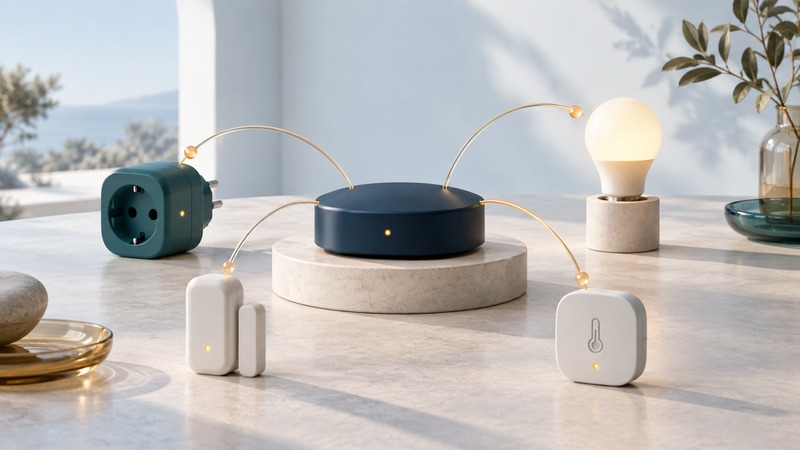
Zigbee connects low-power devices such as sensors, lamps, switches and plugs through a local wireless network. A useful installation starts with the exact devices and functions your hub supports, then provides dependable paths between them. Buying several products with the same radio label is only the beginning of that check.
This guide focuses on household automation. Have the hub and device model numbers, current firmware information and manufacturer pairing instructions available. Preserve existing automations and backups before moving devices between hubs.
Understand the three network roles
On a narrow screen, scroll the table sideways. Keyboard: focus the table and use the arrow keys.
| Role | What it does | Household implication |
|---|---|---|
| Coordinator | Forms a centralized Zigbee network and has network-management responsibilities | Your hub or coordinator adapter establishes this network |
| Router device | Relays messages for other devices | Supported plugs or lights can extend useful paths while powered |
| End device | Communicates through a parent and does not relay other devices’ traffic | A battery sensor adds a function, not another coverage relay |
Silicon Labs’ explanation of Zigbee node types distinguishes these roles and explains why sleepy end devices conserve power. The word “router” here means a Zigbee relay; it is separate from the router that connects your home to the internet.
Check the device’s documented role. Mains power alone does not establish that a particular product routes traffic. A light used as a relay also needs electrical power when other devices rely on it. A wall switch that removes power can therefore change the network as well as turn off the light.
Check functions, not only pairing
Before purchasing, write down the exact outcome: detect a door opening, report temperature, dim a lamp, or expose a button’s double-press action. Check your hub’s supported-device information for that model and hardware revision. Then check which features appear in the platform you actually use.
Home Assistant’s ZHA documentation explains that standard device types are supported while manufacturer-specific behavior can require device handlers. Successful joining is therefore one milestone; correct readings, commands and automations are the acceptance test.
For a temperature sensor, verify units, update behavior and the event used by an automation. For a light, test brightness, power restoration and any color features you require. Keep a short record of firmware and observed behavior. A compatibility report about a different generation of the same product may leave those details unanswered.
Separate Zigbee, Thread and Matter
Zigbee and Thread provide different networks. Matter is an application standard that works over supported IP networks. The Connectivity Standards Alliance’s Matter FAQ explains native use of Wi-Fi, Ethernet and Thread, and how bridges can bring devices using other technologies into a Matter ecosystem.
An existing Zigbee lamp can remain on its Zigbee hub while a supported bridge exposes it to Matter. Confirm the bridge supports that lamp and the features you need. The lamp has not acquired a Thread radio, and a Thread border router by itself does not replace the Zigbee hub.
Also establish which functions work locally and which rely on accounts or cloud services. A local radio link can coexist with a cloud-dependent phone app or automation. If local operation matters, test the relevant function during a planned internet interruption while retaining power and the local network.
Build useful paths before adding distant sensors
Position the hub or coordinator in a practical open location. If using a USB coordinator, follow its installation guidance for separating it from noisy electronics. ZHA documents USB 3 interference and the usefulness of a suitable shielded extension cable. It also recommends establishing powered router devices before adding battery devices when strengthening a network. These are useful starting points for its supported setups, not a guaranteed range specification.
Choose supported powered routers along the route to a distant room. Pair devices using their own instructions, including any requirement to wake a battery device during setup. Test at the final location. A device that behaves well on the desk beside the hub still needs a viable path from the installed door or cupboard.
Both common home Wi-Fi and many Zigbee products use 2.4 GHz. Keep the hub away from a Wi-Fi access point where practicable and document channel settings before altering them. Wi-Fi and Zigbee channel numbers describe different channel plans. Follow the hub’s migration procedure rather than assigning matching numbers or changing channels blindly.
Troubleshoot the event that actually fails
Fictional example: a door sensor pairs immediately but stops reporting overnight. Check its battery, whether the hub stayed online, and whether a nearby routing lamp lost power at a wall switch. Restore a dependable supported relay path and repeat door-open and door-closed events from the installed position.
If pairing fails, confirm the device has left its previous network and use its documented reset only after recording the automations that will need restoration. If pairing succeeds but one feature is absent, investigate platform support before moving the hub. If many devices fail together, investigate hub power, software and the common radio environment first.
Use timestamps and repeated events to distinguish an occasional missed report from a consistent unsupported function. Avoid treating a single link-quality number as proof of end-to-end reliability; the automation’s response is the meaningful outcome.
Keep an inventory you can recover
Record each device’s room, model, role, battery or power source, pairing instructions and required automations. Use the hub’s supported backup/export method and protect its network credentials. Check backup compatibility before replacing the coordinator.
When expanding, test one device type before buying a large set. Retest after a hub migration or firmware change that affects pairing, bridges or local behavior. For the wider buying decision, see connected appliances; for home-network boundaries, use wireless security.