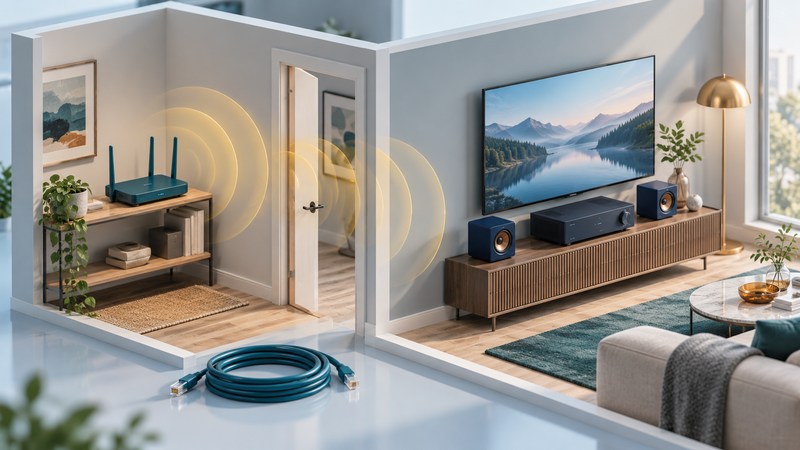
A wireless media receiver brings network audio or video to a television or stereo. The receiver may be a separate box, a feature inside an audio component, or an app on the TV. Choose it by the content it can play and the outputs your system accepts, then test the connection in the place where it will live.
Choose the endpoint for your source and destination
Write one complete sentence: “I want to play these files or this service, using this app, through this TV or stereo.” That identifies more than a wireless logo. Check the exact generation of the device and its current software support.
| Approach | What does the work | What to check |
|---|---|---|
| App on a TV or streaming box | The app requests and plays the media. | Required app, account, codecs, captions, audio output, and remote controls. |
| Casting or AirPlay | A phone initiates playback or shares content using a supported method. | Support in both the source app and receiver, discovery, and whether the phone must remain involved. |
| Network audio receiver | An audio endpoint feeds an amplifier or powered speakers. | Service/file support, analog or digital output, volume behavior, and multiroom needs. |
For example, Apple’s AirPlay instructions distinguish streaming video from mirroring a device screen and note that some video apps have their own limits. Treat those as separate playback tests. A Bluetooth audio connection is another capability to check explicitly; it does not establish Wi-Fi library access.
Verify the physical output too. An HDMI source, optical output, analog line output, and speaker output serve different connections. Read both endpoint and audio-system manuals before choosing an adapter. The HDMI guide covers the path through a TV or receiver.
Establish discovery before chasing playback speed
Follow the endpoint’s setup instructions and confirm that the controlling device can find it. Check the intended home network, relevant local-network permissions, and the exact device name. A working internet connection on each device is only one part of this check.
Google’s streaming-device troubleshooting identifies AP/client isolation and guest networks as possible setup barriers. Such separation can prevent devices from seeing one another. Use the intended trusted home network and its supported setup instructions; keep security controls purposeful rather than disabling them broadly.
If a receiver appears in its own setup app but not inside a particular media app, check that app’s supported playback methods and permissions. If it disappears after a restart, record the exact behavior and software versions before changing several network settings at once.
Compare the same playback over two connections
First make a baseline with a familiar local file or repeatable scene. Keep the player, app, file, selected tracks, and quality setting the same. When the device supports Ethernet, connect it by the manufacturer’s supported method and confirm that it is actually using the wired path.
- Play the sample over the current Wi-Fi connection at the final equipment location. Note interruptions, seeking behavior, and the server’s reported playback method.
- Repeat over Ethernet where supported. Keep the media and settings unchanged.
- Return to Wi-Fi and test one location or placement change. Keep antennas and the device clear of a tightly enclosed metal cabinet where practical and consistent with its manual.
- Repeat at the household’s usual viewing time, including the normal competing activity.
- Save the stable arrangement and the evidence that led to it.
A player without Ethernet can be compared at a better wireless location while keeping the rest of the test fixed. That provides useful evidence but changes the radio environment rather than isolating it as cleanly as a supported wired test.
Read the result before buying network equipment
| Observation | What it suggests | Next check |
|---|---|---|
| Same file works wired; stalls on Wi-Fi | The wireless path or its environment deserves attention. | Repeat at the final location and normal busy time; check the device’s supported network settings. |
| Same file stalls on both paths | A shared part of the playback chain may be responsible. | Inspect server conversion load, source storage, app errors, and the file itself. |
| Only one subtitle or audio selection fails | Format handling may change the server’s workload. | Compare with a supported alternate track and inspect the dashboard. |
| Local files work; one online service fails | The service, app, or internet path may be involved. | Check that service’s status and a second app on the same endpoint. |
These observations narrow an investigation; a single test rarely identifies a failed component conclusively. The home media server guide explains conversion and library checks. Keep the original quality requirement visible when experimenting: lowering it may restore playback while changing the result you intended to watch.
Check daily use as well as uninterrupted playback
Test waking the system, selecting the endpoint, changing volume, resuming playback, seeking, and displaying captions. Check lip sync on familiar dialogue and verify the audio format reported by the receiving equipment. Test each output arrangement you expect to use.
Save the receiver model, software versions, network arrangement, and working settings in the media playback record. After a software or router change, rerun the same short sample so the result is comparable. Use the Home Theater hub to connect these playback checks with the wider room and speaker plan.