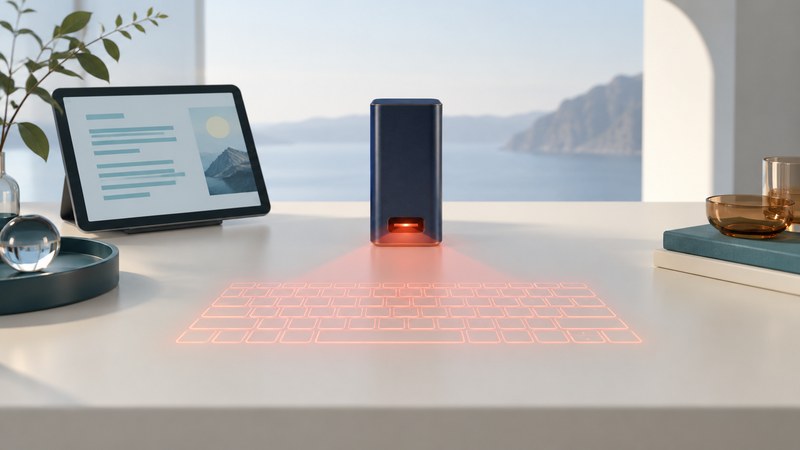
A virtual laser keyboard projects a visible layout and senses finger movement above the surface. Its usefulness depends on the surface, lighting, connection and the way you type. Evaluate those conditions together before relying on one for regular text entry.
Projected input attracted attention as a compact alternative to a physical keyboard during the PDA era. The enduring idea is a small device that creates a larger input area when placed on a suitable table. The tabletop and clear working space become part of the equipment you need.
Projection and sensing do different jobs
Celluon's EPIC user manual (manufacturer PDF from its 2013 regulatory filing, printed pages 12–19) provides a documented example. A projector draws the keyboard pattern. An infrared light plane and sensor detect reflected light from fingers; the device interprets their positions as input. EPIC uses Bluetooth HID to communicate with its host.
The visible pattern tells you where to aim. The sensor decides what input occurred. A bright, readable layout therefore establishes only one part of the system's performance. The practical test is whether intended taps produce the right characters, at a useful pace, in the application you actually use.
Specifications and pairing instructions belong to an exact model. EPIC is a later example of the technology, not a specification sheet for every projected keyboard or an earlier iBIZ announcement. Record the manufacturer, model and manual before testing an unfamiliar unit.
Make the surface and light part of the setup
The EPIC manual calls for a flat surface, warns against transparent or reflective surfaces and obstructions in the sensing area, and identifies sunlight and some infrared-rich lighting as sources of errors. It also provides a sensitivity adjustment. Follow the instructions for your own model, including its laser-use precautions.
Scroll the table horizontally to see every column. Keyboard users can focus the table region and use the arrow keys.
| Variable | What to observe | Useful response |
|---|---|---|
| Surface | Stable placement and a clearly visible complete layout | Use a manufacturer-approved surface; record its finish and size. |
| Light | Missed or repeated input under the actual room lighting | Compare suitable locations while keeping the text and device settings constant. |
| Clear sensing area | Objects, sleeves or resting fingers entering the working space | Clear the area and repeat the same short passage. |
| Host and layout | Expected letters, punctuation and shortcuts appear | Check connection profile, language/layout and application behavior. |
| Position and feedback | How often you look down, reposition or correct a tap | Record the behavior and comfort; compare with your normal input method. |
Separate connection troubleshooting from sensing. If the host never receives input, establish pairing and keyboard support first. If letters arrive but the wrong positions register, investigate the physical setup and model-specific adjustment. If letters are correct but punctuation differs, inspect the host's keyboard layout.
Run a trial that resembles your task
Choose a short passage containing the punctuation, capitals and numbers you commonly enter. Add a few relevant operations such as selecting a sentence, deleting a word or switching fields. Use expendable text in a simple editor, with autocorrection settings recorded.
- Practice before measuring. Learn the model's layout and settings with a different passage. Record any adjustment so a later comparison uses the same setup.
- Measure a fixed passage. Start timing at the first input and stop when the passage is complete, including corrections. Keep a copy of the final text for comparison.
- Record accuracy separately. Count remaining mistakes, note corrected mistakes and distinguish missed, repeated and wrong-character inputs. State how you count a “mistake” so repeat trials are comparable.
- Check task operations. Try the shortcuts and field navigation that matter to you. A letter-only exercise can hide an awkward editing workflow.
- Compare another input method. Repeat under similar conditions with the compact keyboard or on-screen keyboard you already use. Alternate the order across repeated trials to reduce practice effects.
- Record comfort and setup effort. Note table space, placement time, looking down and any discomfort. Stop if typing becomes uncomfortable.
Define the passage's word count once, including how you treat hyphenated words. This completion-rate measure compares your own trials; it should not be presented as a standardized typing benchmark.
Choose by the work you can complete
A useful result identifies a setting and task: for example, “reliable for this short form at this desk” or “editing takes too many corrections under this lighting.” It need not produce a universal verdict on the technology.
For travel, include the supporting surface and setup time in the portability judgment. For regular writing, weigh corrected completion time, shortcut access and comfort alongside device size. The mini-keyboard guide offers the wider comparison of layouts and typing positions.
Download the projected-keyboard trial record (plain text) to document conditions, timing and errors. The method helps you evaluate your own equipment; this article reports no hands-on product performance test.
Explore handheld computing
Handheld computers: work devices, accessories and classic PDAs