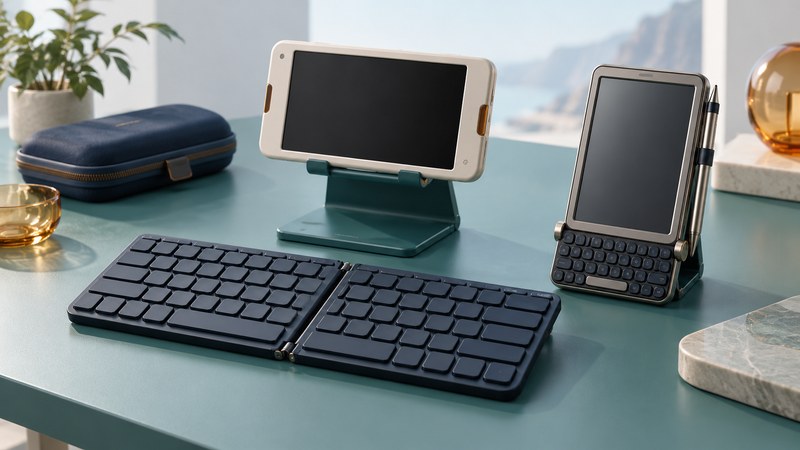
A mini keyboard earns its space when it makes your actual handheld task easier: entering a few stock codes, writing a paragraph, or navigating an application without repeated taps. Start with compatibility, then test the whole setup in the posture where you intend to use it. Small dimensions alone say little about useful typing speed.
Choose a form for the place you type
Belkin’s 2004 snap-on mini keyboard for Dell Axim handhelds illustrates one approach: a compact accessory intended for thumb typing while holding the device. A folding keyboard with a separate screen stand serves a different use, giving the fingers more room while asking for a stable surface. Both can be portable; their useful working spaces differ.
Scroll the table horizontally to see every column. Keyboard users can focus the table region and use the arrow keys.
| Design | Useful situation | Check before choosing |
|---|---|---|
| Model-specific snap-on | Short entries while holding a compatible handheld. | Exact connector, device family, driver and supported OS; reach to outer keys. |
| Folding desktop keyboard | Longer text at a table with the screen supported. | Hinge stability, split key positions, stand angle and total unfolded footprint. |
| Compact Bluetooth keyboard | Wireless use with a supported host and application. | Pairing, reconnection after sleep, input layout, battery and charging routine. |
| Compact USB keyboard | A wired setup where the handheld can host it. | Host support, cable or adapter, power budget, charging and port access. |
Connection method and physical shape are separate choices: a folding keyboard can use Bluetooth or a cable. Include the stand, protective case, adapter and charger when comparing packed size. A keyboard that leaves the screen unsupported has shifted a problem into another accessory.
Check the full input path
- Identify the host. Record the exact handheld model, operating system and application. For a classic Palm or Pocket PC, find the accessory’s model-specific instructions and driver requirements before purchasing or installing anything.
- Verify the connection. A matching plug must also have the appropriate data role. Android’s USB documentation distinguishes host mode, in which the Android device controls peripherals such as keyboards, from accessory mode. Confirm support on the particular handheld; an adapter by itself cannot establish it.
- Check power and physical clearance. Establish whether the keyboard has its own battery or takes power from the host. Test the intended hub or charging arrangement. A thick case can obstruct a plug, and a dock may occupy the port needed for another accessory.
- Select the right layout. Match the operating system’s hardware-keyboard layout to the printed keys and your language. Try punctuation, accented characters, currency symbols and numbers used in real work.
- Test the application. Verify movement between fields, text selection, correction, saving and reopening. System shortcuts and application shortcuts can behave differently.
For example, Apple’s iPad keyboard-shortcut guide describes Command-based editing and other supported shortcuts. Use documentation for the installed iPadOS release and then try them in the intended app. A familiar key label on a third-party keyboard may map to a different modifier action.
For keyboard-led navigation, look beyond text entry. Apple’s Full Keyboard Access documentation explains focus highlighting and navigation commands. Check that focus is visible, reaches each required control and lets you finish the task. Record any step that still requires a touchscreen action.
Run a short, repeatable typing trial
Use the same device, app, language layout and working position for each candidate. Give yourself a short familiarization period before timing. Then enter a representative passage, correct it and save it. Count remaining mistakes separately from time spent correcting; a fast draft with a wrong quantity can be costly.
- Start with a short note that includes capitals, punctuation and a number. Use a synthetic note rather than customer information.
- Enter five example identifiers containing easily confused characters, such as uppercase O and digit 0, or uppercase I and digit 1.
- Move between fields, select and replace a word, undo one edit, and save.
- Put the handheld and keyboard through the normal sleep/wake sequence. Resume typing and inspect the first few characters for missing or repeated input.
- Repeat the passage after a break. Note comfort, screen visibility, accidental presses and the need to reposition either device.
Set your own acceptance rule before comparing: for example, all identifiers correct, reliable wake-up, and completion without discomfort in the intended position. A reader writing long notes may prioritize correction time; a worker entering codes may prioritize tactile identification of a few keys.
Use the symptom to narrow the problem
Wrong symbols: inspect the host layout and language selection before assuming a hardware fault. Letters work but shortcuts fail: check modifier mapping and application support. It works until sleep: repeat the reconnection sequence and check battery and power settings. USB input is absent: verify the port’s host capability, cable data support and power requirements with the device documentation.
For a legacy snap-on accessory, keep its installer, manual and version notes with the device record. Preserve existing handheld data before adding a driver; the Palm OS software guide explains the relevant backup and compatibility questions. The Linux tablet guide covers input and touch checks for a different operating-system environment.
Download the mini-keyboard compatibility and typing trial. It includes synthetic text, an identifier exercise and spaces for repeatable results. This guide provides an evaluation method; it does not rank products or claim hands-on performance measurements.
Explore handheld computing
Handheld computers: work devices, accessories and classic PDAs