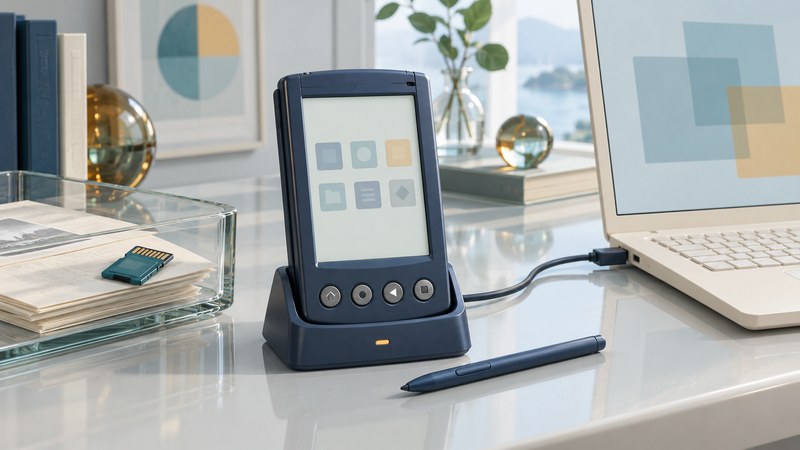
To install or preserve Palm OS software, identify the handheld and application first, protect the data already present, then choose a transfer route supported by that combination. A file with a familiar extension is only the beginning of the compatibility check.
This guide is for owners of classic Palm OS handhelds and their backups. It covers a cautious installation and preservation workflow. Keep the device, its cradle or cable, expansion cards, original software media and registration records together. Menu names and transfer options vary by model and software version.
Make a compatibility record
Record the exact handheld model, Palm OS version, available internal memory, expansion-card type, application name and version. On many Palm launchers, the Info command provides version and size information; consult the model's handbook for its location. Also record the desktop operating system, Palm Desktop/HotSync version, connection type and any application-specific conduit.
A conduit is the desktop component that exchanges data for an application during synchronization. The handheld application, its data files and its conduit may be separate pieces. Preserve their versions together, especially when a program depends on a desktop companion.
Check the application's own release notes for supported OS versions, processor requirements, display modes and dependencies. Palm-family branding spans different software environments, and a package intended for Windows Mobile will need a different system from a Palm OS application. The name “Treo” alone is insufficient identification.
Scroll the table horizontally to see every column. Keyboard users can focus the table region and use the arrow keys.
| Record | Why it matters | Where to check |
|---|---|---|
| Device and OS | Determines the software environment and supported features | Handheld information screen and original model handbook |
| Application version | Requirements and file formats may change between releases | About screen, installer and release notes |
| Desktop and conduit | Controls installation or application-specific exchange | Original disc, installed software and HotSync configuration |
| Storage destination | Internal memory and expansion-card behavior can differ | Application instructions and device/card compatibility documentation |
| License and source | Establishes permission, provenance and reinstall requirements | Publisher information, purchase record and original package |
Understand what PRC and PDB tell you
Palm's File Format Specification (original Palm documentation preserved by Zamzar, PDF) describes record databases and resource databases. PDB commonly identifies a record database; PRC commonly identifies a resource database, including application resources. The database header contains type and creator information that can help identify its intended application.
A PDB extension therefore leaves the content format unresolved. It might belong to a particular document reader, organizer or other application. Keep it associated with its originating program. Renaming the extension changes the filename, not the stored data. For Word, Excel and Documents To Go material, follow the separate Palm document-recovery guide.
An EXE or other desktop installer may contain both handheld components and desktop integration. Extracting or copying one PRC can leave out a required companion, library or conduit. Read the package instructions before deciding whether direct handheld installation is sufficient.
Protect the existing state before the first sync
Start with the copies you can make without altering the handheld. Preserve the existing desktop user folders, backups, application installers and card contents in a dated archive. Keep a second copy on separate storage. Record the original folder paths and filenames so their relationships survive.
Then inspect synchronization settings before connecting. Palm's Tungsten T3 handbook (PDF) documents application conduits and overwrite actions. A synchronization can modify one or both sides. Select the correct user and understand each enabled action, particularly when one side contains an empty or older dataset.
If unique data exists only on the handheld and you cannot establish a suitable backup method, pause the installation. Preserve the working device and investigate its model-specific backup route first. A reset or experimental synchronization can make later recovery harder. A copied folder should also be inspected: check that expected files exist and that representative records can be opened through the appropriate software.
For an old desktop environment, prefer an existing known-working installation or a separately contained test environment with a valid software license. Confirm cable/USB/serial access before involving the valuable device. Keep old software away from unrelated personal accounts and sensitive networks, and obtain installers through sources whose identity and permissions you can establish.
Install one low-risk test package
The original T3 handbook describes Palm Quick Install on Windows and an Install Tool on the Mac, with installation completed during HotSync. These are historical, model-specific procedures; they do not establish compatibility with a present-day computer. Use the instructions matching your existing desktop setup.
- Choose a known-compatible application. Read its requirements and installation notes. Keep the original downloaded archive or disc image separate from extracted working files.
- Verify the backup and target user. Confirm which device and profile will receive the package. Review the pending install queue and synchronization actions.
- Choose the documented destination. Use internal memory or a supported expansion-card route as the application directs. Check available space for both the application and its working data.
- Transfer just the test package and required components. Use the documented tool for the environment. Record the result and inspect the synchronization log for failures.
- Open it and exercise a small task. Create a disposable record, close and reopen the application, and verify the record remains readable. Test export or synchronization only after reviewing the associated actions.
Direct card transfer is useful only when the device, filesystem, application and folder layout support that method. A copied file appearing on a card does not establish that it is installed or that its desktop features are available. Consult the application instructions before moving dependencies or data between locations.
Locate the failing stage
The computer never sees a connection: investigate the physical cable, power, port and driver/transport setup. The connection succeeds but a file fails: inspect the install queue, target user, available space and log. The application opens but cannot find its data: check version, companion files and storage location. Records change unexpectedly: stop further synchronization and compare preserved copies with the configured conduit actions.
Change one variable at a time and keep the exact error message. Repeatedly reinstalling a whole suite can obscure the original failure and alter a working component. A useful support question states the model, OS, application version, desktop setup, attempted step and observed result.
Preserve a working combination
Keep the installation package, license evidence, documentation, configuration notes and known-good data copies together. Record the source URL and retrieval date. A checksum helps detect later file changes; it does not prove that an unknown download is trustworthy.
Download the Palm software preservation checklist (plain text). Use it to document one device/application combination and the result of a small test. Keep private registration keys and personal data out of shared copies.
The aim is a repeatable record of what worked on a specific system. Hardware installation and restoration require testing on that system; this guide does not claim a universal current-host setup or a hands-on test of your device.
Explore handheld computing
Handheld computers: work devices, accessories and classic PDAs
Sources are linked beside the claims they support. Product and software documentation should be checked for the exact model and version before applying a procedure.