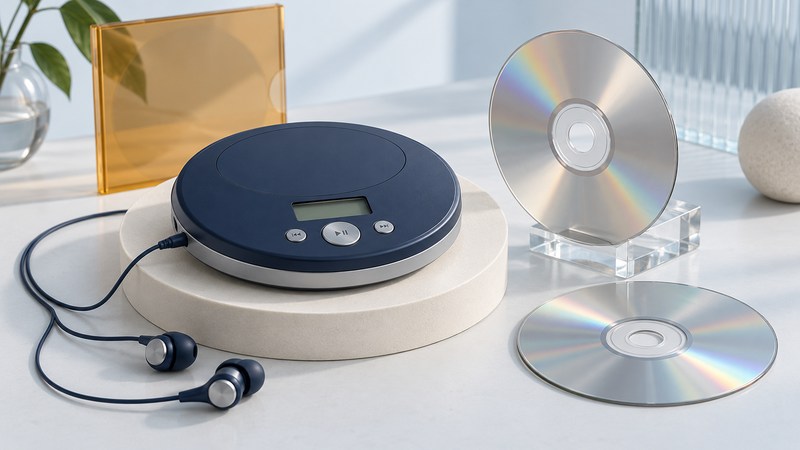
The RioVolt SP150 plays music from discs. To prepare one successfully, choose whether you want an ordinary audio CD or a data CD containing supported music files, then verify a small test disc in the player before burning a large collection.
Choose audio CD or MP3 data CD
The manufacturer's RioVolt SP150 User's Guide (June 2002; mirrored PDF) lists standard audio CDs and MP3/WMA music on CD-R/RW. It allows MP3 and WMA together but excludes mixing audio-CD tracks with those files on one disc. Secure WMA is unsupported.
| Choice | What is written | Capacity planning |
|---|---|---|
| Audio CD | The burning application creates standard audio tracks. | Use the disc's stated playing-time limit and the application's duration meter. |
| MP3 data CD | MP3 files remain files on the disc. | Use total file size and the application's disc-space meter. |
| General data backup | Whatever files you add, including formats the player may not decode. | A successful backup burn establishes storage, not music-player compatibility. |
Microsoft's disc-burning guidance explains why a data CD requires a player that supports the copied file types. An audio CD is a different output format even when the original songs on the computer were MP3 files.
Prepare a small, recognizable test set
Gather a CD writer, a blank CD, music files you can use, and the player's manual. First check the SP150 with a known-working standard audio CD. The manual recommends this as a way to separate a general playback failure from a homemade-disc problem.
For the first data-disc trial, the SP150 troubleshooting section recommends 128 kbps constant-bitrate MP3 files and closing the disc volume. Use that as a diagnostic starting point, rather than a claim about every supported bitrate or filesystem.
- Create a temporary folder containing copies of three short tracks you can recognize easily. Keep the source collection elsewhere.
- Check each file's actual format in your music application. If conversion is needed, make a separate MP3 copy. Keep the
.mp3extension; changing a filename alone does not convert audio. - Give the test tracks distinct titles and simple numbered filenames such as
01-opening.mp3,02-middle.mp3and03-ending.mp3. These are sample names, not required SP150 naming rules. - Play each prepared copy on the computer and note its title, duration and file size. This gives you a reference for the disc test.
Apple's conversion guidance describes creating a new copy in the selected format. Check the encoder and bitrate settings before converting your test tracks. Preserve a lossless or original source when available so repeated experiments need not start from another compressed derivative.
Burn through the application's disc-writing command
Music on a Mac
Create a playlist containing the prepared MP3 copies, insert a blank CD, select the playlist, and choose File → Burn Playlist to Disc → MP3 CD. Apple's Music burning instructions require MP3 files for this option. Check the selected playlist contains the converted copies rather than the originals in another format. Usage restrictions can prevent burning particular items.
Windows Media Player's burning interface
In the Player Library interface described by Microsoft, choose the Burn tab, open Burn options and select Data CD or DVD. Use a blank CD for the SP150, add the prepared files to the burn list, check the selection and start the burn. The cited instructions are for the Windows Media Player interface with these controls; other applications can use different commands.
Wait for the application to finish, including its close/finalize operation where provided. Eject and reinsert the completed disc, then play the files from the disc on the computer. Check the disc copy rather than accidentally playing the original folder. Record the burner, software, disc brand and settings so a successful result can be repeated.
Check the result in the SP150
Start the disc and test all three tracks. The SP150's track browser uses ID3 title information, falling back to filenames when tags are absent. Verify the displayed names and navigation before expanding into multiple album folders.
The computer reads it but the player does not: revisit disc closure and the small constant-bitrate test. The SP150 manual also suggests trying another disc medium or burner. Change one factor per attempt and keep the working audio CD as your baseline.
Only a few songs fit: check the chosen burn format and the application's meter. An audio-CD project counts playing time; a file-based project counts storage space. Return to the choice at the top before changing encoding settings.
The disc works but the order is inconvenient: inspect names and tags, then test one album folder before preparing the full collection. Keep a note of the order the player actually presents instead of assuming the computer's playlist view controls every data-disc browser.
Use the SP150 manual for power and battery instructions, not the separate SP250 model's specifications. For listening through a room system, the powered-speaker connection guide explains how to match an audio output to a supported input. The offline-library guide covers keeping source files organized independently of the discs you burn.
Explore Music Players
Browse music-player guides and earlier reporting, or follow the offline-library setup guide. Primary documentation is linked alongside the guidance. Sources and model details checked October 7, 2026.