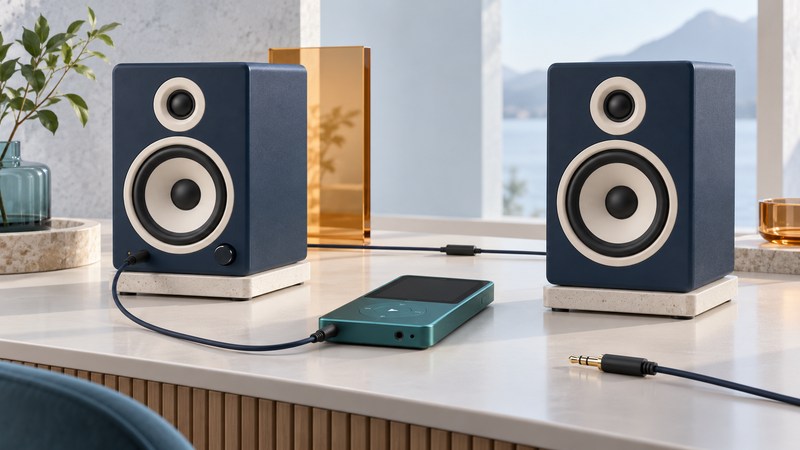
To play an iPod through powered speakers, connect a supported audio output on the player to an audio input on the speakers, supply speaker power, and set the levels. Start by reading the port labels. A cradle, charging socket and audio input perform different jobs.
Choose the connection your equipment supports
Powered speakers include their own amplifier and need their specified power source. Passive speakers require an appropriate amplifier between the player and speaker terminals. This guide covers powered speakers and complete dock systems; a headphone-to-speaker-wire cable is outside that setup.
| What the player provides | What the speaker needs | How to proceed |
|---|---|---|
| 3.5 mm headphone output | AUX IN, AUDIO IN or a documented analog input | Use the matching stereo cable. The player's volume affects this output. |
| Documented line output | A compatible line-level input | Use the prescribed cable and output setting; control listening level at the amplifier or speakers. |
| 30-pin or Lightning dock connector | A dock explicitly compatible with that player | Check audio, charging and remote control separately. |
| Digital port with a supported audio adapter | Analog input, after the adapter supplies analog audio | Verify the exact player, operating system and adapter combination. |
| USB connection | Documented support for that USB audio or player mode | Read both manuals; a USB power or storage port alone establishes no audio path. |
The labels are consequential. Logitech's Z200 setup guide, for example, distinguishes its auxiliary input from its headphone output, even though both use small round jacks. Its built-in input cable and its separate power adapter complete different parts of the setup.
For Lightning devices, Apple's wired-audio documentation specifies that its Lightning-to-3.5 mm adapter requires a compatible iPhone, iPad or iPod touch with iOS 10 or later. That is not a blanket compatibility statement for every Lightning-equipped iPod, including the nano. The same document explains the USB-C adapter route. Check the actual supported device before choosing an adapter.
For a Bose cradle, continue with the SoundDock model and charging guide. For an older iPod, identify the generation before assuming that a dock connector carries the functions you need.
Connect first, then set the listening level
- Establish a working source. Play a familiar downloaded song through known-working headphones. Confirm that both channels work and the source is using the intended output.
- Prepare the speakers. Turn their volume down, connect their specified power supply, and select the appropriate input if they offer several. Use their manual for the power sequence.
- Make the audio connection. Connect the player's output to the speaker input. Seat plugs fully without forcing them. If the speaker already has a fixed input cable, connect that cable to the player.
- Start playback at a modest level. For a headphone output, begin at a moderate player volume and raise the speaker volume gradually. Follow any manufacturer-specified source level. A fixed line output instead requires volume control at the receiving system.
- Check quiet and loud passages. Reduce the source level if loud peaks become harsh. Temporarily return equalizer and boost settings to neutral to make the comparison easier to interpret.
Logitech's operating instructions illustrate the straightforward analog sequence: power, source connection, speaker volume and source playback. Apply the equivalent controls from your own speaker manual.
Find the failed link with two substitution tests
If the speakers are silent, first check power, mute, input selection and whether anything is inserted in a headphone output that could affect speaker playback. Then test the player with headphones again. This answers whether the intended analog source still produces sound.
Next connect another known-working analog source to the same speaker input and cable. If that works, investigate the first player's output, adapter or settings. If it fails, substitute a known-working cable where the cable is removable. Keep the input and track unchanged while comparing.
One channel missing: check full plug insertion and the player's balance setting. Compare headphones and a second cable. Note whether the missing channel follows the player or remains with the speaker system.
Distortion: lower the player level, reduce speaker volume and remove optional boost settings one at a time. A cleaner result after one change identifies a useful operating setting; it does not establish the equipment's maximum clean output.
Noise during charging: if the player can run on battery, compare with its charging cable disconnected while leaving the audio path intact. Record whether the noise changes before investigating a replacement charger or connection. Logitech's Z200 no-audio guidance also uses power, level, connections and another source to isolate the problem.
Check the complete listening routine
After the short test succeeds, try a complete album, pause and resume, and reconnect the source. Confirm which control changes listening volume and which device selects tracks. An analog cable carries the sound already produced by the player; library browsing remains on the player.
For older portable speaker accessories such as the Logitech mm22, check the actual unit's connector and power markings before finding replacement parts. Logitech retains an mm22 support entry, but it currently provides no documents or downloads. Avoid applying another speaker's supply specification just because its cradle looks similar.
If the music itself is missing, the next useful checks are in USB transfer troubleshooting. A reliable audio connection is easiest to establish with a track that already plays correctly on the device.
Explore Music Players
Browse music-player guides and earlier reporting, or follow the offline-library setup guide. Primary documentation is linked alongside the guidance. Sources and model details checked October 7, 2026.