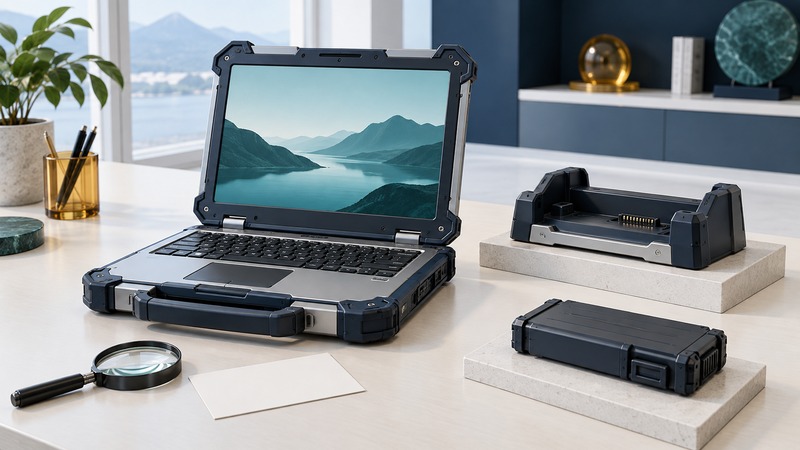
A useful Toughbook service plan begins with the complete model number, the installed options, and the work the computer must do. Those details connect an individual machine to the right manuals, batteries, docks, drivers, and operating-system support.
For an owner, the goal is a reliable record that makes the next repair easier. For a used buyer, the same record separates a suitable working computer from a machine that needs unavailable parts or unsupported software. Start with the device, its charger, and permission to inspect its configuration.
Identify the machine before ordering anything
Photograph the model label and record the complete model code, including its suffix, alongside the serial number in a private ownership record. Compare the label with the identity reported by the machine's setup or system-information screen. Record the processor, installed memory, storage, operating system, and any optional radios or expansion modules. A seller's short family name is only the beginning of the identification.
Use Panasonic's Toughbook support portal to select the product, model, operating system, and language. It separates manuals, drivers, applications, recovery services, and security information. Save the applicable manual's title and revision with your record; a search result for a nearby model is a lead to investigate.
If the hardware label and software identity disagree, ask for the repair history before selecting firmware or buying parts. A replaced system board or an incomplete sales listing can leave important questions unresolved. Keep serial numbers out of public sale screenshots.
Inspect the complete working kit
Examine the computer while powered off before a normal functional test. Look for missing port covers, damaged latches, cracked housings, loose hinges, and signs of liquid or battery damage. Do not charge or continue testing a visibly damaged or swollen battery; use the manufacturer's service route. A durable original design still needs intact parts.
Scroll the table horizontally. Keyboard users can focus it and use the arrow keys.
| Part of the kit | Evidence to collect | Decision it supports |
|---|---|---|
| Battery and charger | Part numbers, applicable notices, diagnostic result, and runtime during your task | Keep in service, replace through a verified parts route, or refer for inspection |
| Dock and cables | Exact dock model, supported computer list, power supply, and working ports | Confirm the complete connection path before purchasing a replacement |
| Display and controls | Readable screen, keyboard, pointing device, and any fitted touch or pen input | Separate cosmetic wear from a fault that prevents the required work |
| Optional modules | Installed module identity, driver availability, and a successful application test | Establish whether the advertised capability is actually present and usable |
Panasonic's support portal links specific battery-recall notices. Check the actual battery and machine against the applicable notice, including its identification instructions. Record the date checked and any replacement evidence. A family-level match alone leaves the individual battery's status unresolved.
Check software support as a separate requirement
Make a small inventory of the applications and peripherals the computer must support. For each, record the required operating-system version, driver, license, and a successful test. A working keyboard and display establish basic function; a successful service session with the required instrument establishes much more.
Microsoft's ordinary Windows 10 support ended on October 14, 2025. Its current lifecycle guidance explains Windows 11 eligibility and Extended Security Updates options. Check the exact Windows edition and applicable support program, then check Panasonic's support for the exact hardware. Treat an unsupported legacy application as a deployment constraint to resolve before assigning the computer to connected work.
Before a supported update, back up the files, confirm recovery access and encryption recovery information, and read the model-specific prerequisites. Record existing firmware and driver versions. Use the vendor's installation instructions and power requirements; avoid a sequence assembled from unrelated forum posts.
Use a short acceptance trial
Keep the result as ready for the named task, ready after a specified repair, or unresolved. Include the missing evidence and the next person or service provider who can supply it. This is more useful than a general statement that the machine is in good condition.
Download the editable Toughbook ownership record (plain text). Use Rugged Laptops for interpreting protection tests and Semi-Rugged Notebooks for matching a field-service day to a device class.