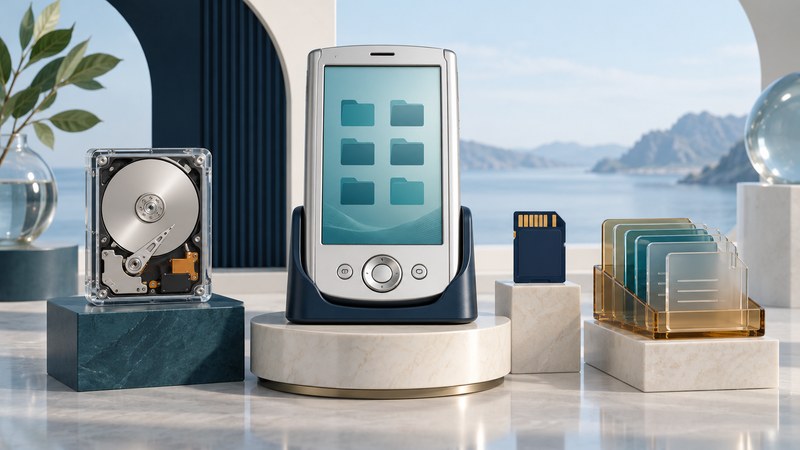
Preserving a Palm LifeDrive starts with three inventories: organizer data, files on its internal drive, and files on any expansion card. Choose a transfer route for each, then check the copies before resetting or changing software.
The LifeDrive brought a 4GB hard drive to a Palm OS handheld in 2005. For an owner returning to one today, its useful distinction is between application records and ordinary files. This guide helps you plan preservation of a working device; a drive that fails to read needs a separate recovery assessment.
Map what you want to keep
The palmOne LifeDrive handbook (manufacturer PDF preserved by PalmDr, printed pages 81–84) distinguishes program memory from the hard drive. Contacts and similar application records can reside in program memory, which Files and LifeDrive Manager do not display directly. The drive exposes files and folders; an expansion card is a further storage location.
Scroll the table horizontally to see every column. Keyboard users can focus the table region and use the arrow keys.
| Inventory | Examples to look for | Evidence to retain |
|---|---|---|
| Application records | Contacts, appointments, memos and third-party databases | Application/version, record counts and desktop or export destination |
| Internal-drive files | Documents, photos, recordings and music | Original folder path, filename, size and copy location |
| Expansion-card contents | Files, application folders and existing backups | Card label, capacity, folder structure and separate copy location |
Write down the information you actually care about before deciding which cable or utility to use. “Keep my contacts and holiday photographs” is a better starting requirement than “back up the PDA.” It gives you two specific results to verify and makes omissions visible.
Choose the route that reaches the data
The handbook's chapters on moving information and Drive Mode describe three tools: HotSync for application synchronization; LifeDrive Manager on Windows for drive files and selected synchronized folders; and Drive Mode for USB removable-drive access from a compatible computer. Drive Mode suspends other handheld functions, including synchronization, while active.
For files already visible on the drive, plan a copy into a new dated desktop folder. For organizer records, identify the existing Palm Desktop or application-specific synchronization/export arrangement. Record the host OS, utility version, user profile and enabled conduit actions. For a card, establish a compatible reader or documented device-mediated route.
These tools describe a historical software environment. Before involving valuable data, establish that your actual computer, USB connection and software can perform the required operation. Prefer an already working setup where available. The Palm software preservation guide explains desktop dependencies, file types and installation records.
Copy existing desktop user folders and backups before the first synchronization. Inspect the actions that will run: a sync can change both sides, and the handbook documents an optional LifeDrive Manager setting that propagates device-file deletion to the computer. A separately retained snapshot lets you compare before and after.
Make a copy you can explain and check
- Record the starting state. Note the date, device identity, visible application data and any error messages. Keep the card associated with the device.
- Create separate destinations. For example, use folders named Desktop-before, Drive-copy and Card-copy, with a short note describing each source. Preserve original names and directory structure inside them.
- Copy first; organize later. Work on duplicates when renaming, converting or sorting. If the computer asks to format or repair the source, cancel and investigate before continuing.
- Check the result. Compare expected file counts and sizes, open representative copies, and examine organizer records through the appropriate software. Check dates, accented characters, note fields and attachments where relevant.
- Keep another copy elsewhere. Retain the archive and its inventory on separate storage. A checksum can detect later file changes; successful opening checks whether the chosen software can interpret a file.
For Word or spreadsheet files, preserve the original before trying conversions. Use the Documents To Go recovery guide to distinguish native Office files from Palm application data.
Treat reset and erasure as separate decisions
The handbook's reset section distinguishes restarting with a soft reset from a destructive hard reset. Its Quick Erase and Secure Erase options both remove user information. Neither is a backup step.
Before any destructive action, list what has been copied, what has been checked and what remains unique to the device. If important data remains inaccessible, preserve the present state and seek help with that specific failure. Keep restoration experiments away from the sole surviving copy.
Download the LifeDrive preservation record (plain text) to track the three inventories, transfer routes and checks. The record documents evidence; it does not certify that an untested restore will succeed.
Explore handheld computing
Handheld computers: work devices, accessories and classic PDAs