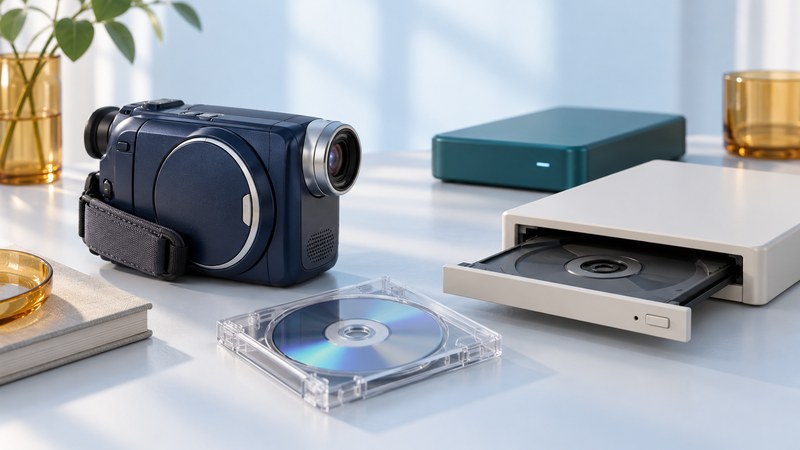
An 8 cm camcorder disc can contain valuable home movies even when it will not play in an ordinary DVD player. Work from the camera model, disc type and recording mode to a supported reading method. Preserve the disc contents before editing or converting the movies.
Read the label and the camera information
Assign a disc ID and photograph its label. Record the camera model, DVD-R/-RW/+RW or other marking, recording mode, and whether the camera reports it as finalized. For a double-sided disc, identify and track each recorded side separately. Keep a note of whether the camera still plays all expected scenes.
The Sony DCR-DVD301 is a useful concrete example. Its operating manual (PDF) supports 8 cm DVD-R and DVD-RW, with VIDEO and VR choices for DVD-RW. Other DVD Handycam generations support different media. Apply the exact model manual to your disc.
| What you find | What to establish next |
|---|---|
| DVD-R or DVD-RW in VIDEO mode | Check finalization and DVD-Video support in the receiving drive and software. |
| DVD-RW in VR mode | Use a route that explicitly reads VR recordings and preserves the complete disc structure. |
| DVD+RW or another supported type | Check that camera’s specific finalization and playback instructions. |
| AVCHD recorded on DVD | Use software that supports the actual AVCHD recording, rather than assuming standard DVD-Video. |
| Unknown disc or unreadable recording | Record the symptoms and identify the camera before attempting changes. |
A computer prompt to initialize, format or erase the disc is not a transfer instruction. Cancel it when preserving existing recordings.
Understand what finalization changes
Finalization prepares a recorded disc for supported playback elsewhere. It writes to the disc, so use the camera’s documented procedure and power arrangement. The DCR-DVD301 manual covers finalization from page 64 and specifies AC power; it also distinguishes finalization from formatting. Avoid interrupting a write operation.
Check that the recordings play in the camera and that the disc and camera appear sound before beginning. If finalization fails or power was interrupted, record the exact message and consult the model’s troubleshooting instructions. Repeated experiments with formatting or unfinalizing are a poor recovery strategy for irreplaceable footage.
A finalized disc still needs a compatible player or reader. VR recordings in particular require compatible software. If the original camera is unavailable, a transfer service should confirm support for both the disc format and recording mode before taking the job.
Choose a supported reading route
Use a drive whose manufacturer explicitly supports 8 cm discs. Sony’s DVD-ROM transfer instructions require an 8 cm-compatible drive and warn against using an 8 cm CD adapter. A slot-loading drive should be used only when its documentation expressly supports that media; a full-size opening is not proof of compatibility.
A supported USB transfer through the camcorder can be an alternative, but it depends on the model, driver, operating system and software. Verify those requirements before installing old bundled software on a current computer.
Sony’s DVD-camcorder transfer overview distinguishes the VIDEO_TS directory of standard-definition DVD recordings from BDMV for AVCHD. Its historical software examples should be checked against current support. Preserve the full directory structure rather than selecting only the largest movie file.
- Create a destination folder named for the disc and side, for example DISC-003_SIDE-A.
- Copy all readable disc files and folders without renaming the internal contents. If using a disc-image tool, choose a documented read/copy operation and retain its log.
- Record any read errors. An incomplete copy needs investigation even if some scenes play.
- Compare the copied file list and sizes with the source. Make and verify a checksum manifest for the retained files.
- Open the copy with software that supports its recording mode. Check every title or scene, not just the first video.
A file copy preserves the readable file structure; a disc image can additionally retain a disc-level representation depending on its format and tool. Record which method you used. Neither guarantees recovery of unreadable sectors.
Make viewing copies after preserving the source
Keep the complete copy unchanged. Import a working copy using a mode-aware application. A DVD movie may span several files and use navigation information to define playback order. Renaming a VOB extension does not convert its streams or reconstruct a missing title structure.
Check picture shape, interlacing, audio and scene order before exporting. Preserve the source frame rate unless a deliberate conversion is needed. For a convenient viewing file, use a format supported by the target device and label it as a viewing copy. Keep any deinterlacing, cropping or enhancement separate from the retained disc copy.
Document the copy and keep the disc
Use the video transfer log to record disc type, side, mode, finalization status, reading method, errors, retained files and backup locations. Keep independent copies and open a backup to check that it is usable.
Store the disc in a case that supports it by the center hub. Handle its edges and center hole, keeping fingers off the playing surfaces. Follow the Library of Congress audiovisual handling guidance for clean, stable storage. For damaged or repeatedly unreadable media, seek a service that can explain its recovery method and return both source media and any recovered files.
Continue with preservation and viewing-codec choices or return to the Digital Video library.