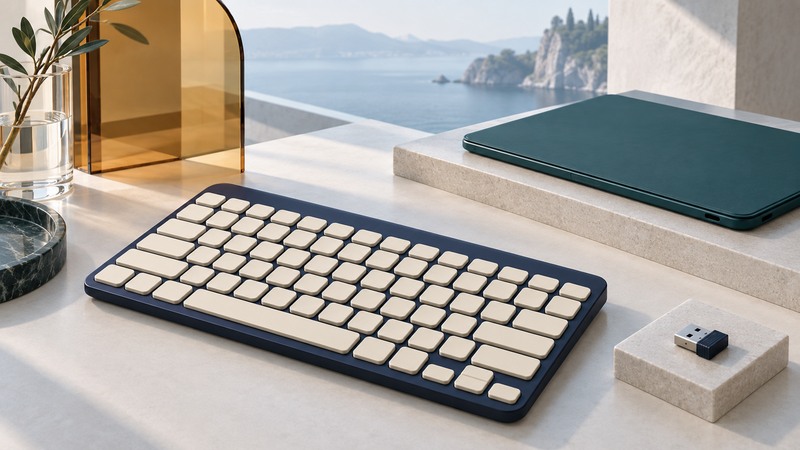
Choose a wireless keyboard by the devices it must control, the layout you use and the connection you can support. Then test pairing, wake-up and ordinary typing before depending on it for a full working day.
Choose the connection deliberately
On narrow screens, focus the table and use the arrow keys or swipe to see every column.
| Path | What it offers | What to verify |
|---|---|---|
| Bluetooth | A direct wireless link using the host's supported Bluetooth hardware | Host/OS compatibility, pairing method, wake behavior and device slots |
| Dedicated USB receiver | A receiver-based connection to a USB host port | Exact receiver family, replacement pairing support and port fit |
| USB cable | Power, and on some keyboards a wired data mode | Whether the cable carries keyboard input or only charges the battery |
A receiver from the same brand may still use a different protocol. For example, Logitech documents that Bolt and Unifying products pair with their own receiver families. Match the keyboard's model and receiver marking before ordering a replacement.
If you need access to firmware setup, disk-unlock prompts, a KVM or a managed sign-in screen, verify that exact combination. Normal typing after login is only one test. Keep a working alternate input method available while evaluating a new keyboard.
Check the keys you use every day
Compare the physical layout with your OS input-language setting. Check Enter, Shift, punctuation, arrow keys, navigation keys and the numeric keypad. A compact keyboard saves space partly by moving functions to key combinations; try those combinations in the applications you use.
Mac and Windows legends and modifier positions differ. Some keyboards have a physical or software OS mode. Confirm which mode is active before remapping shortcuts. A correct Bluetooth connection can coexist with the wrong input layout.
For shared desks, test device-switching buttons and give each paired host a recognizable name. For travel, check the power switch and whether a case prevents accidental key presses. For comfort, assess reach, key force and desk placement during a realistic typing session; treat personal fit as something to test.
Pair one host and verify the result
- Charge the keyboard or install the specified batteries, turn it on and select the intended host slot.
- Use the manual's pairing command. A short press that switches slots may differ from a long press that enters pairing mode.
- On the host, open Bluetooth settings and add the keyboard, or connect the matching receiver using the manufacturer's documented procedure.
- If the host displays a pairing code, follow its instructions, including typing the code on the keyboard being paired and confirming when requested.
- Type letters, numbers, punctuation and shortcuts in a plain document. Test sleep/wake and switching away and back.
Microsoft's pairing guide covers Windows Bluetooth setup. In Windows 11, begin in Settings → Bluetooth & devices. Exact prompts depend on the accessory. On a managed computer, pairing or software installation may be controlled by the organization.
Download optional configuration software only from the official support page and confirm current model and OS support. Save a note of any remapping so you can recover it after replacing a computer.
Diagnose missed keys without changing everything
Start with power and the selected host slot. Then type in a second application. If punctuation is consistently wrong, check layout and OS mode. If letters repeat everywhere, compare repeat and accessibility settings with the keyboard's physical behavior. A failure confined to one application suggests a different path from a device-wide failure.
For an intermittent receiver link, try a supported direct port and position the receiver nearer the keyboard, with fewer large metal objects in between. Logitech's Bolt deployment guidance discusses host-port placement, docks and receiver visibility. Use it as a product-family example and follow your own manufacturer's instructions.
Re-pair after simpler checks if the saved connection appears damaged. First record the intended host and slot, then remove only the obsolete pairing. Test for a full work session, including waking and switching, before declaring an intermittent problem solved.
Keep the setup recoverable
Store the model, receiver family, paired host slots and software settings with your equipment notes. Keep a replacement-battery or charging plan. Label the receiver's storage location so a move does not turn a working keyboard into an unidentified accessory.
Related guides: mouse tracking and settings, desk connection records, and the Computer Hardware library.