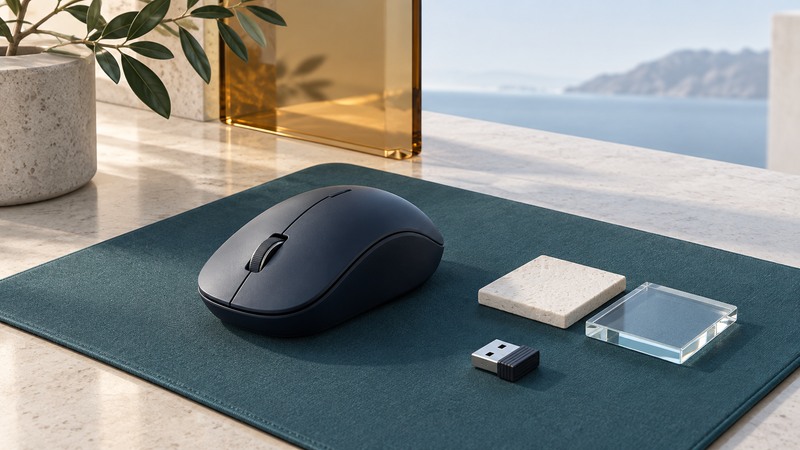
Laser and LED mice use light and a sensor to estimate movement over a surface. Choose a mouse by how reliably it tracks on your desk, how it fits your hand and how its settings behave in your software. A large DPI number or a laser label alone leaves those questions unanswered.
Separate illumination from the whole sensor system
In common product language, “optical” often means LED-illuminated tracking, while “laser” identifies the illumination used by another kind of optical sensor. The device combines illumination, optics, sensing and processing to turn changes in the viewed surface into movement reports.
Glass, glossy finishes and repetitive textures can challenge some combinations. Read the exact model's supported-surface claim, then test the surface you use. A clean, suitable mouse mat provides a useful baseline for troubleshooting.
As a historical engineering example, Logitech's 2009 Darkfield announcement describes detecting microscopic particles and scratches on glass and specifies a minimum glass thickness for its claim. This example illustrates a product-specific design and its stated conditions. Compare actual behavior on the intended surface.
Give each number a clear meaning
On narrow screens, focus the table and use the arrow keys or swipe to see every column.
| Term | Meaning | Useful check |
|---|---|---|
| CPI / advertised DPI | Nominal movement counts per inch of physical travel | Can you reach targets comfortably without overshooting? |
| Polling or report rate | How frequently movement reports can reach the host | Does the supported setting improve your task without unwanted load or battery cost? |
| Pointer speed | OS/software mapping from input to cursor motion | Keep it fixed while comparing sensor settings. |
| Acceleration | A mapping that can change with movement speed | Compare slow and fast sweeps over the same physical distance. |
Logitech's polling-rate explanation distinguishes report frequency from DPI and discusses measurement limits. Browser tests depend on the browser and movement; treat their results as observations from that setup.
Build a repeatable tracking test
- Charge the mouse or install the specified battery. Record the connection mode, sensitivity, pointer speed and acceleration setting.
- Clean the sensor opening using the manufacturer's method. Place the mouse on a clean, supported matte surface.
- In a simple drawing or pointing task, make slow diagonal movements, small circles and repeated clicks on a fixed target.
- Repeat on the original desk surface without changing settings. Note skipped movement, jumps or inconsistent direction.
- For a wireless model, compare receiver placement or a supported alternative connection. Keep the surface fixed for this step.
If a fault disappears only on the mat, investigate surface compatibility. If it disappears when the receiver moves closer, investigate the radio/USB path. If it appears only in one game or application, compare that application's input mode and settings. These comparisons narrow the cause while preserving a working reference.
Check connection and fit alongside tracking
Use the correct receiver family. Place it where the manufacturer's guidance recommends, with a suitable data-capable extension if needed. A receiver buried behind a tower or crowded dock deserves a placement test before a sensor replacement. Logitech's Bolt deployment notes give a concrete example of why host placement and docks matter.
Evaluate shape, reach, weight and button force in the task you perform. Try dragging, scrolling a long document and clicking small controls. A maximum setting that makes you tense or overshoot provides little practical benefit. Change sensitivity gradually and allow a short familiarization period.
For gaming, compare the same scene and connection mode with the same application sensitivity. A different profile, acceleration setting or game mode can confound a hardware comparison. For general work, prioritize predictable pointing and comfortable access to the buttons you need.
Make the replacement decision from the test
Replace or seek support when the mouse repeatedly fails on supported surfaces and connections, has damaged controls, or cannot meet your application requirements. Keep a short problem record: host, OS, surface, mode, settings and the smallest repeatable failure. That is more actionable than “the cursor feels wrong.”
Use wireless keyboard guidance for shared receiver and device-switching questions. Review other hardware guides when the issue extends to the computer or display.