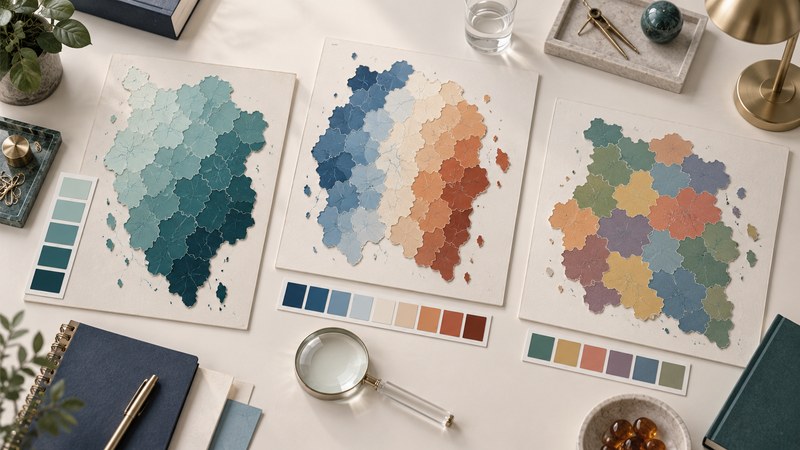
Choose map colors after deciding what the data mean. Ordered values need a visual progression, changes around a meaningful reference need two directions, and unrelated categories need distinguishable colors. ColorBrewer helps turn that choice into a reusable palette.
This guide is for making a thematic map in a GIS, drawing program, or web tool. Have your data field, units, geographic boundaries, and intended output size ready. ColorBrewer supplies color advice; classification and geographic accuracy remain part of your mapping work.
Match the palette to the comparison
ColorBrewer’s explanation of scheme types distinguishes three families. Choose the family by the relationship among values, before choosing individual hues.
| Family | Use it for | Example question |
|---|---|---|
| Sequential | Ordered values progressing from low to high, usually through lightness. | Which districts have a higher share of tree canopy? |
| Diverging | Values on either side of a meaningful center, with contrasting directions. | Where did population decrease or increase around zero change? |
| Qualitative | Named categories whose colors should not imply numerical order. | Which areas have different land-use categories? |
Choose a reference that has meaning for the subject. Zero is useful for gains and losses; a documented target can be useful for distance above or below a goal. The midpoint of the observed range is merely an arithmetic convenience unless the question gives it significance.
For area shading, consider whether a count or a rate answers the question. A district with more people may have more events simply because its population is larger. A rate needs a clearly stated denominator, time period, and treatment of small populations. A color choice cannot repair a misleading data field.
A five-class canopy example
Suppose six fictional districts have canopy coverage of 8%, 22%, 39%, 41%, 67%, and 83%. A simple teaching legend could use five equal-width classes. This is an invented classification exercise, not measured canopy data or a recommended environmental threshold.
| Class | Values in this exercise | Color direction |
|---|---|---|
| 0% to below 20% | 8% | Lightest |
| 20% to below 40% | 22%, 39% | Light |
| 40% to below 60% | 41% | Middle |
| 60% to below 80% | 67% | Dark |
| 80% to 100%, inclusive | 83% | Darkest |
The boundary language makes 40% belong to exactly one class. Give missing values a separate neutral treatment and label them “No data”; otherwise a missing district could be mistaken for the lowest observed value. Check the actual software’s inclusion rules when entering breaks.
Equal intervals make the numeric steps easy to explain. Quantiles emphasize rank by putting similar numbers of observations in each class, so their interval widths can vary. Either method can hide differences within a class. Inspect the distribution and test whether a smaller class count communicates the intended comparison more clearly. When comparing years, fixed breaks make the same color retain the same meaning.
Build and transfer the palette
- Open ColorBrewer 2.0 and set the number of data classes to match your legend.
- Choose sequential, diverging, or qualitative according to the table above.
- Apply the relevant colorblind-safe, print-friendly, or photocopy-safe filters. Available choices depend on the palette and class count.
- Try candidates against the roads, borders, labels, and background you expect to use. Keep the thematic areas visually distinct from contextual features.
- Use the export panel to copy color values or a supported palette format. Save the palette permalink alongside the class breaks.
- Apply the colors in the same low-to-high or category order in your mapping application. Compare the finished legend against known test values.
A quick import check is to select the smallest and largest records and locate their mapped colors. Then test a value exactly on a class boundary. This catches reversed palettes and off-by-one classification errors before publication.
Review the map at the size people will use
Inspect small polygons as well as large ones. A palette that works in a large preview may become hard to distinguish on a phone or printed handout. Check labels over every background they cross, and use boundaries, direct labels, patterns, or an accompanying data table when color alone carries an essential distinction.
The accessibility filters are a useful starting point. The finished map still needs checking with its actual labels, transparency, background, and display conditions. A simulated color-vision view can reveal confusion; a grayscale print can reveal whether an ordered legend retains its progression.
Ask a reader to identify a high value, a low value, a missing value, and a boundary case without explanation. If the answers differ from your intention, revise the legend or styling. Record the field, units, breaks, palette order, data date, and geographic boundary version so the next edition can be compared fairly.
Download the palette planning and review worksheet, including the fictional canopy exercise and checks for transferring a palette.
Related reading
- Wall maps: Check how your palette and labels survive printing and viewing at a distance.
- Gravity-derived mass maps: Practice reading a mapped quantity, reference period, and color scale.
- Shared mapping: Carry the legend and data definitions into a maintained map.