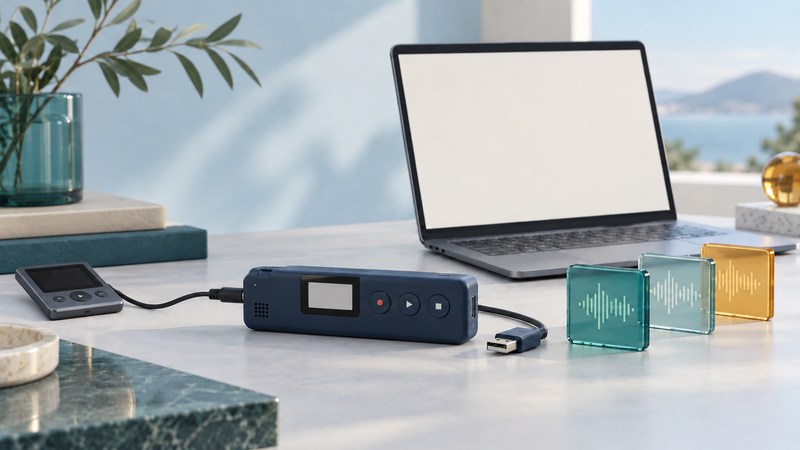
A useful recording workflow has three checks: the intended source reaches the recorder, the saved file sounds right, and a verified copy reaches the computer. With an older Kanguru Audio Flash, establish that path using a short microphone recording before relying on a longer session or another input. Keep the original recording until the exported copy has been checked.
Match the manual and recording source
The 2004 Kanguru Audio Flash USB2.0 manual, hosted by ManualsLib, applies to version 1.1 or later. Compare its controls and menus with your unit. Other Kanguru players, including Micro MP3 models, have separate documentation. The instructions here use the Audio Flash manual’s wording where it identifies a menu.
Its recording-settings section separates Microphone, FM tuner and line-in. The following page lists MP3/WAV encoding and Low/Middle/High quality choices. Record the actual selection on your unit; the labels alone do not supply a bitrate or a dependable recording-time estimate.
Scroll sideways to compare the recording routes.
| Route | Starting point | Useful test |
|---|---|---|
| Built-in microphone | Record your voice in a quiet room. | Speak a recognizable sentence, pause, then say a second sentence. |
| FM tuner | Establish clear reception before recording material you are authorized to capture. | Compare live reception with the saved sample. |
| Line-in | Confirm the input and recording mode for your revision before connecting a documented compatible audio output. | Use an identifiable source recording and verify that the saved audio is that source. |
The archived manual documents line-in settings but leaves the complete line-in start sequence unclear. Confirm that route on your exact revision before relying on it. A setting named Line-in does not by itself show that the player is currently recording that input. The microphone sequence below provides a documented baseline.
Make a short microphone sample you can recognize
Check available space and the battery indication, release Hold, and place the player where it can remain still. Keep existing files. In Settings, open Rec Setting, choose Microphone, and note the encoder and quality. Use your own voice for the first test so you know what the resulting file should contain.
The manual’s voice-recording procedure starts through the Menu’s Record function; it also describes holding A-B for three seconds as a shortcut. Play stops the recording. Its FM instructions describe starting recording while listening in the tuner.
- Announce the test. Say a unique phrase such as “desk test, first take,” followed by a few seconds of ordinary speech.
- Include a pause. Listen later for background noise and handling sounds in that gap.
- Stop deliberately. Wait for the recording screen to finish and the saved item to become available before changing power or connecting USB.
- Play the sample. Check its beginning, pause and ending on the player at a comfortable level. Note the filename before making another take.
Try a second sample after changing one condition, such as the player’s distance from your mouth. Keep both takes so you can compare. Holding the recorder in a rubbing pocket or tapping its enclosure can introduce sounds you did not intend; a stationary test makes those differences easier to hear.
The manual’s quick recording page mentions WAV files, while its encoder settings also offer MP3. Check the file actually produced and the selected encoder instead of assuming every recording uses the same format.
Copy the recording and check the copy
Stop recording before connecting the documented USB data cable. The manual’s computer-connection section describes the player as removable storage for supported computers. On your current computer, first confirm the device is recognized; its 2004 operating-system instructions are historical. Use the USB connection checks if recognition fails, and leave format or erase prompts unaccepted while recordings need preservation.
- Open the recognized player storage and locate the test file. Use its name and your recording sequence to distinguish it from older material.
- Copy it into a dated folder on the computer, keeping its original filename and extension. Work on a copy if you want to rename, trim or convert it.
- Compare the copied file’s size in bytes with the source and play its beginning, middle and ending on the computer. Matching size is a useful copy check; listening establishes that the expected recording is present.
- Eject the player through the operating system after copying finishes. Keep a second backup of any irreplaceable recording before freeing space on the device.
Use the saved sample to choose one change
If the file contains room sound instead of the intended wired source, revisit input selection. If the voice is too quiet, try a closer position and another brief sample. If only the copied file fails, compare it with playback on the recorder and recopy the untouched original. If both copies contain the same interruption, investigate the recording conditions rather than repeatedly converting the file.
For a repeatable session, retain the model/revision, source, encoder/quality, sample duration, file size and listening notes. These details turn a one-time successful recording into a workflow you can check again.
Explore Music Players
Browse music-player guides and earlier reporting, or follow the offline-library setup guide. Primary documentation is linked alongside the guidance. Sources and model details checked October 7, 2026.