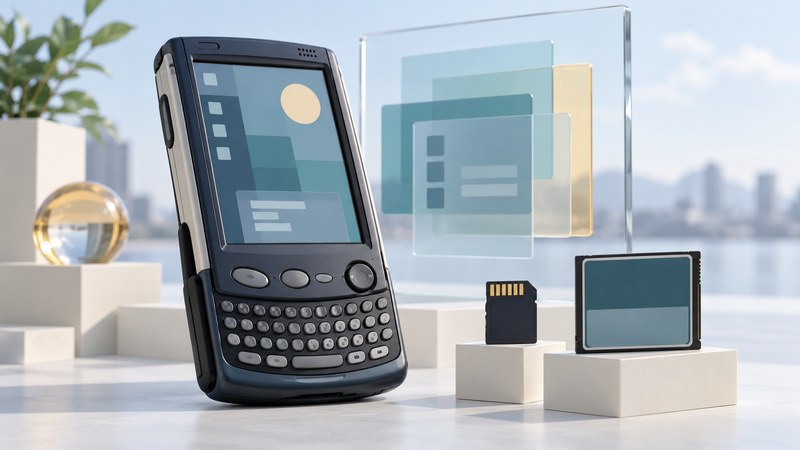
A Sharp Zaurus SL-6000 is best understood as a handheld Linux system with its own application environment, storage and desktop tools. Identify the exact unit and preserve its working configuration before installing software or changing its system.
The portrait display and compact keyboard made the SL-6000 a distinctive approach to mobile computing. For an owner today, the valuable object may include an application, its data and the computer that can still communicate with it. Evaluate that combination together.
Start with the model label and installed system
The Sharp SL-6000L/SL-6000N Start-up Guide, preserved PDF distinguishes the L model, with internal wireless LAN, from the N model, without it. It documents a VGA display, keyboard, CompactFlash and SD expansion. Its instructions cover those two models. Use separate documentation for other variants.
Write down the full suffix, visible system information, interface language and any evidence of replacement software. A used unit may have a different environment from its shipping configuration. Photograph the system-information screen and installed-application list before assuming that a manual screenshot matches it.
Linux identifies an operating-system family. An application still needs compatible processor code, libraries, interface software and packaging. A download described simply as “for Linux” leaves those requirements unresolved. The QEMU 8.2 project documentation for Sharp XScale PDAs identifies the SL-6000 by the platform name “Tosa”; that is a useful search clue, not evidence that another Zaurus package will run on it.
Keep a record of the complete environment
Scroll the table horizontally to see every column. Keyboard users can focus the table region and use the arrow keys.
| Layer | Record | Why it helps |
|---|---|---|
| System | Model suffix, installed release and system-information photos | Connects future instructions to the actual unit. |
| Applications | Name, version, installation source and dependencies | Explains how a saved document can be opened again. |
| Data and cards | Storage location, filenames, card labels and sample records | Prevents a partial copy from being mistaken for a complete archive. |
| Desktop connection | Computer OS, transfer/backup program, driver and connection settings | Preserves the context of a route that already works. |
Keep expansion-card identity separate from the software installed on it. Test a replacement card only after preserving the original. When a desktop connection fails, compare the host, driver and device settings with the recorded working combination before changing the handheld itself.
Preserve files and the applications that interpret them
Sharp's guide distinguishes File Transfer, Backup/Restore and synchronization tools. Its accompanying CD included separate manuals for these tasks, including Intellisync and Qtopia Desktop. The historical Windows requirements belong to that software generation; they establish no compatibility with a current computer.
- Choose the material that matters. List documents, organizer records, recordings and any custom application data. Include internal storage and each card.
- Record a known example. Note a document name, a record count or another visible property you can later compare. For personal records, keep the inventory private.
- Use a documented route that matches the installed system. If a working desktop setup exists, retain its settings and installation media before altering it. Consult the specific transfer or backup manual for coverage and exclusions.
- Copy into a dated location. Keep the first copy unchanged and use a second copy for conversion or analysis. Record which source location each group came from.
- Check the result outside the handheld. Compare counts, file sizes and representative contents. A readable export supports access to that information; a backup file also needs a documented, compatible restore route.
A screenshot of an address-book entry preserves its visible meaning, while a structured export may preserve searchable fields. Saving both can help when old software becomes difficult to run. Label transcriptions and conversions as derived copies, keeping the original file alongside them.
Separate installation, restoration and system replacement
Installing an application adds software to the current environment. Restoring a backup writes saved data back into a compatible environment. Replacing a system image changes that environment itself. Each needs its own prerequisites and recovery plan.
Sharp's Start-up Guide treats copying an installation file and installing it as separate stages. Its maintenance section also warns that Error check can delete problematic data, while Format removes user data, settings and added software. Those are consequential operations, unsuitable as casual first checks on an unpreserved device.
Download the Zaurus environment and preservation record. Use it to mark copied, checked and unresolved items separately. For broader evaluation criteria, see Linux tablets: hardware support and practical limits. This is a documentation-based preservation framework; no SL-6000 transfer, restore or firmware change was tested.
Explore handheld computing
Handheld computers: work devices, accessories and classic PDAs