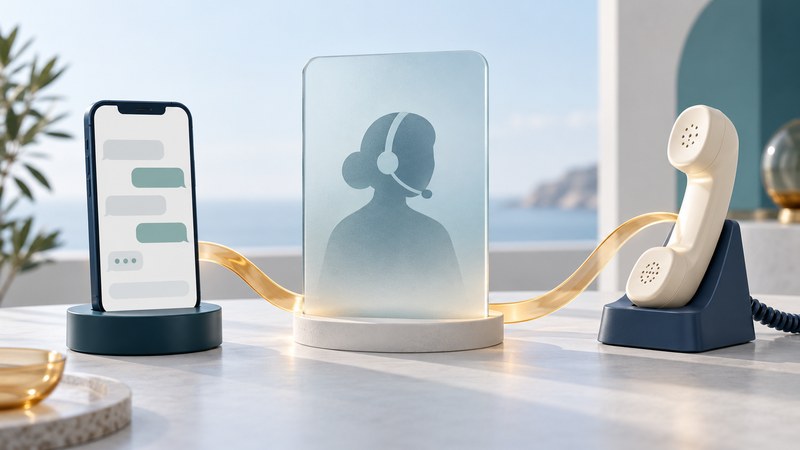
IP relay lets a person type a telephone conversation through an internet connection. A relay operator voices the typed message to the other participant and returns that person's spoken response as text. On a supported phone, the conversation can travel with you.
This guide concerns U.S. IP relay and an ordinary first call. Begin with an eligible, registered service account, a supported device or browser, and a way to read and enter text comfortably. Confirm current requirements with the provider before depending on the service.
Choose the communication path that fits
T-Mobile's IP Relay description provides one current example for people who are deaf, DeafBlind, hard of hearing or have a speech disability. It describes text communication through its mobile app or web service and support for accessibility features. Test your exact combination of app, operating system and input or reading device.
- IP relay: typed conversation is relayed between you and a telephone participant.
- Video relay: a sign-language user communicates with a video interpreter; see the VRS first-call guide.
- RTT: real-time text is a text function within supported calling arrangements. Check the carrier/device instructions, including whether a relay connection is involved.
- Captioned calling: consider this when you speak for yourself and need text of the other person's speech; check the particular service's eligibility and operation.
- Ordinary messaging: both parties use a messaging route, without an IP relay operator placing the telephone call.
The FCC's accessibility categories distinguish relay, captioned and RTT concerns. A familiar-looking text box is only part of the experience: determine who receives the text, who hears speech and how replies return.
Set up access before making a consequential call
Use the provider's official registration route. T-Mobile's IP Relay instructions describe identity verification, making calls and receiving calls through an assigned ten-digit number. Keep account information private and ask support about any registration difficulty.
- Install the supported app or open the official web service. Confirm the device/software requirements and any data charges separately.
- Adjust text display and your input method. If you use a screen reader or braille display, test both incoming text and the message-entry area.
- Find the controls for placing, answering and ending a call. Confirm your relay number and the notification behavior needed for callbacks.
- Prepare a stable connection and sufficient device power for the conversation. Save the provider's support route somewhere you can reach without the main app.
- Read the provider's current emergency instructions and location requirements before travel or a change of location.
A useful setup check includes receiving a call. Being able to dial successfully does not establish that an incoming call will attract your attention or reach the expected device.
Practice a complete conversation
For an ordinary call, have the recipient's verified telephone number, your purpose and relevant reference details ready. Follow the app's calling instructions and tell the operator about any dialing instructions before connection. Address the other participant directly and allow time for the relay.
T-Mobile's instructions explain the turn marker GA (“Go Ahead”) and how to end a session. Follow the current controls in your app or browser. Confirm names, amounts and dates in the conversation, then check that the session has closed.
Ask your practice partner to call the relay number back. Record whether the notification arrived, whether you could answer and whether the conversation remained readable when you switched between reading and typing.
Resolve a problem at the right step
- Registration stops: contact provider support through its official site; record the step and error without sharing identity documents in public.
- Text is difficult to follow: adjust the reading setup and ask support about display, pacing and your assistive technology combination.
- A conversation drops: re-establish the connection and confirm the last complete message before continuing.
- A callback fails: verify the assigned number, app readiness and notifications with support.
- A business hangs up: explain that a relay operator connects the conversation and document repeated access difficulties for the provider or FCC reporting route.
Review transcript/export choices before saving a conversation. Copies on your device, in email or in a shared account need their own privacy decisions. Save only what you need and understand how to remove it.
Review emergency arrangements separately
T-Mobile's emergency relay guidance distinguishes web and mobile-app procedures, emphasizes current physical location and identifies limitations compared with traditional 911/E911. Follow the provider's current instructions for your exact setup and arrange an appropriate backup communication method. Internet access and device power remain dependencies. Do not place an emergency call simply to test this guide.
Keep the first practice call ordinary and planned. Its successful completion establishes that the tested setup worked for that conversation; repeat relevant checks after changing devices, software or your reading/input arrangement.
Explore the library
Assistive Technology: Practical Guides for Everyday Access
Sources appear beside the claims they support. Reviewed October 4, 2026. Check current product instructions for your version, location and intended use.