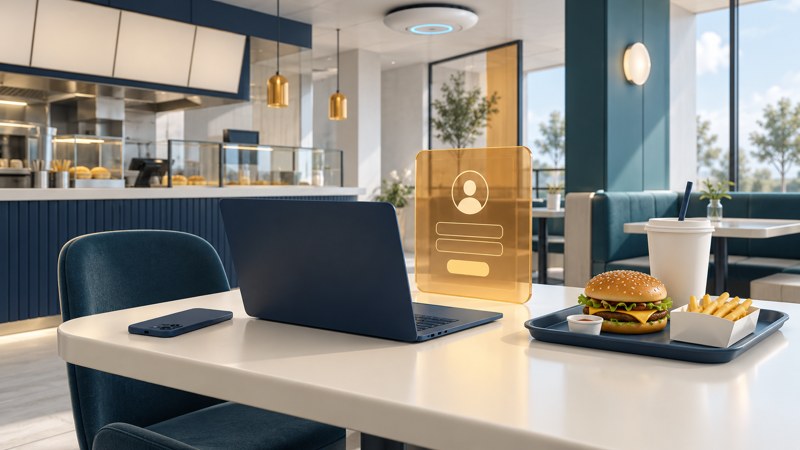
McDonald’s Wi-Fi can be a convenient connection during a stop, provided the restaurant participates and the service is working when you arrive. This guide covers the United States. Start with the restaurant, join its confirmed guest network, and test the task you actually need to complete.
Check the restaurant before the trip
The official U.S. Wi-Fi FAQ describes free service at participating restaurants. It also says some owner-operators may disable Wi-Fi and locations may set their own conditions. Treat a chain-wide service description as a starting point; confirm the individual stop when a deadline depends on it.
Use the restaurant finder linked from that FAQ, select the exact address, and check opening hours and listed services. If necessary, call the restaurant and ask whether guest Wi-Fi is currently available in the dining area. A drive-through opening time alone gives little information about indoor seating or access.
- Save the address and an alternative nearby connection before leaving.
- Download the document, ticket or message you must be able to read offline.
- For a meeting, check whether seating, background noise and the restaurant’s access rules suit the call.
Join and complete the access step
- Ask staff or consult the restaurant’s own information for the guest network name. Select that network in your device’s Wi-Fi settings.
- Open the device’s sign-in notification or the offered welcome page. Read the terms and accept them if you wish to use the service.
- Load a new page, then try the particular application you came to use. A Wi-Fi icon by itself only confirms a local wireless connection.
McDonald’s says a special McDonald’s login is unnecessary for Wi-Fi access. Keep ordering-app credentials separate from this connection step. If a page unexpectedly asks for payment or account credentials, verify the network and offer with the restaurant before proceeding.
When connection stalls
On a narrow screen, scroll the table sideways. Keyboard users can focus the table and use the arrow keys.
| What you see | What to check next |
|---|---|
| Network absent | Confirm local participation, dining-area coverage and whether service is currently enabled. |
| Connected; welcome page unfinished | Return to the device’s Wi-Fi sign-in prompt and finish the terms step. |
| Welcome completed; application fails | Try a fresh ordinary web page. If only one application fails, check its own connection or organization requirements. |
| Everything loads slowly | Try a small task, pause large transfers, and decide whether your backup better serves the deadline. |
For device-level portal recovery, follow the restaurant Wi-Fi troubleshooting guide. Keep required work-device protections in place; ask your organization’s support team when its access policy blocks a public network.
Decide whether to stay connected
The official FAQ describes variable bandwidth and low priority for the free service. It gives no per-visit speed guarantee. A short successful download tells you about that moment; repeat the actual task before depending on the connection for a longer session.
For example, send a small attachment and confirm its receipt before uploading a large submission. For a call, check both incoming and outgoing audio. If the session repeatedly stops, switch to your prepared alternative instead of spending the whole visit repeating sign-in. These are practical checks, not measurements of every restaurant’s service.
Outside the United States, consult McDonald’s local country site and the specific restaurant. Save the public Wi-Fi planning guide for choosing a backup connection.