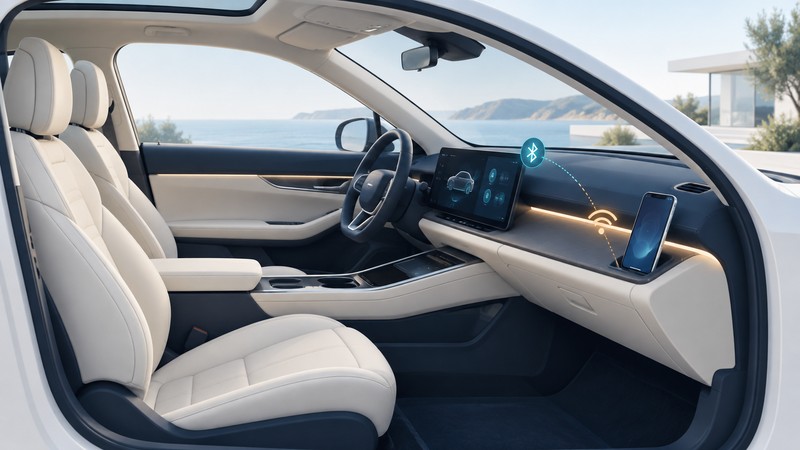
Ford SYNC wireless features depend on the vehicle, installed hardware, system generation and software. Begin with that identity, then choose the connection you want: calls and audio, a software update, passenger internet access or phone projection.
Have the vehicle's model year, VIN, owner manual and phone available. Perform setup while safely parked. Keep the VIN and account details private when asking a public forum for help.
Identify the installed system first
Open the system's Settings or About screen and record the displayed system and software version. Use Ford's SYNC identification instructions and the manual for your vehicle. Menu names differ across generations, so a missing menu is a reason to confirm the system before continuing.
Distinguish a generation name such as SYNC 3 from a software build within that generation. Record aftermarket adapters or replacement head units separately. Their behavior and support may come from a different manufacturer.
Choose the connection by its purpose
On a narrow screen, scroll sideways. Keyboard: focus the table and use the arrow keys.
| Goal | Connection to investigate | What establishes support |
|---|---|---|
| Calls and media audio | Bluetooth phone pairing | Vehicle manual, phone compatibility and pairing permissions |
| System update using nearby internet | Vehicle joins an external Wi-Fi network, where supported | Ford update instructions for this VIN and system |
| Internet for passenger devices | Vehicle hotspot and its upstream data service | Installed modem, eligibility, activation and service terms |
| CarPlay or Android Auto on the display | USB or supported wireless projection | Exact SYNC generation, vehicle equipment and compatible phone |
Ford describes wireless Apple CarPlay and Android Auto compatibility for SYNC 4 technology. By contrast, Ford's UK SYNC 3 CarPlay instructions describe USB connection and state that SYNC 3 lacks native wireless CarPlay. Use that distinction to choose the right instructions, then verify the equipment and supported features for your vehicle's market.
A vehicle joining your home's Wi-Fi is using an external connection. A vehicle offering a hotspot to passengers needs its own documented upstream arrangement. Write down which device provides internet access before diagnosing a connection problem.
Test one function at a time
- Start with a single phone. Follow the vehicle's pairing menu, compare the confirmation code and accept only the permissions you intend to use.
- Verify the intended output. Test ordinary audio and, if appropriate, a normal call while parked. Select the correct audio source and inspect phone routing.
- Test projection separately. Use the specified data-capable USB port and cable for wired setup, or the supported wireless setup procedure. Charging alone does not establish a USB data connection.
- Check updates through Ford. Use the VIN-based SYNC and map update lookup. Follow its power, storage and completion instructions for the particular update.
- Retest after one change. Record the result before changing a second phone, cable or setting.
If pairing is stale, use the documented procedure to remove the old pairing on both ends and pair again. A master reset can erase stored settings; read the generation-specific consequences and recovery steps before using it.
Fictional diagnosis: a SYNC 3 vehicle plays Bluetooth audio but does not display CarPlay wirelessly. First confirm native CarPlay support for that vehicle and follow its USB procedure. Buying a new cellular plan would not supply the missing native wireless projection feature.
What the Broadcom announcement established
On January 7, 2010, Broadcom announced BCM4325 Bluetooth and Wi-Fi integration in some new Ford vehicles. This is a historical example of combining radio functions in an infotainment system.
The chip announcement establishes that integration context. A particular vehicle's usable functions still require its software, controls, phone support and any relevant data service. When seeking help today, lead with the vehicle and installed SYNC version; include a chip name only when a hardware diagnosis actually requires it.
Explore wireless combo-chip coexistence for the engineering background, or cellular hotspot planning for a separate passenger connection.