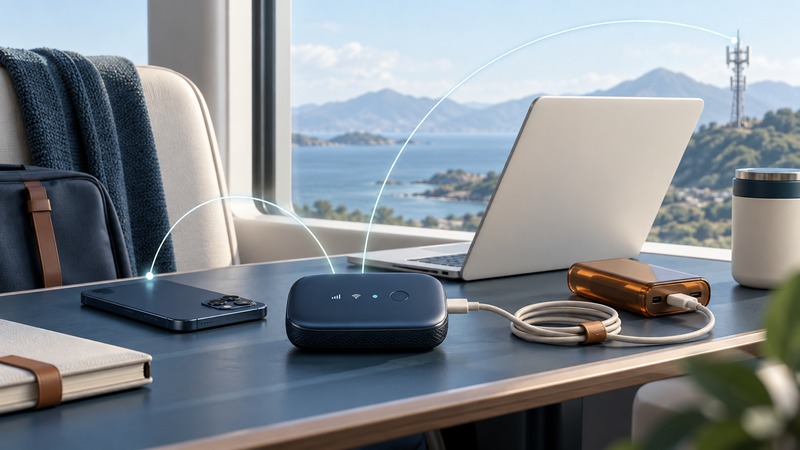
A cellular hotspot gives a laptop or tablet an internet connection through a mobile network. Start by testing the phone and plan you already have. A dedicated hotspot becomes useful when the connection must remain available while the phone leaves, when several people share it, or when its documented ports and power options fit the job better.
Choose the connection you need
There are two links to evaluate: the cellular connection from the hotspot to the carrier, and the local connection from your device to the hotspot. Moving a laptop closer can improve the second link while leaving the carrier connection unchanged. A strong Wi-Fi indicator therefore establishes only part of the path.
On a narrow screen, scroll the table sideways. Keyboard: focus the table and use the arrow keys.
| Option | Useful starting situation | Check before relying on it |
|---|---|---|
| Phone hotspot over Wi-Fi | Occasional laptop access or a short outage | Tethering allowance, battery use, supported clients and phone availability |
| Phone tethering over USB | One computer at a desk | OS support, cable capability, required software and power behavior |
| Dedicated cellular hotspot | Shared or regularly repeated portable access | Exact carrier compatibility, plan, client limit, supported ports and charging instructions |
A portable hotspot and an installed home service can have different plans, equipment and usage restrictions even when both use cellular radio. Use the separate fixed wireless home-internet guide when evaluating a permanent household connection.
Check the plan before the hardware
Open the terms for the exact line and plan. Record the hotspot allowance, what happens after that allowance, any video restrictions, supported roaming destinations, renewal date and charges for an additional line. Ask explicitly about tethered use: the allowance shown for data used on a phone may differ from the allowance available to connected computers.
For a dedicated device, have the carrier confirm the model variant or device identifier before purchase. Compare the manufacturer's supported cellular bands and carrier approval with the intended service. A regional coverage map helps shortlist locations; a trial at the actual desk and usual working hour provides stronger evidence for your task. Keep the return deadline alongside the test results.
Connect one device first
On an iPhone, Apple's current instructions use Personal Hotspot and Allow Others to Join; the setting can also appear under Cellular. Keep the settings screen open while the other device joins, then select the hotspot's network and enter its password. Apple says connection limits depend on the carrier and model, and Windows USB tethering requires Apple Devices or iTunes. Use the official Personal Hotspot instructions for the current setup and troubleshooting sequence.
For Android or a dedicated hotspot, follow the instructions for the exact model and software version. Set a distinctive network name and a strong password, and confirm the displayed client list contains the devices you intended. Keep administration credentials separate from the password guests use to join. The wireless-security guide covers the surrounding account and network checks.
Place the hotspot where both links work and where it can operate within its manufacturer's temperature and ventilation instructions. Compare a few safe indoor positions without changing other settings. Check whether a sleeping phone, a closed laptop lid or an idle timeout interrupts the arrangement. For extended use, follow the device's charging guidance and test the actual power supply; a battery icon alone gives little evidence about endurance under load.
Rehearse an outage with the real task
Download the hotspot backup test sheet. Disconnect the test computer from its normal network so it cannot quietly use the primary connection. Leave other people's service running. Join the hotspot, open a fresh page, sign into the required application, and perform a representative task such as joining a meeting or uploading a sample document.
Record the location, time, device, carrier, plan and connected-client count. Check start and end battery levels and carrier-reported usage after the accounting system has updated. Repeat with the number of simultaneous devices you expect. A successful short download is useful evidence, but a scheduled call or remote desktop session needs its own rehearsal. For an employer VPN, use the approved client and the mobile VPN diagnostic sequence.
Turn observations into a backup decision
If the phone itself has poor internet access at the test location, investigate cellular reception, plan restrictions or carrier support first. If the phone works but a nearby laptop fails, investigate tethering permission, local Wi-Fi compatibility and the client connection. If browsing works but one application fails, capture the application error and check its requirements.
Finish with a simple operating note: where the hotspot goes, who can turn it on, how devices join, which tasks passed, how long the test ran and when the plan renews. Keep the credentials in your normal secure password store. Recheck after a plan, device, workplace application or location change so the backup remains usable when the primary connection disappears.