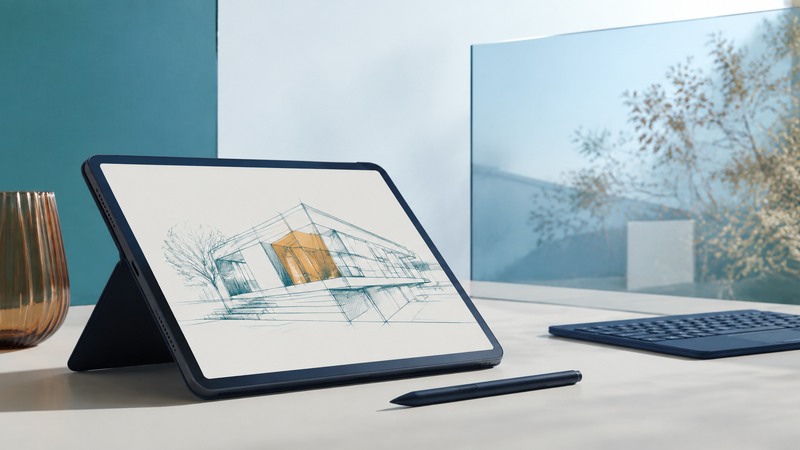
A tablet PC is a computer you can use directly through its screen, often with an active pen and an optional or convertible keyboard. Choose one by testing the work you intend to complete: reading and annotation, handwritten notes, drawing, desktop applications, or field data collection.
Bring a sample document, the name and version of each essential application, and a list of peripherals. The goal is to finish a complete task and recover the result in the format you need. A pleasant pen demonstration is one part of that decision.
Choose a physical arrangement that supports the work
On a narrow screen, scroll the table sideways. Keyboard: focus the table and use the arrow keys.
| Arrangement | Useful for | Trial question |
|---|---|---|
| Slate with detachable keyboard | Handheld reading, annotation, and desk typing | Does the stand and keyboard combination work on your actual surface? |
| Convertible laptop | Frequent typing with occasional folded-back pen use | Is its weight and keyboard-back arrangement comfortable when held? |
| Pen tablet used with another computer | A fixed drawing or annotation workspace | Does the connected-computer workflow fit the place you work? |
| Rugged field tablet | Work needing documented environmental protection or specialist accessories | Are the required input mode, mount, ports, and applications supported together? |
Compare the carried system: device, keyboard, pen, charger, protective cover, adapters, and stand. Include setup time. If a small tablet needs several accessories before it can perform the task, evaluate that complete arrangement against a laptop.
Verify applications and peripherals first
Check the operating system, processor architecture, application version, plugins, and driver requirements. Desktop and mobile versions with the same product name may support different features or file operations. Test the action that matters, such as exporting a layered drawing or opening a large form with embedded fields.
For Windows on Arm, Microsoft's software and peripheral guidance explains native software, emulation, and device support. Confirm the required drivers and any specialist application components, rather than relying on the fact that a basic app window opens.
Try your printer, scanner, security device, external monitor, or diagnostic interface through the planned dock or adapter. Check charging at the same time. For offline work, confirm that sign-in, licensing, file access, and saving remain usable without a connection for the required period.
Match the pen to the exact tablet
Active pens depend on the screen's digitizer and supported pen technology. Confirm the exact tablet and pen combination, then check pressure, tilt, eraser behavior, palm rejection, buttons, storage, and charging. Bluetooth pairing and inking support are separate capabilities.
Microsoft's Surface pen compatibility tables list features by device and pen model. They demonstrate why even a familiar family name needs a model-level check. A feature such as tactile feedback can also depend on the application.
For a useful trial, write at your normal size, draw slow diagonal lines, annotate near screen edges, rest your palm naturally, and erase a mistake. Repeat in the application you will use. Observe line placement and unintended touches; a large pressure-level count alone says little about the complete experience.
Evaluate the display where you will read it
Look at the real document under the lighting you expect. Assess reflections, text size, viewing angle, and whether the screen remains readable with your usual glasses. Increase text scaling before choosing a larger display solely because a demonstration used tiny interface elements.
The original 2004 article at this URL described an outdoor-viewable display option. Its durable question remains relevant: can you read and operate the computer where the task happens? Compare screens in similar conditions and with similar content. A brightness number leaves reflections and application layout to be evaluated.
If outdoor or wet use is required, follow the manufacturer's stated operating conditions. Check touch modes and protection for the actual configuration, including the keyboard cover and any open ports. For environmental evidence, use the rugged laptop guide as a starting framework and obtain tablet-specific reports.
Run a complete document workflow
Worked example — fictional inspection task: Open a 20-page PDF stored locally. Add handwriting on several pages, fill a text field, attach an image using the application's supported method, and save a new copy. Disconnect from the network and repeat the essential steps. Reconnect, transfer the file, and open it on another computer.
Check that annotations remain in the expected locations, required fields are retained, and the receiving software displays the file correctly. Compare an editable original with an exported or flattened copy if the workflow uses both. Confirm that the recipient receives the version they can use.
Repeat while standing or sitting as the task requires. Record the time, typing effort, pen handling, and any point where an accessory must be unpacked. If the device needs a stable desk for most of the work, that finding should influence your choice of form factor.
Plan battery, connectivity, and recovery
Test a representative work period with normal screen brightness, radios, peripherals, and applications. Note the starting battery condition and ending charge. Treat the result as one trial under those conditions and plan an appropriate reserve and charging opportunity.
Make pen charging and storage part of the routine. Check how easily you can replace a nib or obtain another compatible pen. For shared devices, record how users sign in, access their files, and leave the device ready for the next person.
Keep important files in a backed-up location and test recovery. A successful drawing session followed by an incompatible export or unsynchronized file leaves the task unfinished. The better tablet PC is the one that lets you complete, share, and recover the work with manageable effort.