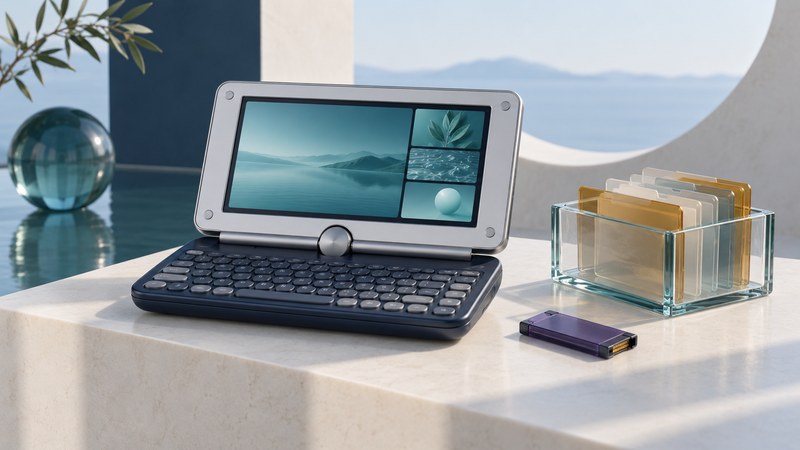
For a Sony CLIE UX40 or UX50, identify the model and inventory each storage area before choosing a transfer method. Organizer records, Internal Media files and Memory Stick contents can need different preservation routes.
These compact landscape-screen handhelds combine a thumb keyboard with Palm OS applications and media features. Their design rewards a more precise approach than treating every visible file or backup as a copy of the whole device.
Identify the model before using its radios
Scroll the table horizontally to see every column. Keyboard users can focus the table region and use the arrow keys.
| Model | Built-in Bluetooth | Built-in wireless LAN |
|---|---|---|
| PEG-UX40 | Yes | No |
| PEG-UX50 | Yes | IEEE 802.11b |
Sony's UX50/UX40 Operating Instructions (PDF, specifications on printed pages 93–97) document the radios and a 480 × 320 display. The listed wireless-LAN encryption is WEP. The supplied desktop software's documented Windows environment runs from Windows 98 SE through XP.
Those details identify the original system; current compatibility requires a separate check. For a preservation task, start with the existing documented USB or storage-media route where feasible. Keep legacy networking experiments separate from routine personal-account access. Record the desktop OS, Palm Desktop for CLIE version and connection hardware with the device.
Separate files, databases and on-device safeguards
The Sony CLIE Handbook (PDF, printed pages 138–151 and 172) describes CLIE Files views for Handheld, Internal Media and Memory Stick. It also documents limits to HotSync backup coverage, including some data added by beaming or card transfer. Copying an application through the launcher can leave its related data behind.
Give each location its own inventory. For a photograph, record its filename and folder. For an address-book entry, record the application, the intended export or synchronization route, and how you will check the resulting record. For third-party software, preserve the installer, version and associated data together.
Power Saving Mode stores a local snapshot that is restored when the device starts again, as described on pages 30–31 of the Operating Instructions. A later save replaces the prior snapshot. Keep a separate copy off the handheld so that the device and the only backup are not the same physical object.
Sony further distinguishes ordinary media from MagicGate-protected material. Its handbook directs protected files to compatible software such as SonicStage. Preserve that software context before moving or converting protected content; a file copy alone does not establish usable playback.
Preserve one location at a time
- Describe the starting state. Record the model, working applications, card label and any visible errors. Note which data exists only on the handheld.
- Protect existing desktop copies. Make a dated copy of the CLIE user data and previous backups before synchronization. Review the user profile and conduit settings before allowing changes.
- Inventory all three storage views. Use the documented CLIE Files interface to identify locations. Keep a written list of folders and important application data, including items outside the obvious media folders.
- Select a documented route for each item. Use the matching HotSync/application route for organizer data, and a supported file-copy route for ordinary files. Check exact Memory Stick type and reader/device compatibility before relying on a card.
- Verify the destination. Open representative copies, compare record counts where available, and inspect names, dates, notes and media playback. Record failed or untested items separately.
Use Copy when creating a preservation duplicate; keep original folders and filenames intact. A prompt to format a card is a stop point while valuable contents remain unpreserved. Avoid removing media during access. Sony's handbook covers the card-handling and formatting requirements.
For Palm database types and desktop dependencies, use the Palm software preservation guide. For office documents, use the Documents To Go recovery guide. These complement the CLIE-specific location inventory.
Know what a reset or connection establishes
Sony documents that a hard reset removes handheld records and added applications while Internal Media contents remain. Restoration and complete factory clearing are separate operations. Consult the model instructions and preserve all important locations before either; resetting is a poor way to investigate where unique data resides.
Similarly, a successful Bluetooth pairing establishes a connection stage. The intended transfer still needs a matching service, application and file format. Test with disposable data and record the result without assuming that every feature will follow.
Download the CLIE storage and preservation record (plain text). Keep the checked archive on separate storage, along with the manuals and versions needed to interpret it. Sony also lists these documents in its UX50 support library. These are documentation-based planning steps; device-specific transfer and restoration still require testing on the actual equipment.
Explore handheld computing
Handheld computers: work devices, accessories and classic PDAs