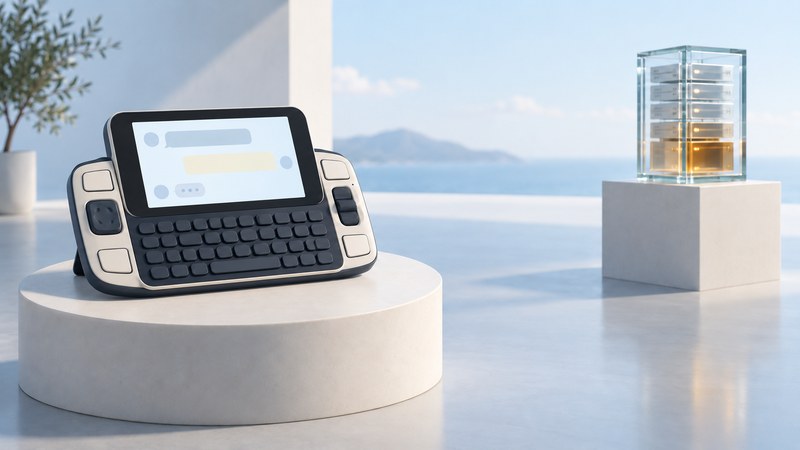
The T-Mobile Sidekick 2 paired a swivel screen and physical keyboard with an online service. Understanding those dependencies explains its historical appeal and helps set realistic expectations for a surviving device.
A Sidekick that powers on provides evidence about its hardware and local state. Messaging, account registration and data recovery require separate evidence. For a collector or an owner with old personal data, documenting what is present comes before resetting or trying to reactivate it.
A keyboard designed around frequent messages
The Sidekick II's landscape screen pivoted above a keyboard. A wheel and dedicated controls supported navigation between applications and text entry. The July 2004 Danger Reference Guide, preserved PDF documents that design and its registration process.
The physical arrangement makes sense as a communication tool: a screen wide enough to read a message, keys available for composing it, and controls for moving between tasks. A museum demonstration can explain those choices even when the original online environment is gone. Judge a demonstration by the behavior it actually shows.
This guide concerns the 2004 Sidekick II, also called Sidekick 2. Record the exact model and software when comparing examples. Instructions for the Sidekick iD, later Danger devices or the Android Sidekick belong to different configurations.
Separate device, cellular network and service
Scroll the table horizontally to see every column. Keyboard users can focus the table region and use the arrow keys.
| Layer | Evidence on an existing unit | Question still to answer |
|---|---|---|
| Local hardware and software | Display, keys, visible menus and locally accessible information | Which functions can this exact unit demonstrate in its present state? |
| Cellular connection | Network indicators and a specifically documented connection test | Does a current carrier accept this device and SIM in this location? |
| Danger service | Historical account, hosted data and synchronization documentation | Which activities relied on the retired service? |
Danger's manual describes registration through the service and a web-based Desktop Interface for account information. It also distinguishes GSM phone service from a full data-service connection in the status indicators. The USB port is described primarily as a developer interface, so its presence alone establishes no ordinary file-copy route.
Keep a claim as narrow as the evidence: “the menu opens” or “these stored notes are visible” is more informative than “fully working.” A boot screen, a signal icon and successful message delivery are different observations.
What changed in 2011
In its February 2011 Danger service shutdown statement, T-Mobile announced that Sidekick data services would be unavailable after May 31, 2011. The notice offered export options during the transition. It describes a historical migration window, not a recovery service available today.
The service retirement is a separate event from changes to cellular networks. A compatible radio connection would not recreate the original hosted service. Current voice or text capability would need confirmation for the exact device, carrier and location; this guide makes no claim that those functions remain available.
The 2004 manual's assurance that data would return from the service after a fully discharged battery depended on that service being there. Treat that promise as historical. Do not reset or deliberately drain a device to try to retrieve missing information. Preserve anything accessible before experimenting.
Likewise, the 2011 announcement discusses multiple Sidekick devices. Its references to memory-card exports should not be read as a Sidekick II-specific procedure. Match both the hardware and the software before applying instructions.
Document a surviving unit without assuming recovery
- Define the purpose. Decide whether you are documenting industrial design, checking local functions or trying to preserve personal information. A recovery project needs more restraint than a display demonstration.
- Record the starting state. Photograph the exterior label and any already-visible screen. Note whether the device is at registration, a lock screen or an accessible menu. Keep serial numbers and personal details out of public photographs.
- Inventory accessible information. With the owner's permission, record which applications and records can be viewed. Avoid editing existing entries just to test the keyboard.
- Capture readable evidence. Photographs or careful transcriptions can preserve visible information when a supported export route is unavailable. Compare transcriptions with the screen and label them as such.
- Search existing archives. Look for exports made during the 2011 transition, saved photographs, email attachments or files on an old computer. Keep copies unchanged while identifying their contents.
- Log unresolved work. A registration screen, unknown passcode or inaccessible application is a stopping point for documentation, not proof of erased data or a reason to factory-reset.
Download the Sidekick condition and dependency record. The record separates observed behavior, historical specifications and untested functions. No physical Sidekick or data-recovery method was tested for this guide.
Explore handheld computing
Handheld computers: work devices, accessories and classic PDAs