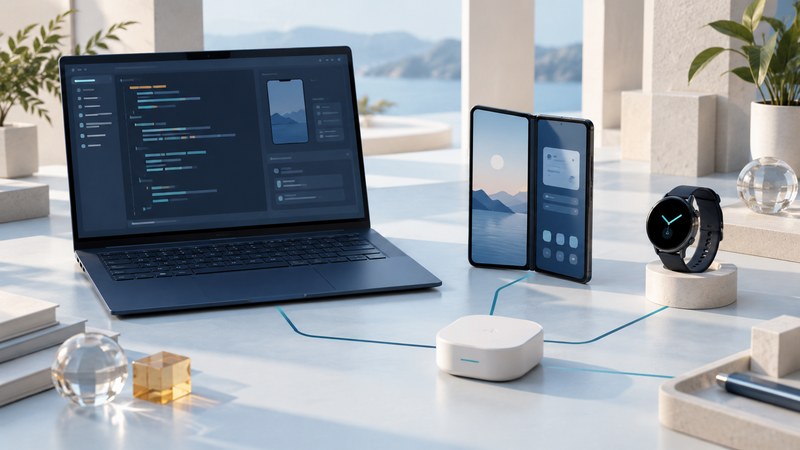
Start with the device or service your project needs. Samsung's developer ecosystem spans Android phones, wearables, connected homes, televisions and enterprise devices. A useful route through it connects four things: current documentation, a small working example, a repeatable test and the right place to ask for help.
This guide is for developers choosing that route. For the hands-on layout exercise, bring a working Android project and basic familiarity with building and running it. For other platforms, use the linked documentation to establish the required tools and hardware before choosing a lab.
Choose the platform that matches the task
Write one sentence describing the behavior you need: “Keep the selected item visible when a phone unfolds,” or “Control a supported light through a home hub.” Use that sentence to choose documentation. It also gives you a first acceptance test.
| Project | Official starting point | First question to settle |
|---|---|---|
| Galaxy apps and foldables | Foldables and large screens: layout, window changes and device experiences. | Which screen sizes, postures and Android versions must this feature support? |
| Watch apps and health data | Galaxy Watch and Samsung Health: choose the relevant app or data SDK. | Are you building a watch face, a watch app or an integration with health data? Check compatible hardware, consent and access requirements for that path. |
| Connected-home devices | SmartThings: device integration and connected experiences. | What device protocol, hub and integration route does the example require? |
| Television applications | Smart TV development: tools and documentation for Samsung television apps. | Which model years are targets, and can every action be reached with the remote control? |
| Digital cards and tickets | Samsung Wallet: documentation and partner onboarding. | Is the intended card type and service available for your region and partner account? |
| Enterprise device features | Samsung Knox: enterprise APIs and services. | Which SDK permissions, device-management conditions and license apply to the feature? |
Treat development access, testing access and production distribution as separate milestones. Record the requirements for each. A downloaded SDK or a successful tutorial establishes a useful starting point; production readiness also depends on the selected service's current onboarding and release requirements.
Turn a tutorial into a repeatable test
Browse the Samsung Code Lab catalog by your chosen platform. Read the prerequisites before installing anything, then run the supplied example unchanged. Save the lab URL, sample version, device and outcome so that later modifications have a known baseline.
For a connected-home exercise, Create a SmartThings Edge Driver for an IoT bulb provides a concrete starting point. Its setup calls for a host computer, development tools, an Android device with SmartThings, an onboarded hub or Station, and a compatible bulb. Check the lab's precise requirements before choosing it; its hardware workflow is separate from a phone-layout exercise.
Match the test environment to the question
Use an emulator for fast iteration on window sizes and routine interaction. Use Samsung's Remote Test Lab to reach available real devices over the web: the service describes signing up, selecting preferences and starting a test session. Check the live inventory and session instructions when booking; device availability changes.
A Galaxy emulator skin changes the visual device frame; evaluate the actual runtime and device behavior separately. For a feature that depends on a local accessory, physical sensor, radio environment or repeated performance measurements, plan a suitable physical-device test. Record exactly what your chosen environment exercised.
Use fictional data and dedicated test accounts. Remove secrets and personal data from screenshots and logs before sharing them. If a bug occurs only on one device, repeat with the same app build and inputs on a second supported environment; that comparison helps narrow the cause.
Choose a support route and make the question reproducible
The Samsung support hub gathers FAQs, testing resources, forums and 1:1 support. Its technical support remit covers Samsung SDKs and tools. Use the developer forums for community discussion and searchable answers; use the relevant product's support route for an issue that needs its maintainers or account-specific investigation.
- Search the documentation and existing discussions using the exact API or error message. Check the version and date of any answer.
- Reduce the failure to the smallest screen, request or sample that still reproduces it.
- State the expected behavior and the observed behavior separately. Include numbered steps and how often the failure occurs.
- List device/model, operating system, SDK/tool versions and the last working configuration if known.
- Attach only the minimum sanitized evidence needed. Keep credentials, tokens, customer records and private project details out of a public thread.
When an answer resolves the issue, add the tested fix and version to your own project notes. A reusable record saves the next developer from repeating the investigation. Community advice is most useful when you can reproduce its result in your supported environment.
Use conferences for direction and documentation for implementation
Resource check: October 3, 2026. Samsung's main conference destination currently leads to the SDC24 archive. The separate events calendar lists Samsung AI Forum 2026, dated September 30, as finished. Check the official event page for a confirmed schedule, timezone, attendance format and recording availability before making plans.
A productive session-viewing routine is simple: choose one talk relevant to your project, record the capability it describes, follow through to the current documentation, and turn one supported feature into a small test. Check whether a demonstrated feature is released, restricted to partners or still described as future work.
For ongoing maintenance, revisit the selected SDK's release notes when upgrading tools or target devices. Review the developer site's news and learning resources when a project needs a new capability. Event announcements can reveal a direction; the versioned documentation and your acceptance results determine what your release can rely on.
The connection to SDC17
Samsung Developer Conference 2017 took place October 18–19 at Moscone West in San Francisco, as recorded in Samsung's conference history. Its connected-device emphasis remains a useful reason to approach Samsung development as a set of related platforms. Today's project should start with the current service documentation and its supported devices.
Keep a small project and support brief
Download the developer project brief (plain text). Fill it in before starting a lab, then add your baseline result and any reproduction steps. It is an editable planning aid you can keep with the project or adapt into a support question.
For broader release planning, use Custom Software Development: From Workflow to Working Release. Return to the Programming guides for related practical examples.