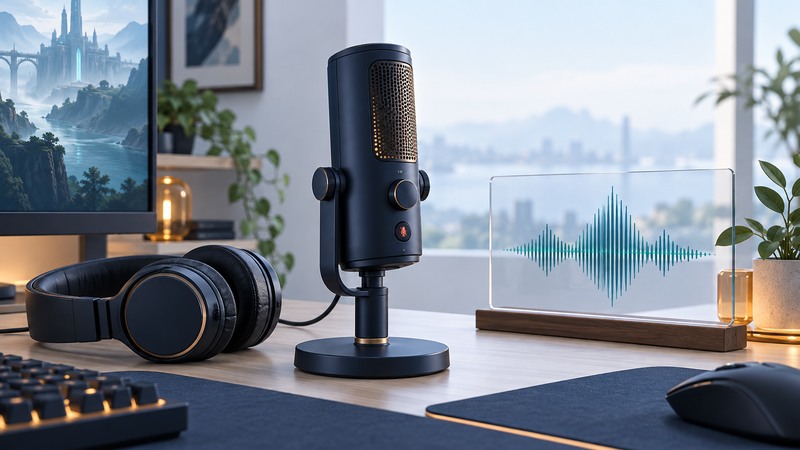
A useful Seiren X setup produces a clear recording at your normal speaking position, with room for a louder sentence. Begin with the microphone alone, then add game audio and processing. This guide concerns the original Seiren X, model family RZ19-02290, rather than the Seiren V2 X or newer versions.
Know what the controls change
The original Seiren X has a USB connection, a 3.5 mm headphone output, a mute button and a headphone-volume control. The knob changes listening level; set recording level in the computer or recording software. The Seiren X master guide documents these controls, its supercardioid pickup pattern, and the red muted indication.
Connect the microphone using a working USB data cable and select it explicitly as the computer's input. If headphones are connected to its headphone socket, select the corresponding output to hear computer playback there. Modern sound menus differ from the older screenshots in the manual; follow the input/output function names.
Speak toward the front side of the upright microphone, with the controls facing you, and make a short orientation test. Compare normal speech facing the front with speech from the side at the same distance. Keep the clearer, stronger orientation and then adjust the stand so the microphone can stay there comfortably.
Improve the voice-to-room balance first
As a starting experiment, place the microphone about a handspan from your mouth and slightly off the direct breath path. This is a test position, not a required distance. Record a sentence, move slightly closer, lower the input level to keep the voice comparable, and record it again. Listen for room echo, keyboard sounds and plosive thumps.
A directional pattern changes sensitivity with angle; it does not erase nearby noise. Reduce avoidable fan or desk noise and keep the microphone clear of impacts. A boom arm or stable separate support can help if desk contact is a recurring problem, provided the mounting hardware fits.
Use headphones while testing so loudspeaker sound is not fed back into the microphone. Set their volume to a comfortable level. Judge the saved file as well as what you hear while speaking: the monitor path and recorded path can differ.
Route the microphone once in OBS
- Create a simple scene for testing.
- Add an Audio Input Capture source and select the Seiren X. If that same device is already enabled globally in Settings → Audio, choose one route and disable the duplicate.
- Speak and confirm the intended meter moves. Mute the microphone and check that your voice disappears from the recording.
- Start with optional filters bypassed. Set the computer input level while speaking at your normal position, including a louder sentence.
- Make a recording with speech, silence and keyboard use, then listen back.
OBS warns that capturing the same device globally and as a scene source can create echo. A second webcam microphone or a monitored output recaptured as desktop audio can also make routing confusing.
Keep loud speech below the top of the digital meter and leave visible headroom. If the voice already sounds distorted with filters bypassed, reduce the input level or increase distance slightly. Pulling down a later mixer fader makes a clipped signal quieter without repairing its shape.
Match a symptom to a useful test
On small screens, swipe the table sideways. With a keyboard, focus the table and use the arrow keys.
| Symptom | First test | What the result tells you |
|---|---|---|
| Headphones are loud; recording is quiet | Change input level while watching the recording meter. | Listening volume and microphone recording level are separate. |
| Voice sounds doubled | Disable other mic sources and software monitoring, then record. | A clean result points to routing or monitoring duplication. |
| Words break up after filters | Bypass suppression and gate filters. | If speech returns, adjust processing before blaming the microphone. |
| Keyboard dominates | Move the mic closer to the voice and reduce input level to compensate. | A better balance points to placement and room sound. |
| No input meter movement | Check mute, selected input, app permission and USB data connection. | This isolates capture before OBS filters or output settings. |
Keep a baseline recording
Add processing only after the baseline is usable. A noise gate changes when audio opens or closes; listen for missing word beginnings. Suppression may reduce steady noise but can alter the voice. Repeat the quiet-speech part after each filter change.
For the complete streaming setup, pair this test with the Kiyo video check. For a headset microphone, use the connector and device-selection checks in the Electra V2 guide.
Download the camera and microphone test log to record the baseline, one change and the playback result.