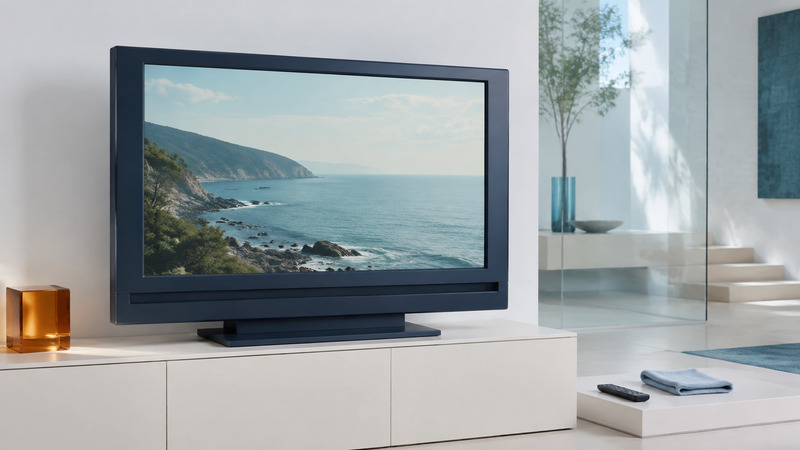
A plasma television can remain useful when its picture, connections and running costs still suit the room. Start with its condition and exact model. Sensible care can reduce avoidable problems, but a new streaming box or a screen-care routine cannot reverse every kind of panel wear.
Distinguish a temporary afterimage from lasting wear
Plasma displays produce light through cells that excite phosphors. Repeatedly showing fixed shapes can make wear uneven across the screen. Viewers often use “image retention” for a temporary afterimage and “burn-in” for lasting unevenness, but manufacturers do not always use those terms consistently. A support article's wording is not a diagnosis of your particular screen.
First see whether the mark remains in the same physical location across different sources and normal moving scenes. A logo that appears only on one channel may be part of that program. A persistent shape across inputs points toward the display, but a photograph of it cannot reliably establish the cause or whether it will fade.
Panasonic's pixel-orbiter guidance explains that supported plasma models can shift the displayed image to help reduce retention, with differences in menu availability and picture modes. This is a mitigation, not a guarantee against damage and not proof that existing wear can be removed.
Stop repeating the static content that triggered the concern. Follow the exact manual's care instructions and assess normal varied viewing. Do not run an unverified bright “repair” video continuously or assume a scrolling pattern will restore worn phosphors. If the effect persists, a qualified service assessment is more useful than escalating screen brightness.
Make the room and settings easier on the set
Choose a comfortable picture mode for the actual lighting and avoid unnecessary peak brightness. Keep pause screens, game menus and desktop toolbars from sitting unattended. Enable the model's appropriate screen-saving and automatic-off options, while checking that they do not interrupt the way you use the television.
Preserve a program's intended aspect ratio. Stretching every old program to fill the screen distorts the picture; instead, consult the manual about extended use of side bars and any supported bar-brightness setting. Vary content and avoid treating any single viewing pattern as risk-free.
The Panasonic TC-P60ST30/TC-P65ST30 owner's manual provides a concrete model-specific reference for ventilation, image-retention controls, supported inputs and cleaning. Its clearances and menu paths should not be copied to a different model without checking that model's manual.
Leave ventilation openings unobstructed and keep other heat-producing equipment from crowding the set. For cleaning, turn off and unplug as directed by the manufacturer; use its approved cloth and method without spraying liquid directly onto the panel. Screen coatings can be damaged by unsuitable cleaners or pressure. Moving a heavy television also requires an appropriate stand, handling method and help; use the model's handling instructions.
Give a working panel a compatible source
An external streaming player can supply current apps when a television's built-in services are no longer usable. It must still produce a signal the TV accepts. Read the input-format list rather than assuming the panel's resolution tells you every supported HDMI mode.
Swipe the table sideways, or focus it and use the arrow keys.
| Symptom or need | Useful check | Limitation |
|---|---|---|
| Player shows no picture | Confirm the selected input, supported output format and a known-working cable. | A connector fitting does not establish signal or copy-protection compatibility. |
| Current streaming apps | Verify the external player's app support and an output mode listed by the TV. | A player does not upgrade the panel to UHD or add native HDR display capability. |
| Picture but no sound | Check the player's audio format and the full receiver/TV/speaker path. | Audio pass-through and return-channel features differ by model. |
| Text is cut off at edges | Inspect aspect, overscan and screen-fit controls for that input. | Menu names and supported controls vary with signal format. |
| Several remotes | Test input switching, volume destination and supported HDMI control. | A shared control label does not guarantee every device cooperates. |
Try a direct supported player-to-TV connection when diagnosing an intervening receiver or adapter. Record the original settings before changing them. Select SDR output when that is what the TV supports, and check ordinary faces, dark scenes and captions. See receiver compatibility and remote-control planning for the rest of the system.
Measure running cost with your viewing habits
A label's wattage is not necessarily the average during your programs. Use a suitable plug-in electricity meter within its rating, follow its instructions, and measure several representative viewing sessions. Keep picture settings and connected equipment consistent. If the meter measures the entire entertainment system, label the result that way.
The electricity comparison sample preserves the assumptions and arithmetic, with a blank row for your own inputs. Compare like-sized screens and realistic use rather than maximum ratings from unrelated products.
Decide what a replacement would actually fix
Keeping the set can make sense when the image remains enjoyable, inputs meet your needs and the stand and ventilation are suitable. Ask a repairer for a diagnosis, parts availability, total cost and repair warranty before committing to work. A modest connection problem and a worn panel have very different implications.
For repeated shutdowns, unusual smells, damaged wiring or other electrical symptoms, stop using the set and seek service. Internal power and panel-drive circuitry is not a useful place for a general owner troubleshooting guide. Record the model, symptoms and any indicator-light pattern instead.
For replacement, list the improvements you need: daytime reflections, screen size, supported formats, accessibility, gaming response or lower measured energy use. Compare them in the room where you watch. The LCD TV guide separates panel and backlight labels from useful viewing tests. Remove accounts and personal settings before transferring equipment when its controls permit, and use the appropriate local electronics collection route if it is retired.
Continue with checking HD, 4K and HDR sources or the Television category.