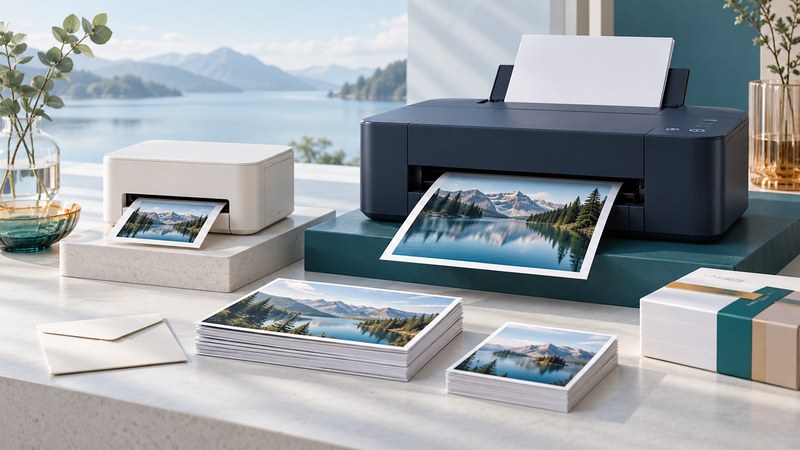
Choose a photo-printing method around the pictures you will actually make. Write down the largest size, expected monthly quantity, preferred paper finish and how long the equipment may sit unused. Those four answers narrow the choice more effectively than a printer's headline resolution.
For occasional small sets or large specialty prints, start by comparing a lab quote. For regular hands-on printing, compare a compact dye-sublimation system or a photo inkjet whose paper range matches your work. The examples below illustrate methods, without claiming a currently cheapest product.
Compare complete workflows
On a small screen, scroll the table sideways. Keyboard users can focus the table and use the arrow keys.
| Method | When it can fit | Costs and constraints to investigate |
|---|---|---|
| Photo inkjet | Different paper surfaces, flexible sizes and direct control of output. | Supported media, ink system, cleaning, spare maintenance items, desk space and driver support. |
| Compact dye-sublimation | Repeatable small-format photo sets with matched paper and ribbon supplies. | Exact supported dimensions, supply codes, cassette compatibility and paper-path clearance. |
| Photo lab | Occasional orders, larger formats or products beyond a home printer. | Per-print price, minimum order, shipping or pickup, turnaround, crop and color-correction policy. |
Dye-sublimation photo printers transfer color using heat and a ribbon. The Canon SELPHY CP1500 specifications provide a documented example, including its actual paper dimensions. Check millimeters as well as familiar size labels: a product called postcard size may differ from an exact 4 × 6-inch sheet.
Verify supplies before committing to hardware
Record the complete printer model and regional variant, then find its manual and supported consumable codes. For a used printer, an attractive purchase price is only one part of the decision: establish whether compatible paper, ink or ribbon and required cassettes can actually be obtained.
The CP1500 ink-cassette instructions specifically require matching cassette and paper sizes. Use the equivalent compatibility list for any other model. Printer families and similar-looking packs can use different supplies.
Check the physical setup too. Paper may travel through the back during printing; leave the clearance the manual specifies. Establish power, supported phone or computer connection, and the maximum print dimensions before choosing a place for the printer.
Ask a lab for its file-format requirements, exact dimensions, finish choices, border options and whether automatic correction can be controlled. A small sample order can answer questions that a product description cannot.
Calculate the cost of usable prints
Keep operating cost and equipment cost visible as separate figures. For a defined batch, include paper, ink or ribbon, maintenance supplies, delivery charges and test or spoiled sheets. Divide the amount actually consumed by the number of prints you are willing to keep.
For an inkjet, ink usage varies with coverage, paper, quality setting and cleaning. A cartridge price divided by a guessed photo count is weak evidence. Use manufacturer photo-yield information with its stated method, or keep a record of actual supplies and output. Compare a lab's delivered price for the same size and quantity.
Repeat the calculation for a low-use year as well as the year you hope to have. Equipment cost spread across fewer prints can change the choice substantially.
Make a repeatable quality check
- Use a small set containing a face, fine texture, deep shadows, a bright scene and a neutral gray subject. Keep the original files for repeat comparisons.
- Select the correct paper size and media type. Confirm fit, crop and border behavior in preview.
- Use the manufacturer's normal color workflow initially. Where application-managed profiles are supported, follow the documented procedure so the application and driver do not both apply conflicting color corrections.
- Inspect the finished prints in consistent, suitable light after following the paper's handling instructions.
- Record paper, settings, file and result. Change one variable before repeating.
The Epson SureColor P700/P900 user guide (PDF) covers media settings, nozzle checks, maintenance and color controls for those inkjet models. Use your own printer's instructions for cleaning intervals and limits. Repeated blind cleaning can consume ink while leaving the real issue unresolved.
Keep a simple note of the supply code and successful settings with the equipment. Revisit the decision when your required sizes, print volume, operating system or supply availability changes.