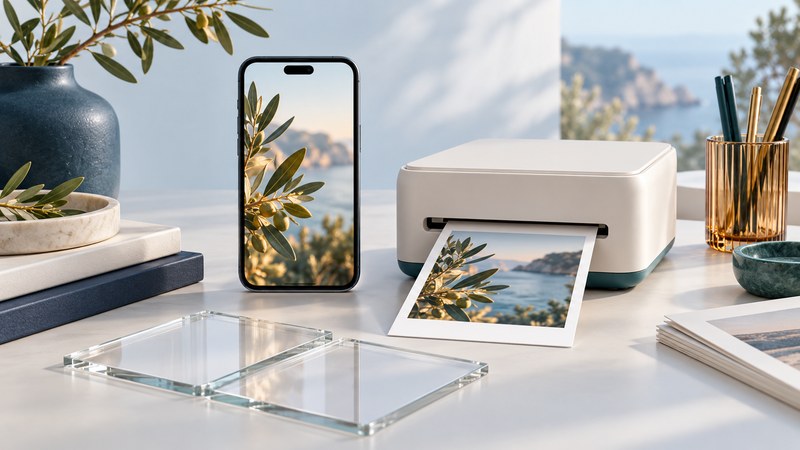
A good phone print starts with the best available image file and an intentional crop. Choose the print size, inspect the preview, then make one test print. A printer connection solves delivery; it cannot restore detail already lost in a screenshot or a small messaging copy.
You can print to a compatible home printer, use its supported app, or upload to a photo lab. Keep the original picture and make a separate print-ready copy when editing or converting it.
Prepare the actual image
- Open the picture in its original library and allow any full-resolution cloud download to finish.
- Check the pixel dimensions in the image information. Locate the original if you only have a screenshot, social-media download or reduced message attachment.
- Make exposure, color and crop adjustments on a copy or through an editor that retains the original.
- Choose the print service's accepted file format and color requirements. If HEIF, RAW or an HDR format is unsupported, export a compatible version and inspect it before ordering.
- Review faces, fine detail and important edges at a useful magnification. Strong sharpening or enlargement can introduce artifacts, so judge the exported file itself.
For a lab, follow its submission instructions for the selected product. A JPEG exported in sRGB is a common delivery choice, but the lab's requirements take precedence. Check whether automatic image correction will be applied, especially if you have already adjusted the image deliberately.
Match the shape before counting pixels
Print shape is the width-to-height ratio. A 6 × 4-inch print has a 3:2 ratio; a 10 × 8-inch print has a 5:4 ratio. Filling differently shaped paper requires cropping some of the photograph. Fitting the entire photograph can instead leave borders. The ordering preview should make that choice visible.
For an uncropped image, choose a matching paper shape or a fit-with-borders option if offered. A borderless setting can enlarge the image slightly beyond the paper edges, so keep important details away from the edge and check the device's preview.
Check the pixels that remain after cropping
Divide the cropped pixel dimension by the corresponding print dimension in inches to get pixels per inch, or ppi. Adobe explains this relationship between pixels and printed size. It differs from the printer's hardware dots-per-inch specification.
On a small screen, scroll the table sideways. Keyboard users can focus the table and use the arrow keys.
| Print dimensions | Matching pixel dimensions | Shape |
|---|---|---|
| 6 × 4 inches | 1,800 × 1,200 pixels | 3:2 |
| 7 × 5 inches | 2,100 × 1,500 pixels | 7:5 |
| 10 × 8 inches | 3,000 × 2,400 pixels | 5:4 |
These are calculated examples, not minimum requirements for every printer or photograph. Adobe identifies 300 ppi as a common high-quality print target; viewing distance, image content and output method also matter. Follow the lab's recommendation and make a test at the intended size.
Changing a file's ppi label without resampling changes its nominal print size, not its pixel count. Resampling can create more pixels, but additional pixels do not establish that additional scene detail was captured.
Send a single test print
From an iPhone
For an AirPrint-compatible printer, connect the phone and printer to the same Wi-Fi network. In Photos, select the picture, use Share, choose Print, select the printer and check the available paper and copy settings. Apple's photo-printing instructions describe this route. Available controls depend on the printer and app; a manufacturer's photo app may expose more layout options.
From an Android phone
Enable the appropriate print service and use an app that supports printing. Google's Android printing guidance explains print-service settings; menu names can vary by phone. Use the manufacturer's supported plugin or app when the built-in route lacks the required paper or layout setting.
As a specific example, Canon documents AirPrint and Mopria routes for the SELPHY CP1500. That documentation is for that printer, rather than a promise that any compact printer supports both.
Through a photo lab
Select the exact product, upload the prepared file, inspect every crop preview, confirm quantity and finish, and review the total including delivery. Order a small test before a large set or an important enlargement.
Read the test print and fix one cause at a time
- Unexpected crop: compare paper ratio, fit/fill setting and borderless expansion.
- Soft detail: check source focus, cropped pixel dimensions and whether the uploaded file was a reduced copy.
- Dark result: examine the print in reasonable viewing light and check screen brightness before making a large exposure correction.
- Color cast or banding: check paper type and the printer's maintenance guidance; avoid repeatedly editing a file to compensate for a printer fault.
- Printer missing: check its awake state, supported connection mode and network. Guest networks may isolate devices; use the documented connection route.
Keep the successful export and a note of paper, size and settings. For choosing equipment or comparing ongoing costs, continue with the photo-printer guide.