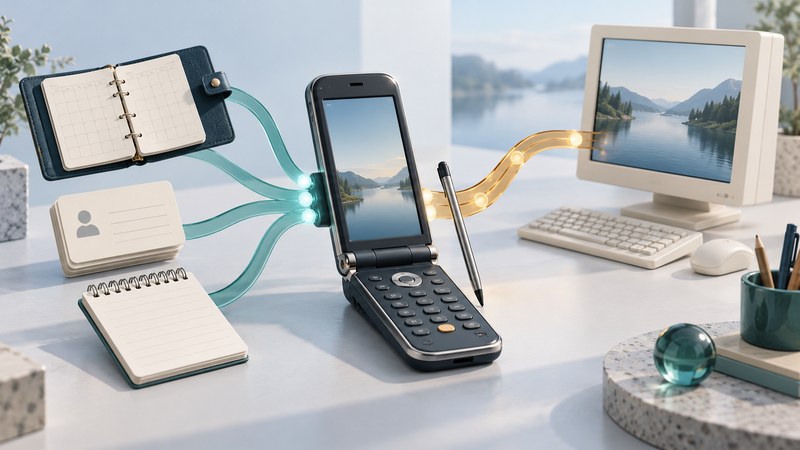
The Motorola A780 shows how a telephone and a personal digital assistant could share one pocket. Its closed flip supported familiar keypad calling; opening it exposed a touch interface for organizing information. Understanding that division makes this 2004-era device more interesting than a list of camera, radio, and software specifications.
A phone outside, an organizer inside
A PDA, or personal digital assistant, organized contacts, appointments, notes, and similar information. Combining those records with telephony reduced the need to carry a separate organizer. The design question was how to make both quick calls and longer information tasks comfortable.
Motorola's A780 user guide (archived Motorola PDF) documents keypad operation with the flip closed and a stylus-driven touchscreen with it open. Its calendar, address book, and application launcher put stored information within reach. The hardware offered two ways into the same device, rather than making every task use the same input method.
Consider a fictional appointment: a user checks a meeting in the calendar, looks up its contact, then calls that person. The design combines a record, a time, and an action. Saving those details is one capability; transmitting them elsewhere is another. This distinction still helps explain a connected organizer even after its original network environment has disappeared.
Separate the task from the connection
| Task | Local part | Additional dependency |
|---|---|---|
| Keep an appointment | Read or edit a stored calendar entry. | Sharing or synchronizing it requires a compatible destination and transfer method. |
| Use a contact | Look up a stored name and number. | Placing a call requires suitable cellular service. |
| View a document | Open a supported file already on the phone. | Getting a new attachment requires a working transfer or messaging path. |
| Play media | Open a supported local recording. | Remote content adds a server, network, and format requirement. |
| Synchronize records | Maintain the phone's copy. | A compatible computer or server must reconcile it with another copy. |
This is a dependency map, not a promise that every surviving A780 or software variant still performs each task. Record the actual installed applications and test results. A working calendar is evidence about the organizer; it says nothing by itself about a cellular account.
The contemporary Motorola announcement, preserved by Esato, described EDGE data, Bluetooth, MOTOSYNC, multimedia features, and a document viewer. Those names represented different jobs: a cellular data connection, a nearby device link, a synchronization solution, and applications. None substitutes for the others.
Synchronization deserves particular care because it can change both copies of a record. Before attempting a connection, preserve existing data and identify the computer software, server, account, and direction of transfer. The original manual's instructions describe its contemporary environment; they do not establish compatibility with a present-day computer or mail service.
What “Java + Linux” explained
Motorola presented Java and Linux as parts of the A780's software platform. That describes a foundation and an application environment; it does not establish that an arbitrary desktop Linux program or Android application will run on the handset. A useful compatibility claim must name the application, its required runtime or interfaces, and the particular device software.
For example, “a calendar is installed” and “this phone can install a particular new calendar program” are separate statements. The first is an observation. The second needs application documentation and a supported installation path. Similarly, being able to view a document does not establish full desktop editing capability.
Make a small, useful device record
- Record the model, regional markings, software version, and available input methods.
- List the local applications and the kinds of existing records they can open.
- For each transfer task, identify both endpoints and the documented connection method.
- Mark untested functions as untested, and record the date of each observation.
An effective description might read: “Calendar entries can be viewed; computer synchronization has not been tested.” It preserves useful evidence without turning a partial demonstration into a claim of full operation. For related platform distinctions, see Microsoft phone families; for application dependencies, see BREW and the early mobile app ecosystem.