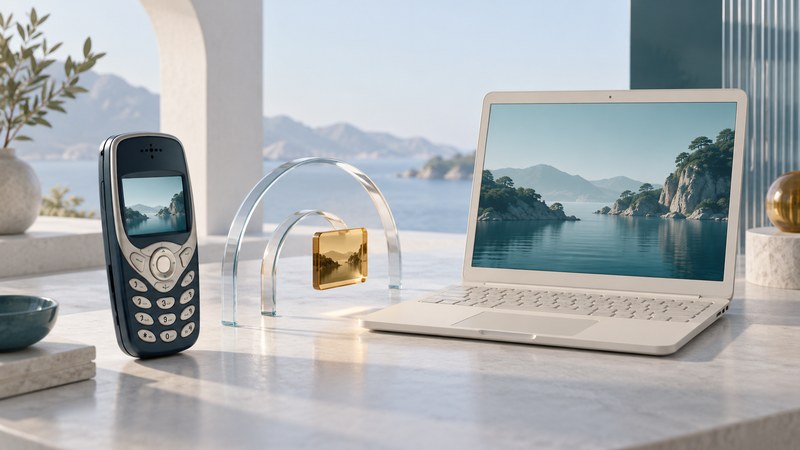
The Nokia 3650 shows how useful a local wireless connection could be before cloud photo libraries became commonplace. A picture could travel from the handset to a compatible nearby computer. The key was support for the intended task at both ends: discovering a device, pairing with it, and transferring a file were separate stages.
Start with the service you want to use
A Bluetooth profile specifies how devices perform a particular kind of job. The Bluetooth SIG's Object Push Profile, for example, defines requirements for exchanging objects. Apple's historical Bluetooth technology overview distinguishes object exchange, serial connections, audio, and other profiles. A matching radio technology alone leaves those application requirements unresolved.
| Intended task | What to establish | Useful evidence of success |
|---|---|---|
| Copy one photograph | The receiving software accepts an incoming object and the image format. | The destination saves a file that opens correctly. |
| Synchronize an organizer | The phone software and computer synchronization application support each other. | A deliberately created test item appears in the intended destination. |
| Use an audio accessory | The exact phone and accessory share a supported audio function. | That function works; a paired-device entry alone proves less. |
| Print a picture | The printer or intervening computer provides a compatible image-receiving and printing path. | A test print emerges with the intended picture and orientation. |
This table is a compatibility checklist, not a claim that the 3650 implements every Bluetooth profile. Use the exact manuals for the phone, receiver, and software. In particular, distinguish the phone's sound-setting “profiles” from Bluetooth communication profiles; the same word refers to different settings.
Send one small, non-sensitive test picture
The Nokia-authored 3650 user guide, Connectivity chapter, pages 155–161 documents this basic workflow:
- Enable Bluetooth and make the receiving device discoverable as its instructions require.
- On the phone, select an image, then choose Options → Send → Via Bluetooth.
- Select the intended receiver. If pairing is requested, enter the agreed passcode on both devices.
- Accept the incoming transfer at the receiver and inspect the saved file.
The guide allows one active Bluetooth connection at a time. Incoming Bluetooth items on the phone appear in the Messaging Inbox. It also distinguishes pairing from the separate authorized-device setting, which permits later connections without individual approval. Reserve that trust setting for devices you control and deliberately trust.
A practical first test uses a picture with an obvious subject and a distinctive filename. Check the destination folder before repeating the transfer: otherwise several successful copies can look like several failed attempts when the wrong folder is open. Keep the original on the handset until the saved copy has been checked.
The computer software supplied the other half
Logitech's manufacturer-authored guide to using the Nokia 3650/6600 with its wireless hub documents picture exchange and PC Suite synchronization in a Windows 2000/XP environment. For synchronization, it describes a Bluetooth Serial Port service and matching COM-port selection in the phone connection software. Its picture-transfer instructions use a different user workflow.
That is a useful historical example of why “the computer has Bluetooth” leaves several questions open. Which adapter and software stack are installed? Which service receives the file? Where does that software save it? Which application interprets the result? A current computer may expose different services and menus from the old guide.
For an existing archival setup, record the working operating system, adapter, driver, and application versions before changing them. Treat the historical software instructions as a description of that environment. For a modern receiver, consult its current incoming-file documentation instead of reproducing obsolete menu paths.
Use the last successful step to narrow the problem
- The receiver never appears: check discovery mode, distance, and whether the phone is already using another connection. Search again after changing one condition.
- The receiver appears but pairing fails: confirm the device identity and the passcode prompt at both ends. A stale saved name can send you toward the wrong equipment.
- Pairing succeeds but sending fails: inspect the receiver's file-reception service and prompts. Another successful task, such as audio, does not establish a working picture-transfer path.
- The file arrives but will not open: preserve it and inspect its type, size, and media format. The radio transfer and the image viewer are different parts of the chain.
Keep enough detail to repeat a successful transfer
Note the sender, receiver, software versions, exact task, filename, byte size, saved location, and whether the copy opens. For an organizer test, use a clearly labeled temporary item and check synchronization direction before involving an important address book. For pictures, retain an untouched original and a separate working copy.
Local Bluetooth exchange has a different dependency chain from a cellular upload. An old mobile service may be unavailable while a compatible local transfer remains possible. Investigate those paths separately.
Continue with media containers, codecs, and playback, or return to the Telephone guides.