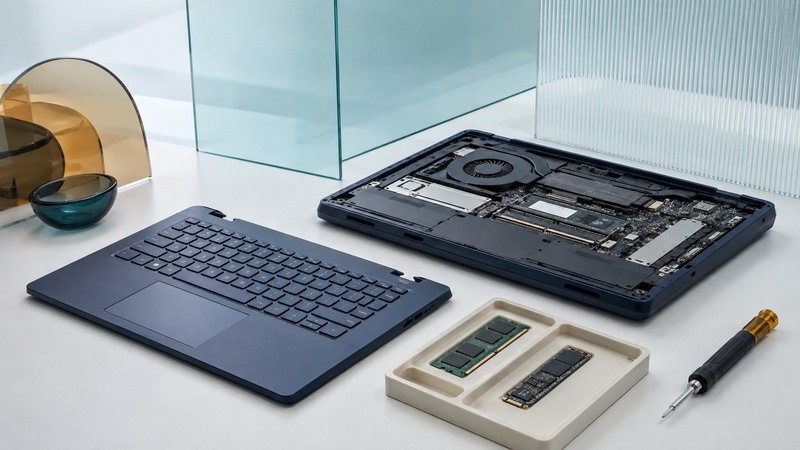
A modular PC is useful when you can replace a failed part or improve a capability while keeping the rest of the computer. Evaluate that promise one component at a time: what can be removed, which replacements fit, how the work is documented, and whether parts and software support are available.
For a buyer, the outcome is a credible repair and upgrade plan. For an owner, it is a decision about the next change worth making. Start with the exact model and revision, its service manual, your present workload, and an inventory of installed components.
Understand what “modular” describes
The 2005 Modular PC covered at this URL placed computing components in a cartridge intended to move among different shells. It illustrates one kind of modularity: moving a computing core between interfaces. A current purchase needs its own compatibility and support evidence; an old interchangeable-shell concept does not establish that today's products share a standard.
On a narrow screen, scroll the table sideways. Keyboard: focus the table and use the arrow keys.
| Arrangement | What changes | Main dependency |
|---|---|---|
| Docked laptop | External displays, ports, storage, and input devices | Laptop output capabilities, dock support, power, and cables |
| Serviceable laptop | Documented internal parts such as battery, storage, keyboard, or display | Exact replacement part, service procedure, firmware, and chassis revision |
| Standard-component desktop | Components fitting supported mechanical and electrical interfaces | Case clearance, board support, power capacity, cooling, and software |
| Proprietary module system | A vendor-defined board or cartridge | Continuing availability of compatible modules and host enclosures |
Docking can simplify a workspace while leaving the internal computer unchanged. A replaceable part can restore function without adding performance. An upgrade adds capability only when the application benefits from the change. Keep these outcomes distinct when comparing a product description with your needs.
Build a component evidence sheet
For the battery, storage, memory, cooling assembly, keyboard, ports, screen, and mainboard, record: installed part number, whether it is removable, replacement identifier, relevant manual, current availability, and any required companion parts. Mark unknowns explicitly so they become questions for the supplier.
The manufacturer's Framework Laptop 13 and 13 Pro compatibility page is an example of the detail needed. It distinguishes upgrade and migration paths and lists component-level exceptions. Treat compatibility as a documented relationship between specific parts rather than a general property of a brand.
Framework also publishes mainboard and module documentation. Documentation availability helps you evaluate integration and repair options; the existence of a drawing or connector pinout alone does not establish a supported replacement combination.
For desktop storage, identify the interface and physical format together. An M.2-shaped module can still differ in protocol, length, keying, and supported use. For a display replacement, check connector, mounting, electrical requirements, and firmware support. Photographs and approximate dimensions are useful screening information, followed by the compatibility list or service manual.
Find the actual limitation before buying parts
Run a representative task and observe what becomes constrained. If memory fills and the system spends time paging, more supported memory may help. If a storage device is full, a larger compatible drive addresses capacity. If a task is compute-bound, replacing storage may leave its runtime almost unchanged.
Write down the result you want: “open this project without closing my other applications” or “hold the next two years of photographs with working space left.” Measure the same task before and after the change. Include background applications and the normal power mode so the comparison reflects use.
Sometimes maintenance is the right next step. A worn battery, a damaged keyboard, or a failing fan can make an otherwise adequate computer unpleasant. Restoring that function has value even when benchmark scores stay the same.
Compare the whole upgrade cost
Worked example — fictional quotes in US dollars: A mainboard upgrade is quoted at $450, compatible memory at $90, a required wireless module at $30, and installation at $100. The immediate total is $670, before tax or shipping. A replacement computer is quoted at $950, making the initial difference $280.
Now examine what each option includes. If the existing screen and battery remain suitable, retaining them may be attractive. If both also require replacement, add those costs. Compare warranty, downtime, software migration, and the support horizon. These illustrative prices are arithmetic inputs, not current market quotations or a promise of savings.
Include what happens to replaced parts. A working module may be reusable in a documented enclosure or useful as a spare. Keep a known-good component until the replacement passes its checks; a speculative resale estimate should remain separate from money actually recovered.
Make a controlled change and verify it
Use the exact manufacturer's service procedure for opening, disconnecting power, battery handling, electrostatic precautions, connectors, and reassembly. Generic instructions cannot substitute for the design-specific sequence. If the manual directs a trained service provider to perform the work, use that route.
Before servicing, back up your files and confirm access to disk-encryption recovery information. A mainboard or security-component change can affect how a system recognizes its encrypted storage. Follow the OS and vendor's current preparation steps; preserve security controls after the change.
After reassembly, confirm the firmware recognizes the new component, install the supported drivers, and run the original workload. Check charging, sleep and wake, external ports, wireless connections, display behavior, and any feature touched during service. Record versions and results so a later problem can be associated with a specific change.
Decide whether the design fits your ownership plan
A good modularity claim leaves you with a short list of supported replacements and a feasible way to obtain and install them. If the supplier offers only broad promises, ask for one concrete repair scenario and one concrete upgrade scenario for the exact model. Keep the evidence with your purchase record.
Revisit parts availability and software support before a major repair. The useful life of the whole system depends on the components you retain as well as the one you replace.