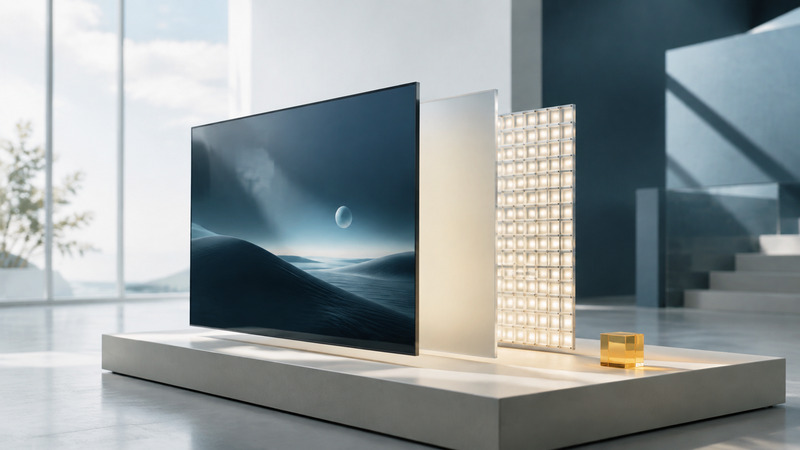
An LCD television uses a backlight and a liquid-crystal panel to form its picture. Labels such as LED, QLED and Mini LED describe parts of that system, not a complete ranking of picture quality. Choose by the room, seating and programs you use, then check how a particular model handles light, dark scenes and motion.
Separate the panel from the light source
An LCD panel modulates light rather than generating the whole image's light itself. Modern LED-backlit LCD televisions use LEDs behind or around the panel. OLED is a different architecture, with light-emitting pixels. Quantum-dot color technology and smaller backlight LEDs can be combined in one LCD product.
Swipe the table sideways, or focus it and use the arrow keys.
| Label | Useful meaning | Still check |
|---|---|---|
| LED TV | Usually an LCD television with LED backlighting. | Backlight arrangement, panel behavior and processing. |
| QLED | Commonly an LED-backlit LCD using quantum dots for color. | Local dimming, brightness, reflections and actual model specifications. |
| Mini LED | Smaller backlight LEDs, often arranged into controlled dimming zones. | Zone layout, control quality and performance with real moving content. |
| OLED | A self-emissive pixel architecture rather than an LCD backlight. | Brightness behavior, reflections, intended use and model-specific care. |
| 4K or UHD | A resolution class; consumer UHD commonly has 3,840 × 2,160 pixels. | Source quality, HDR capability and supported input modes. |
Samsung's Mini LED and OLED explanation describes the backlit versus self-emissive distinction. Read performance claims in the context of the specific models. A technology family does not guarantee that its least expensive member outperforms a well-executed alternative.
Do not confuse Mini LED backlighting with a direct-view display made from self-emitting microscopic LEDs. Similarly, the word “quantum” in a product name does not by itself reveal every layer of the display. Use the model's technical specification rather than treating branding as a schematic.
Local dimming is a control problem as well as a hardware feature
Local dimming changes illumination in portions of the backlight. It can darken one area while keeping another bright, but a zone generally covers many image pixels. Bright subtitles or a small light against a dark background can reveal a halo, often called blooming. Turning dimming down may reduce a visible transition while raising the black level; there is not always one setting that improves every scene.
Backlight placement also matters. Edge-lit and full-array designs distribute their LEDs differently. Sony's explanation of its backlight arrangements illustrates these differences, though its named implementations are model-specific. Do not compare a vendor's zone count or “dynamic contrast” number as if it were a standardized application result.
Look at transitions, not only still frames: a star field during a camera move, subtitles appearing over a dim scene, or a bright object crossing a dark background. Notice whether small highlights disappear, brightness pumps, or neighboring areas brighten. The goal is to judge the compromise you can see from your own seat.
The room can change the preferred display
Measure viewing distance and note window and lamp positions. A bright screen can help with ambient light, but a sharp reflection across the main seating position may remain distracting. Compare the actual reflection treatment and placement options instead of assuming a brightness specification solves glare.
Check the picture from the seats people use, including off-center positions. Contrast, color and visible blooming can change with angle. Panel type, optical treatments and backlight design all contribute, so the broad LCD label does not predict every model's behavior.
For an existing television, first try reversible changes: move a lamp, adjust a curtain, use the appropriate home picture mode, or change the ambient-light setting. Record the original values. Sony's LCD backlight-uniformity guidance discusses lighting and settings, but use the instructions for your exact model rather than copying a universal menu recipe.
Keep refresh rate, source frame rate and processing separate
The panel refresh rate describes how often the display can update. A movie's frame rate describes the images in the source. Motion interpolation estimates intermediate images, while other processing changes clarity or brightness during motion. These are different mechanisms; an advertised motion index may not be the panel's native refresh rate.
Test a slow camera pan, a fast sport and a game if those matter to you. Watch for judder, trails and artifacts around moving objects. Compare interpolation both on and off. Smoother motion may look useful for one program and unnatural for another. For games, verify the supported refresh rate at the intended resolution and input, and test the mode designed to reduce delay.
Upscaling fills the display's pixel grid from a lower-resolution source. AI-assisted processing can estimate edges and textures, but it cannot establish what detail was actually present in a missing original image. Excessive sharpening or noise reduction can change faces, film grain or fine patterns. The related content-quality guide helps separate processing from source limitations.
Use the same material for a fair viewing check
Download the viewing checklist (CSV). It is an observation record, not a laboratory rating. Use material you are entitled to play, a comparable picture mode, and similar room lighting. A retailer's vivid demonstration and a dimly configured home screen are not a controlled comparison.
- Check ordinary faces and neutral surfaces for distracting color shifts.
- Play a dark scene with small bright details and subtitles; inspect from the center and side seats.
- Use a slow pan and fast action to compare motion settings.
- Try both a clean high-quality source and a typical lower-quality channel you actually watch.
- Check menus, captions, remote usability and app responsiveness.
- Record tradeoffs and repeat any surprising result before deciding.
Do not infer a defect from a single highly compressed test clip. If an artifact appears in the same place on multiple displays, investigate the source. Conversely, if it follows one display across several good sources, record the conditions and consult the manufacturer's support guidance.
Keep settings tied to the task
Different inputs and SDR/HDR modes can retain separate settings. Check the actual mode before assuming a change applied everywhere. Keep a short record of the working configuration so a reset, new player or firmware change is easier to diagnose.
A television that suits the room still needs compatible sources. Use the receiver selection guide to plan those connections, and the remote-control guide if activities select the wrong input or power state.