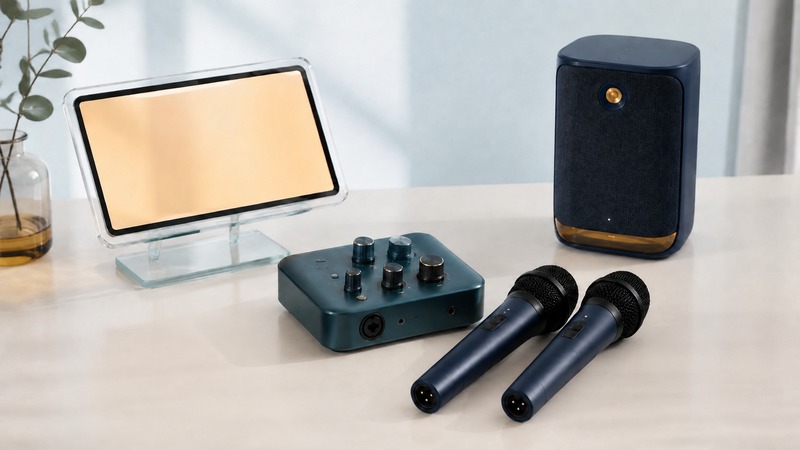
A reliable home karaoke system combines two sounds: the backing track and your live voice. The lyrics need a screen, but the microphone usually needs an audio input and mixer of its own. Plan those paths before buying adapters.
Follow the sound, not the shape of the plug
A microphone input supplies the gain a microphone needs. A line input accepts a stronger signal from a player or other audio device. An output sends sound onward. A socket that happens to accept your adapter may still be the wrong kind of connection. Yamaha's beginner guide to mixer inputs and channels distinguishes microphone, line, mono, and stereo inputs. Count the microphone inputs you need separately from the music input.
A television can show a laptop's lyrics over HDMI while a separate audio connection carries the backing track to a mixer. Set the laptop's output device deliberately: connecting HDMI can redirect the audio to the TV. Keep the TV speakers muted when the mixer is already playing that same backing track, or you may hear an echo between the two systems.
On a small screen, scroll the table sideways to read all columns.
| Setup | Backing music and lyrics | Microphones and speakers |
|---|---|---|
| Laptop and compact mixer | HDMI to the TV for lyrics; a separately selected analog or USB audio output feeds the mixer. | Dynamic microphones into mic inputs; mixer line outputs to compatible powered speakers. |
| Integrated karaoke unit | Use its supported app, track input, and display connection as documented. | Use its supported microphone inputs and built-in speaker, or its documented line output to an external system. |
These are illustrative connection plans, not claims that every product supports every connection. In the laptop example, two wired dynamic microphones occupy two mic channels, the laptop feeds a stereo line channel, and the mixer's main outputs feed powered speakers. The TV is only the lyrics display. A stereo headphone output needs the appropriate stereo-to-two-channel cable or specified stereo input; a random single balanced mono input is not equivalent.
For the all-in-one example, confirm that the machine really mixes live microphones with its music input. Some Bluetooth speakers only play incoming music and have no mic preamp. USB ports may be for charging, file playback, or computer audio; read the manual rather than treating USB as a universal microphone connection. Passive speakers also require a suitable amplifier.
Run a sound check with one singer
- Place the main speakers in front of the singer, facing the listening area. Keep microphones away from their direct output. Leave enough cable slack that the singer can turn without pulling a connector.
- Start with channel and master levels low and vocal effects off. Connect the source and microphones, then follow the equipment's power-up instructions. Make changes at low volume.
- Play the loudest section of a familiar backing track. Establish a comfortable music level without clipping the input or main output.
- Have the singer use a steady, close microphone position and sing a loud phrase. Adjust input gain first, then balance the voice against the music. A quieter backing track often solves a buried vocal better than more microphone gain.
- Add only a little reverb if desired. Test both microphones together, mute the unused one, and check that lyrics remain readable from the singing position.
Shure's guide to controlling microphone feedback explains the loop in which amplified sound re-enters a microphone. Placement, gain, and microphone technique matter. Keep the microphone near the voice, avoid pointing it toward a speaker, and do not cup the grille. If a howl starts, lower the microphone level immediately and correct the placement before restoring volume. An effect preset is not a substitute for this setup.
Fix one problem at a time
The voice arrives late
Temporarily connect the microphone directly to the hardware mixer or karaoke unit and listen through its speaker path. If the delay disappears, the previous route through a computer, Bluetooth link, or television processing was contributing to it. Avoid routing a live vocal through the TV simply because the lyrics are there. A video lip-sync adjustment can align a movie with its soundtrack; it cannot make a delayed live voice arrive before it has been processed.
The voice sounds doubled
Check for two monitoring paths: a direct microphone signal plus a delayed app return, or both TV and external speakers playing the same sound. Turn one path off and repeat the test. Reduce echo effects to zero while diagnosing. The recording guide on making a first music track explains the same monitoring distinction.
Music works but the microphone does not
Check the microphone's switch, receiver power if wireless, channel mute, gain, and correct input selection. Test one known-working cable and one microphone at a time. Do not assume that a Bluetooth connection for music also carries an external microphone back into the app. With a computer microphone, confirm browser permission and the selected input device.
The mix distorts even at modest speaker volume
Look upstream. A player can overload an input before the master volume control. Reduce the source or channel gain, then restore a comfortable final listening level. If only one singer distorts, repeat the gain check with that singer's loudest passage. Keep a note of the settings that worked instead of rebuilding the system during every song.
Choose a singable track and the right permission
Try the chorus before committing to a key. If a song is uncomfortable at the top or bottom of your range, shift it a small amount in an app that supports transposition, then test the whole passage again. Key and tempo are different controls. Large changes can make accompaniment sound unnatural, so another arrangement may work better. AI vocal separation can produce watery backing vocals, missing instruments, and remnants of the lead; listen carefully and do not mistake separation for a license to redistribute the recording.
Private home use, a workplace event, a venue performance, and uploading a recording are different uses. As one concrete example, KaraFun's public-event requirements reserve Premium for private use and explain professional subscriptions, catalog-specific lyric permissions, and public-performance royalties. Check the service's current terms and the rights organization relevant to the event's country. A paid subscription should not be assumed to cover every public use, video upload, or livestream.
Before guests arrive, test the actual display, output device, song version, key, and both microphones. Save a small queue of familiar songs and keep one simple working connection plan available. A dependable evening comes from clear vocals and easy song changes, not the number of effects in the mixer.
Related resources
- Understand recording, export, and music permissions
- Build a focused music practice routine
- Explore all music resources
Researched and updated September 6, 2026. Sources are linked beside the relevant information. Product examples illustrate specific workflows; they are not rankings.