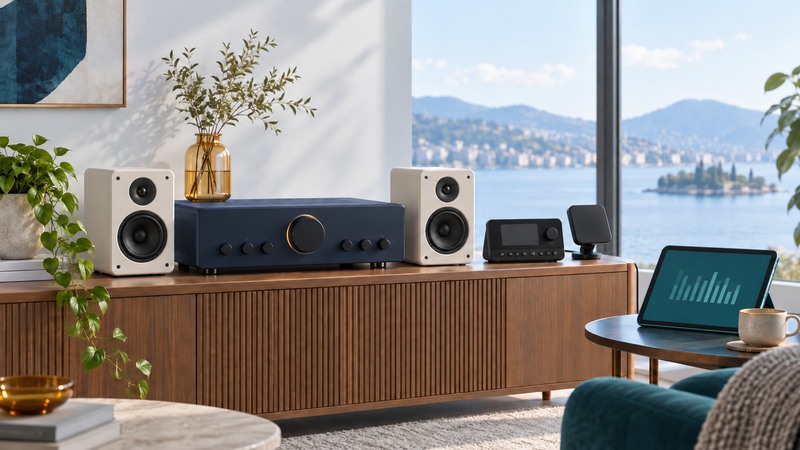
At home, SiriusXM listening can arrive through a satellite receiver and antenna or through an internet-connected app or supported device. Choose the path that works in your room, then confirm the account access and connection to your speakers. A dock intended for home use supplies different supporting hardware from a vehicle kit.
On a narrow screen, swipe a table sideways or focus it and use the arrow keys.
Choose the delivery path for the room
| Question | Satellite receiver and home kit | Internet listening |
|---|---|---|
| What reaches the room? | Satellite signal at a compatible antenna | Internet connection to a supported player |
| What is the key location test? | Antenna position with stable signal | Reliable network at the listening device |
| What account check matters? | Radio ID and eligible satellite service | Streaming access and sign-in |
| What feeds the speakers? | Supported dock/receiver audio output | Supported player, casting or audio output |
| What can interrupt it? | Antenna obstruction or hardware path | Network, app, account or device support |
Use SiriusXM’s supported listening options to check your exact device and service. Confirm the channels and features available on each path. A home audio system with a familiar service logo can still depend on a particular app, account type or accessory.
Streaming often fits an interior room with reliable internet. A satellite kit can suit a room with a useful antenna view and an existing stereo input. A receiver that transfers between car and home may reduce duplicated tuner hardware, while each location still needs its own compatible kit.
Assemble a supported home system
Check the tuner model, home dock, antenna, AC adapter and audio cable as a set. The Onyx EZR home-kit support page illustrates the distinction: it lists a home dock and a stereo cable with a 3.5 mm connector at one end and left/right RCA plugs at the other. Other products can use different connections.
Connect a line-level output to an appropriate AUX, line or other compatible analog input on the stereo. Select that input and begin with low listening volume. Passive speakers require an amplifier; a line output is intended to feed an audio input. Check the stereo manual before using an input labeled PHONO, which is intended for a different signal type.
Record both connector type and signal direction. “AUX in” receives sound; “line out” sends it. A cable can physically join two sockets while connecting two inputs together, yielding silence. If your speaker accepts only a digital or wireless input, establish a supported conversion or streaming route before purchasing parts.
Find a stable antenna position first
Place the antenna according to the receiver’s home-installation guide and observe its signal display. The Onyx EZR home manual (PDF) starts with an unobstructed view near a south-facing window and describes small orientation adjustments. That is guidance for this U.S. kit; use your model’s regional instructions.
- Establish reception and preview-channel audio before arranging the final furniture or cable path.
- Try two practical antenna positions. Note signal indication and audible interruptions at each.
- Make one small orientation change, then allow the indicator to settle before judging it.
- Repeat the listening check with blinds or nearby obstructions in their normal positions.
- Choose supported extension or outdoor accessories only after checking the kit’s requirements and installation guidance.
An antenna location that works briefly may be awkward for everyday use. Include cable length, window use and a safe permanent route in the decision. If the room cannot provide a workable antenna position, test the internet option before buying additional satellite accessories.
Test streaming on equipment you already have
- Check whether your account includes the intended streaming service and use its official sign-in process.
- Play the desired channel on a supported phone, computer or other device over the home network.
- Connect that player to your audio system using a supported wired, Bluetooth or casting route. Test the actual route you plan to use daily.
- Pause and resume, change a channel and check volume controls. Confirm which device controls playback and whether it must remain connected.
A phone can be both player and remote, depending on the listening method. Casting, Bluetooth and a cable create different dependencies. Test what happens when the phone leaves the room or changes networks; that answers the practical question for your particular equipment.
Follow the symptom through the system
- Satellite reception drops: compare antenna position, view and cable connection. Record any antenna-error message.
- Streaming buffers: try the same official stream on another supported device on the same network, then compare another connection if available.
- One channel is missing: verify its availability on that platform and account.
- Audio distorts: check input selection and output-level guidance before changing antennas or network settings.
Keep the model numbers, successful input selection and working antenna or network arrangement in the setup checklist. For reused equipment, identify the legacy XM tuner and confirm service eligibility before spending on a home dock.